

What this function covers
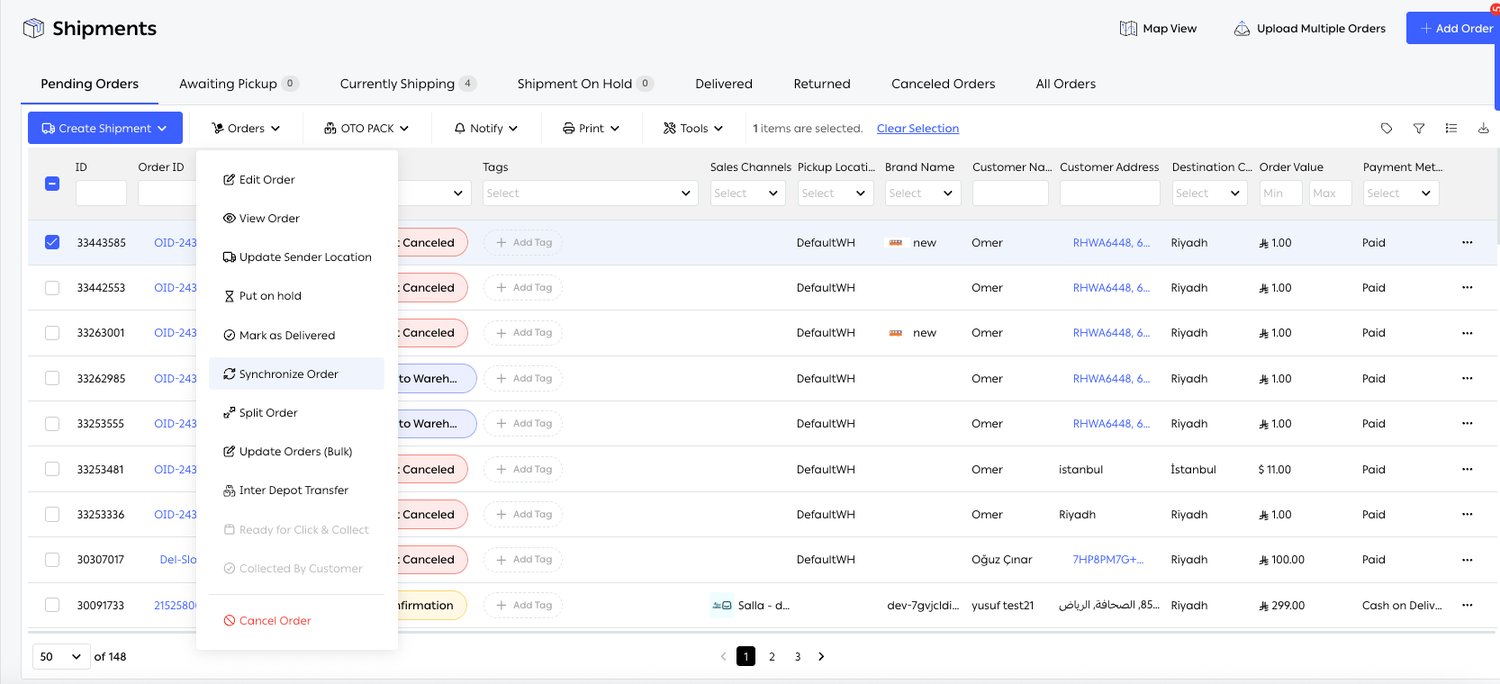
Fig. 1 — Most of this page lives in one menu: Split Order, Update Orders (Bulk), Inter Depot Transfer, Ready for Click & Collect, Collected By Customer and Cancel Order. The greyed-out entries activate only for orders that qualify.
Working an order
Store fulfillment app for iOS and Android
Stores fulfilling orders do not need a desk. The mobile app carries the store-side fulfillment flow — scanning and packing included — so a shop assistant can work an order from the floor with a phone. This is what makes ship-from-store realistic rather than theoretical: if fulfilling an online order means walking to a back-office PC, stores quietly stop doing it.Multi-brand and multi-seller fulfillment
One OTO account can run several brands. A brand is created at Settings → Account → Brands with a Brand Name, an optional Logo, a Default Warehouse, and the sales channels it sells through. That association does real work downstream: it gives routing a default location per brand, it lets Order routing filter on If order and location Brand are the same, and it drives which logo appears on customer-facing documents and pages. A brand also carries its own customer-facing surfaces. The Shipping Portal section holds a Portal URL underportal.tryoto.com/shipping and a Return Policy URL, so each brand can present its own portal and its own policy rather than sharing one. Use as Default Brand nominates which brand applies to orders that arrive without one.
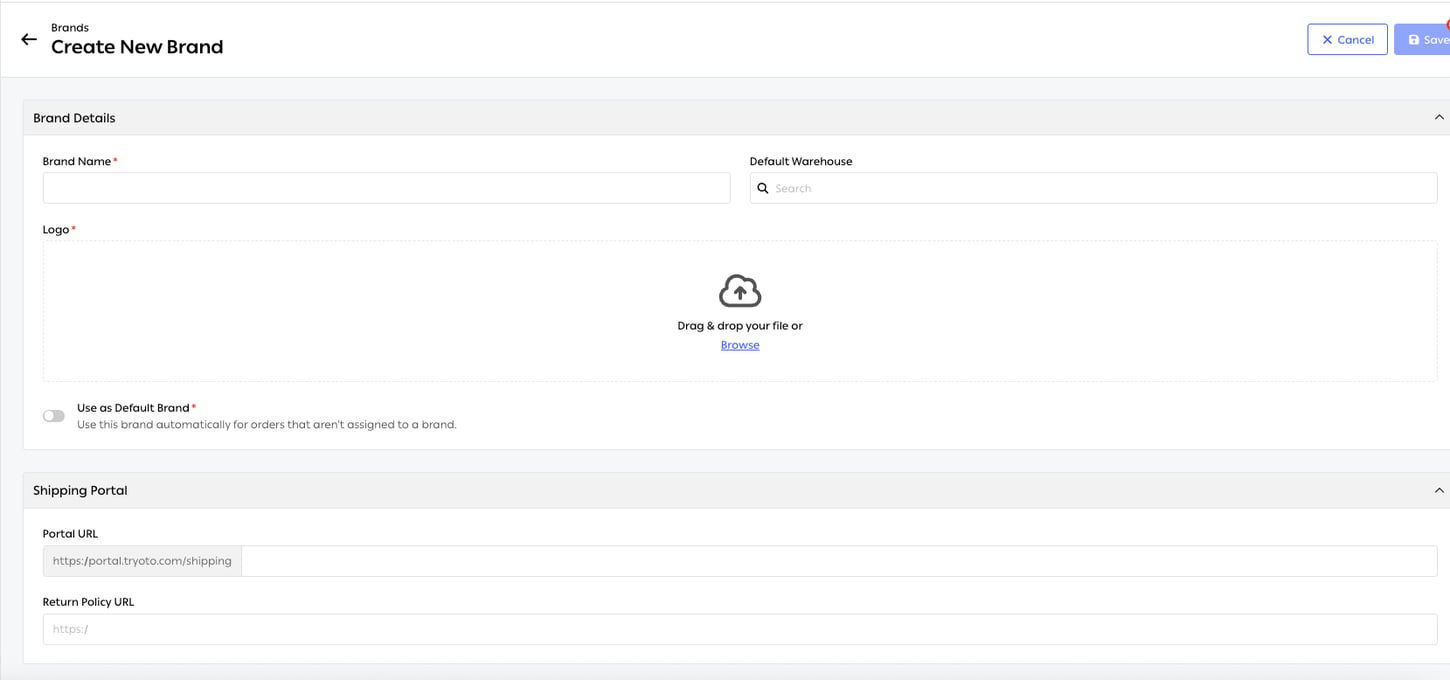
Fig. 2 — Brand Name and Logo are both required — the logo is not optional, because it appears on documents and portals. Default Warehouse gives routing a fallback location, and the Shipping Portal block gives the brand its own portal and return policy addresses.
Use brand name as sender on AWBs
By default an air waybill shows the warehouse or branch as sender. The Use Brand Name as Sender on AWBs toggle, under Settings → Advanced → Autocorrector, replaces that with the brand. For a multi-brand operation shipping from shared warehouses, this is the difference between a customer receiving a parcel from a company they have heard of and one from a logistics site they have not.Serial number capture
Serial numbers can be recorded against items as they are fulfilled, tying a specific physical unit to a specific order. For electronics, appliances and anything with a warranty, that record is what makes a later warranty claim or a counterfeit dispute resolvable.Gift notes and special instructions
Gift notes and any other special requirement travel with the order and appear on the packing screens, so whoever packs the box sees them at the moment they matter rather than in a field nobody opens.Bulk order updates
Update Orders (Bulk) applies the same change across a selection of orders at once — the alternative to opening thirty orders to make the same edit thirty times. Useful after a channel import lands with a wrong field, or when a batch needs reassigning.Printing
Picking, packing and document printing
Picking lists, packing lists, order details and custom documents can all be printed from the Shipments list, for a single order or in bulk. The Print menu holds the document types; selection drives what gets printed.Bulk label printing in one PDF
Select many orders across several carriers and OTO returns one PDF containing every air waybill. This sounds mundane and is not: the alternative is printing carrier by carrier, and a packing bench that has to collate labels from four separate print jobs makes mistakes.Custom invoice templates
Print templates are configured at Settings → Management → Printing Templates. There are three kinds — Invoice print template, Label print template and Shipping label template — and each can be adjusted for page size, font size and weight, language, which parameters appear, and barcode dimensions. Change template previews and selects, Edit Settings opens the options, Reset settings reverts. Changes apply to existing and new orders alike.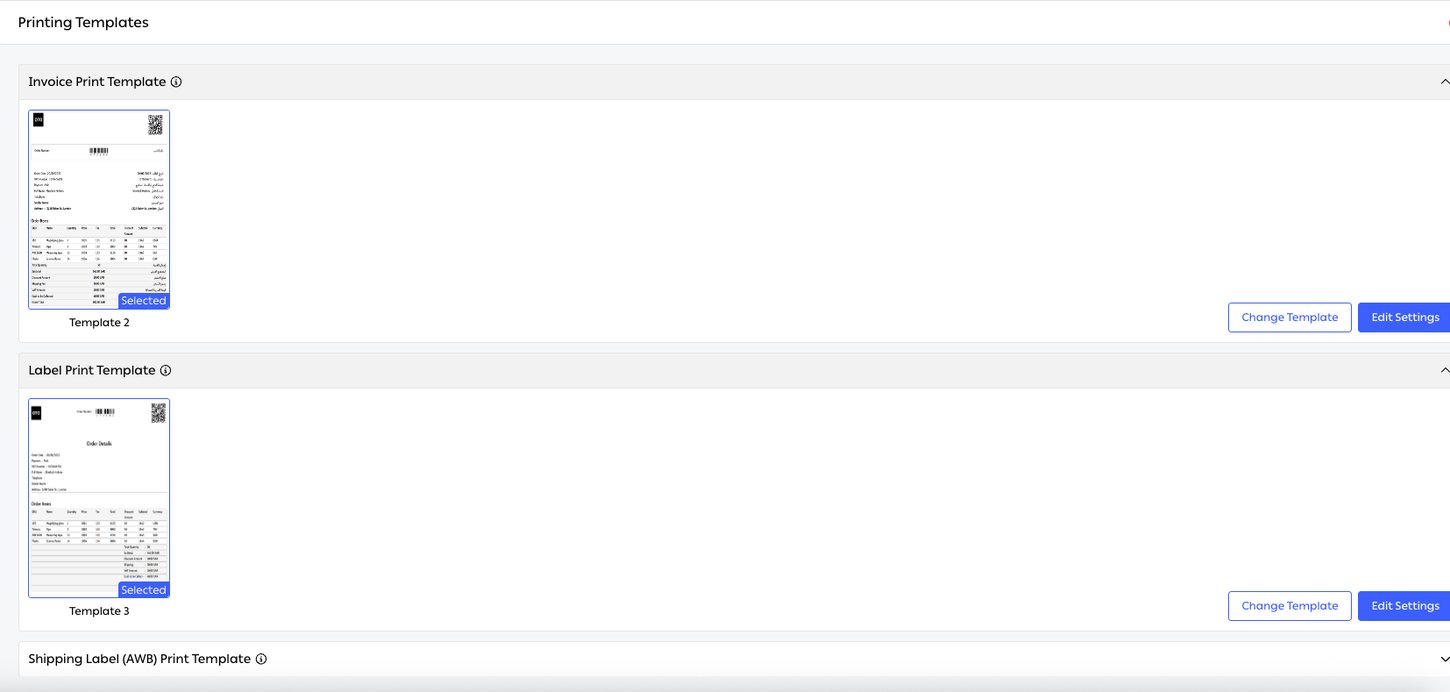
Fig. 3 — Three template types, each with the currently Selected design shown as a thumbnail: Invoice Print Template, Label Print Template and Shipping Label (AWB) Print Template. Change Template swaps the design; Edit Settings tunes the one in use.
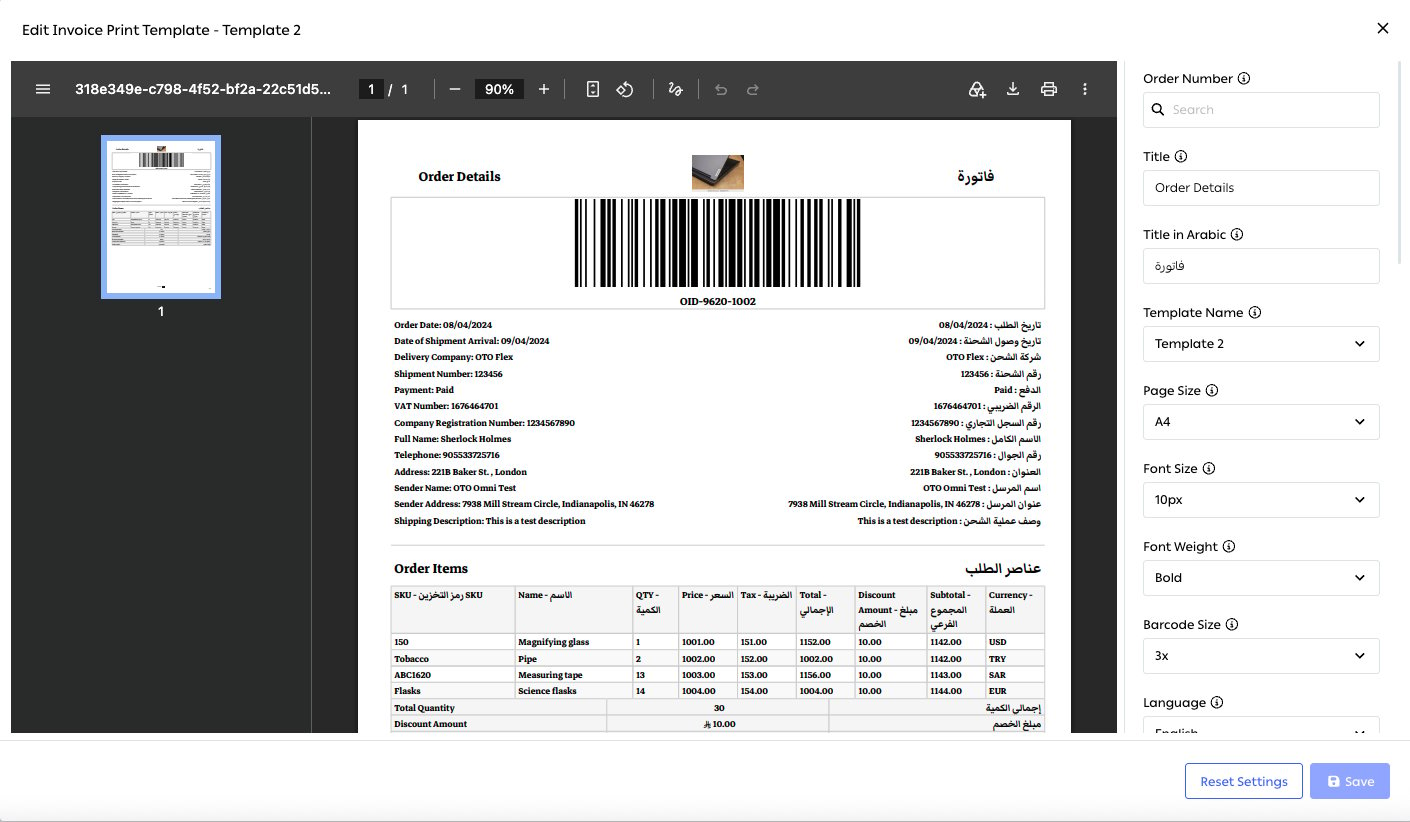
Fig. 4 — The controls set Title and Title in Arabic, page size, font size and weight, barcode size and language. The preview shows the result: a bilingual invoice with the order barcode, sender and receiver details, and an items table carrying SKU, quantity, tax, discount and per-line currency.
Print status tracking
OTO records whether an order’s air waybill and details have been printed. On a busy bench that answer prevents the two failure modes that cost the most: a parcel that ships without a label, and a label printed twice and stuck on two boxes.Splitting and consolidating
Repeat order splitting
Select an order on Shipments → Pending Orders, then Orders → Split Order. Each split produces two orders, suffixed-1 and -2 from the original. Enter how many of each line move to the new order in the New Order Qty column; quantities and totals for both orders recalculate automatically unless you override them. An order can be split again afterwards, so more than two parts is a matter of repeating the operation.
Split when stock sits in different places, when part of an order is ready now and the rest next week, or when one line needs a different carrier from the others.
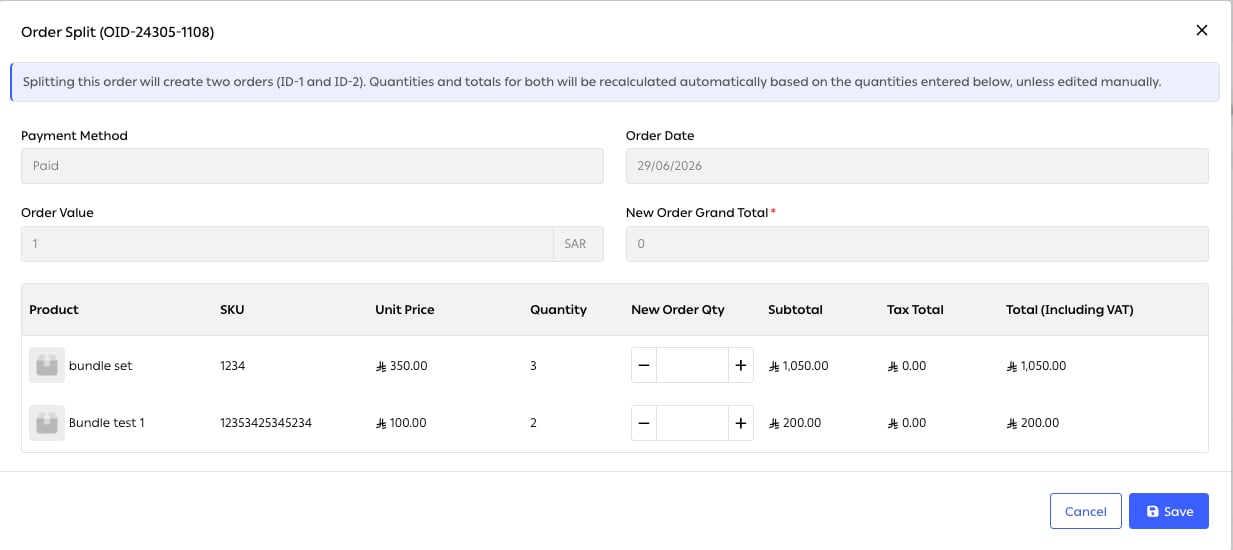
Fig. 5 — Per line: unit price, current quantity, and the quantity to move. Subtotal, tax and VAT-inclusive totals update as you type, and New Order Grand Total can be set directly when the arithmetic needs to land on a specific figure.
Automatic routing of split orders
Each part created by a split is routed independently. It passes back through the rules in Order OTOmation and is assigned a location on its own merits, so a split driven by stock availability resolves itself — each part is sent from wherever its items are held.Merging split orders
A split cannot currently be undone. Once saved, it creates new orders that are not merged back automatically. If an order is split in error, cancel both parts and create a replacement order.Bulk transfer to a hub
Inter Depot Transfer consolidates many orders into a single movement to another hub, carried either by a shipping partner or by your own fleet. Instead of fifty individual shipments crossing the same distance, one does. This is the economics of hub-and-spoke: the long leg is paid for once, and the expensive short legs happen at the far end where they are short.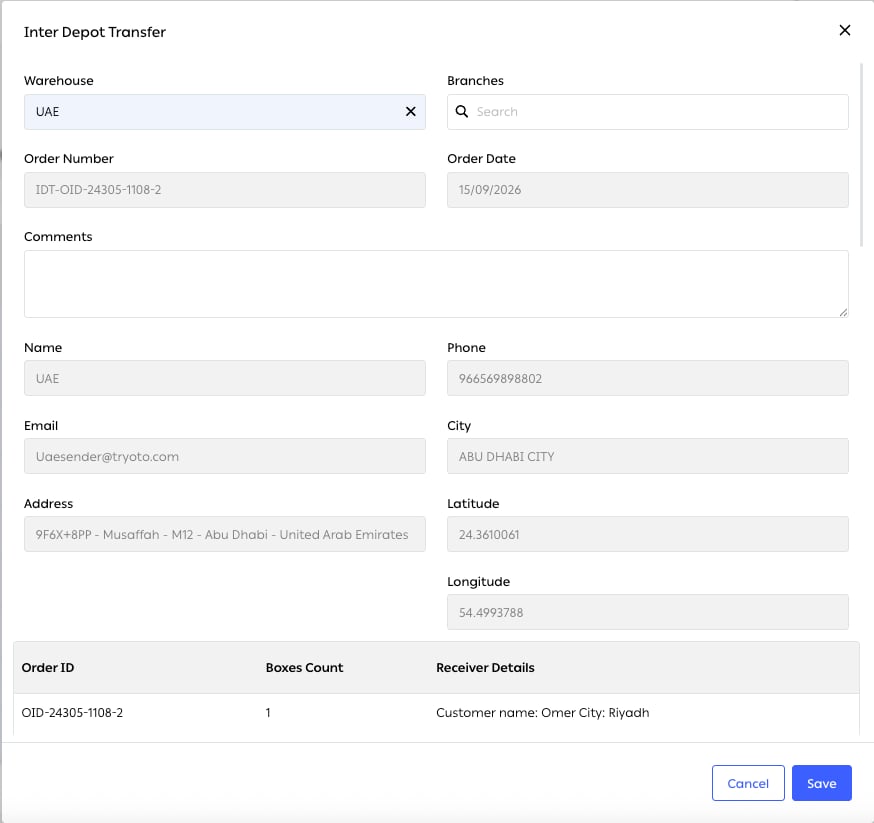
Fig. 6 — Choose the destination warehouse or branch and OTO builds a transfer order, numbered with an IDT- prefix over the source order. The destination's address and coordinates are filled from its record, and the table at the foot lists every order travelling in the consignment with its box count and receiver.
Automatic de-consolidation at the hub
When the consolidated shipment arrives, OTO breaks it back into its constituent orders automatically and ships each one to its own customer. Nobody re-keys fifty orders at the receiving hub — the bulk movement dissolves back into individual deliveries on arrival. Together with the transfer above, this is the whole point: consolidation is only worth doing if de-consolidation is free.Delivery choices
Delivery slot configuration
Slots are configured per shipping partner, at Integrations → Shipping Partners → Connected → ⋯ → Delivery Slot Configuration, with Add Delivery Slot. A slot definition takes the warehouse or branch it applies to, Pickup Days of Week or a specific Date, start and end times, Duration of Slots (mins), a Cut-Off Time in minutes before the slot starts, and a Capacity.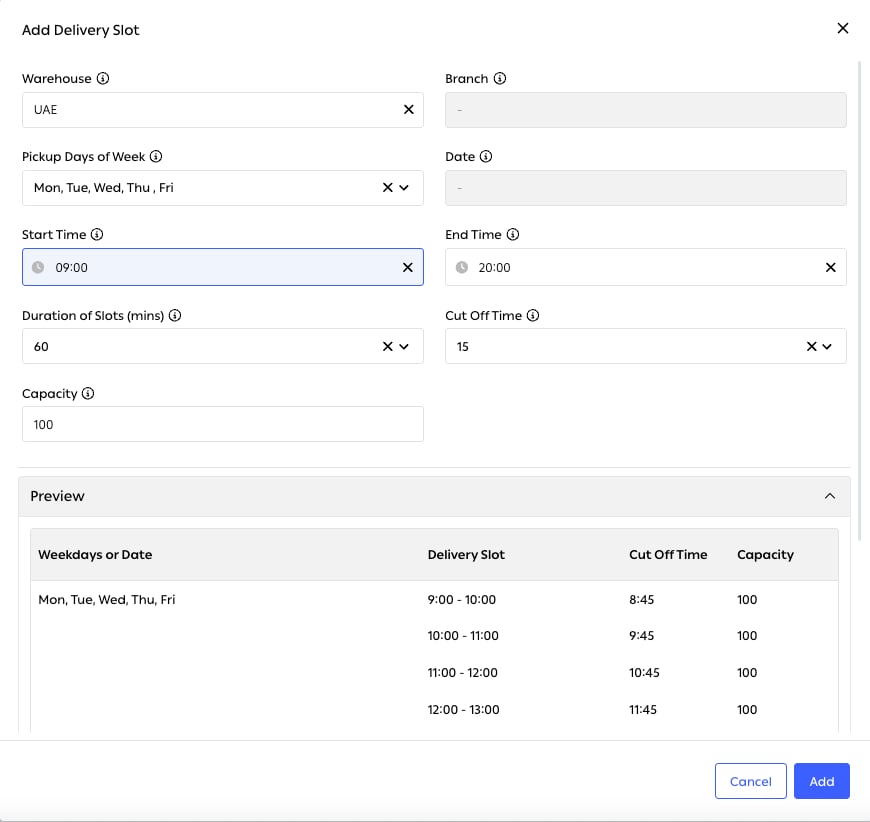
Fig. 7 — You describe the window once — 09:00 to 20:00, Monday to Friday, 60-minute slots, 15-minute cut-off, capacity 100 — and the Preview expands it into the individual slots a customer will see, each with its own cut-off time. Checking the expansion before saving is the point: an hour out on the cut-off is invisible in the form and obvious in the preview.
Scheduled carrier assignment
Orders can be assigned to a carrier according to the scheduled time rather than on arrival — so a shipment is created when it makes operational sense, not the instant the order lands. This pairs with the Schedule shipment creation toggle in the routing rule builder.Ship from store with Bullet delivery
Ship-from-store turns branches into fulfillment points, cutting both distance and time to the customer. Bullet refers to on-demand delivery — within a few hours rather than next day. OTO does not carry the parcel; it selects and books the service, whether that is a Bullet offering from an integrated carrier or your own drivers through OTO FLEX. The combination is what makes it work commercially. On-demand economics depend on the parcel starting close to the customer, and a store network is the cheapest way to be close. Routing’s If origin city and destination city is same filter is how you keep those orders local.Click and collect with a confirmation code
The customer chooses Pickup from Store at checkout and the order is assigned to that store automatically. Staff mark it Ready for Click & Collect; the order’s status becomes Ready For Collection and an SMS goes to the customer carrying the branch location and a one-time code. At handover, staff choose Collected By Customer from the Orders menu. The form asks for three things: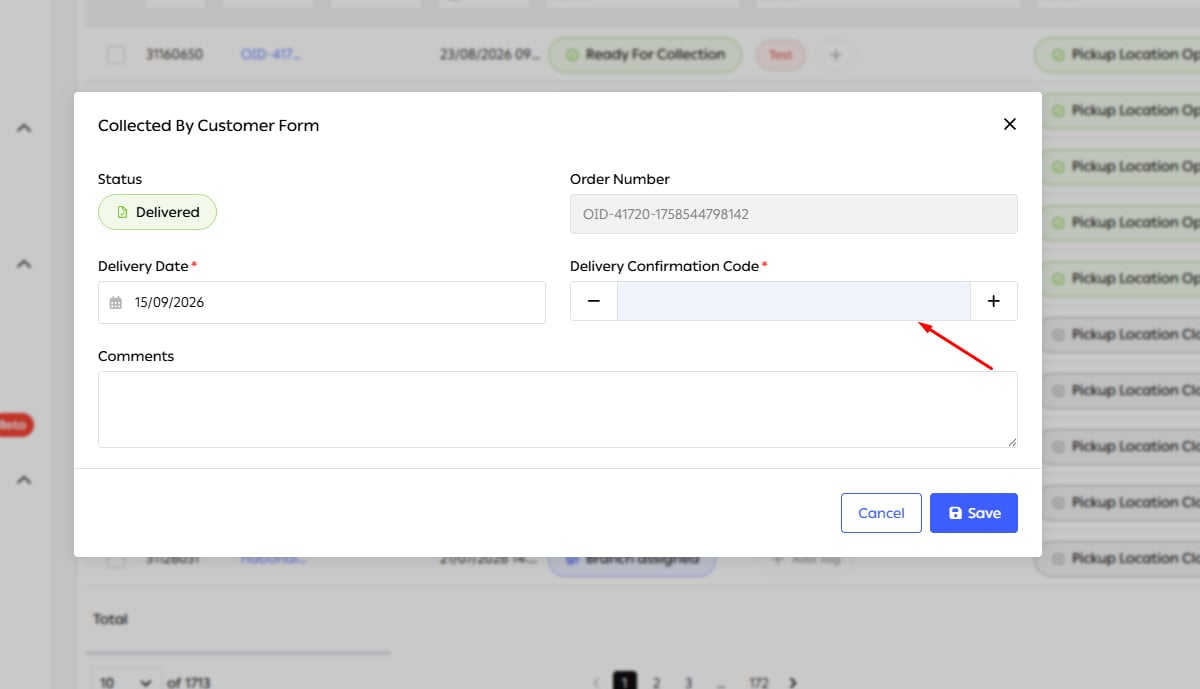
Fig. 8 — The product calls it a Delivery Confirmation Code. It is required, so the form will not save without it.
Exceptions
Custom hold reasons
Reasons are your own vocabulary, not a fixed list. At Settings → Advanced → Reason Settings, Add Reason Config takes a Reason Type — on hold, cancel, not available, undelivered attempt — a Language, and the reason text itself. Because reasons are structured and multilingual, the same taxonomy drives the hold queue in Pre-fulfillment checks, cancellation records, and failed-delivery reporting — in whichever language the reader needs. Only admin or manager-level users can change them.Cancellation with channel refund
Cancel Order ends the order in OTO and reports it back to the sales channel, with a full or partial refund. The refund flows to the platform the customer bought on, which is the only place they will look for it. A cancellation that stops at OTO’s boundary leaves the storefront showing an order that no longer exists — and a customer who has not been refunded.Limits and prerequisites
Related
- Order routing — decides the location, and re-routes every split part.
- Pre-fulfillment checks — the holds and tags an order arrives here carrying.
- Warehouse Management — the picking and packing operation behind these screens.
- Carrier integration — where delivery slots and carrier accounts are configured.
- Customer Notification — the click-and-collect OTP and other messages.
- Hubs Management — consolidation between hubs in depth.