

Where it sits
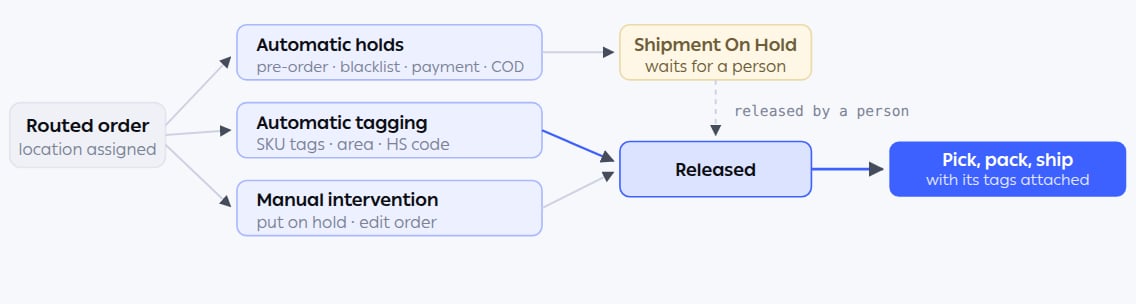
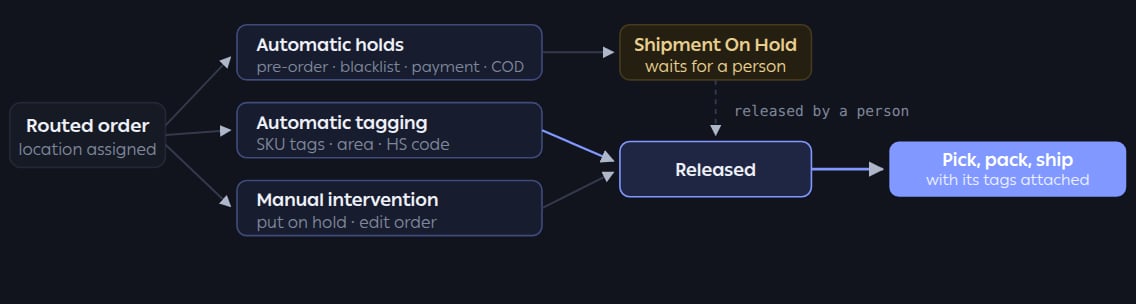
Holds divert an order out of the flow; tags travel with it. Both happen after routing, so a held order already knows where it was going when someone releases it.
Automatic holds
Four checks run on arrival and park an order rather than letting it proceed. All four are switched on under Settings → Advanced → Autocorrector.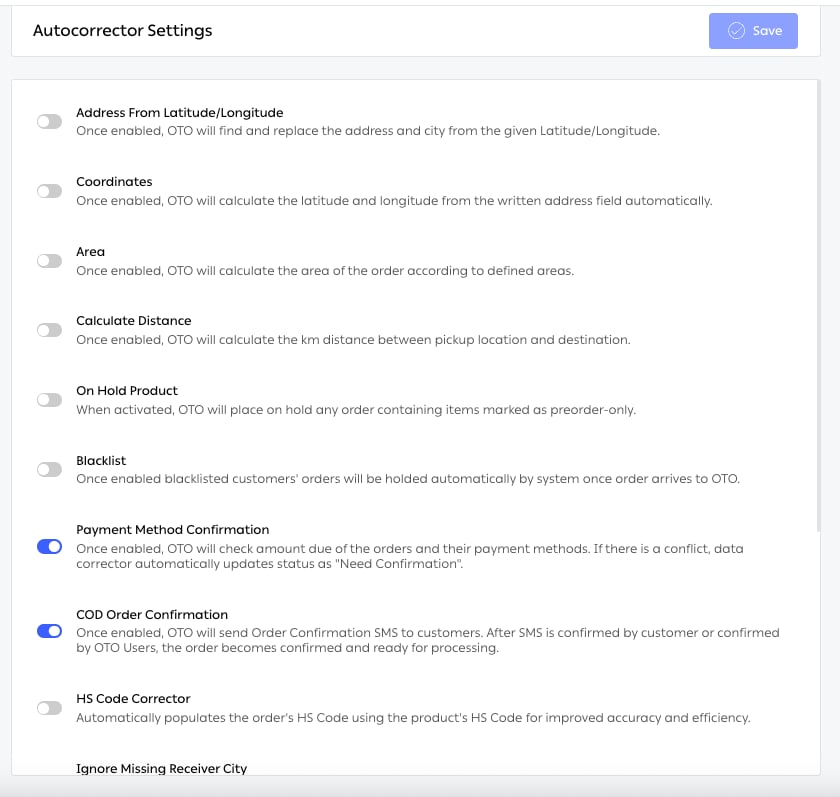
Fig. 1 — On Hold Product and Blacklist sit here, alongside the data-correction toggles documented under Address and data correction.
Holds for pre-order SKUs
The On Hold Product toggle. Any order containing an item marked as pre-order-only is held automatically the moment it arrives, so a line you cannot yet ship never reaches a picker. The marking lives on the product record, not the order — see Product configuration. That means one flag on one SKU protects every order containing it, retrospectively and going forward.Blacklisted customer screening
The Blacklist toggle holds orders from customers you have listed, on arrival, before anything is picked or paid for. Customers are identified by Customer Name and Phone Number with country code. Manage the list at Settings → Advanced → Blacklisted Customers. Add Blacklisted Customer takes the name and number; removing someone from the list restores normal processing for their future orders. The list also shows a Blocked Order Count per customer — useful both for judging whether an entry is still earning its place, and for quantifying what serial refusers were costing you.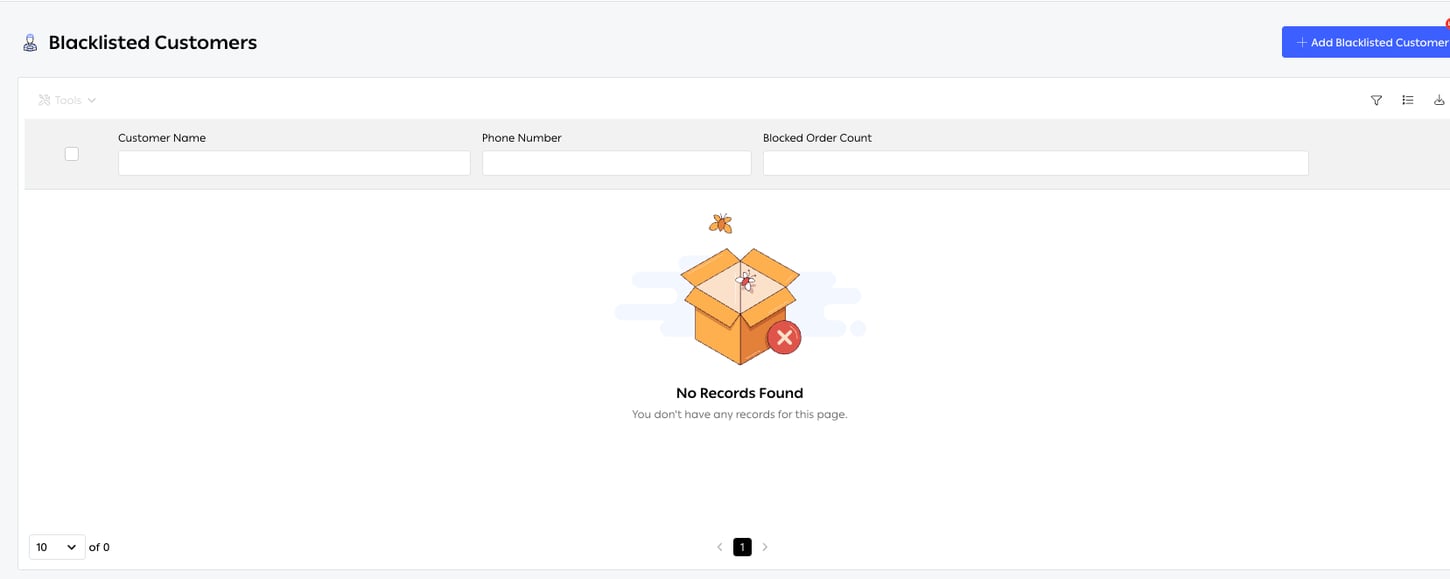
Fig. 2 — All three columns are filterable, so on a long list you can search by name or number, or sort by how many orders an entry has actually blocked.
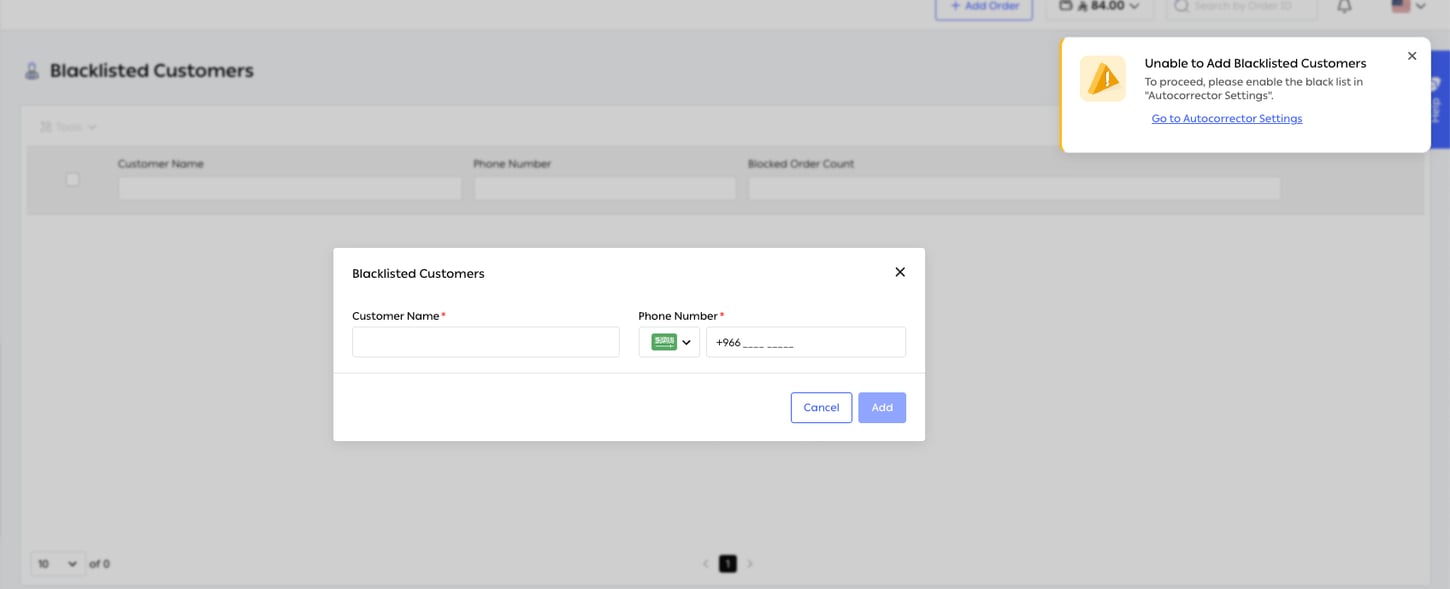
Fig. 3 — The form takes only a name and a phone number. The notice on the right is the product refusing the entry: “To proceed, please enable the black list in Autocorrector Settings”, with a link straight to it.
Payment method confirmation
The Payment Method Confirmation toggle compares an order’s amount due against its payment method. Where those conflict — an order marked paid that still carries a balance, or a COD order with nothing to collect — the order is moved to Need Confirmation rather than shipped on bad financial data. This is the check that stops a driver collecting cash that was already paid, or handing over goods without collecting at all.COD order confirmation
Cash on delivery is where fake and impulse orders concentrate, and where a failed delivery costs the most. The COD Order Confirmation toggle sends the customer a confirmation SMS and holds the order until it is confirmed — either by the customer replying, or by one of your own users confirming on their behalf. Order Confirmation SMS Delay Time (minutes) sets how long OTO waits before sending. Zero sends immediately; a few minutes’ delay gives a customer who ordered by mistake time to cancel before you have spent an SMS on them.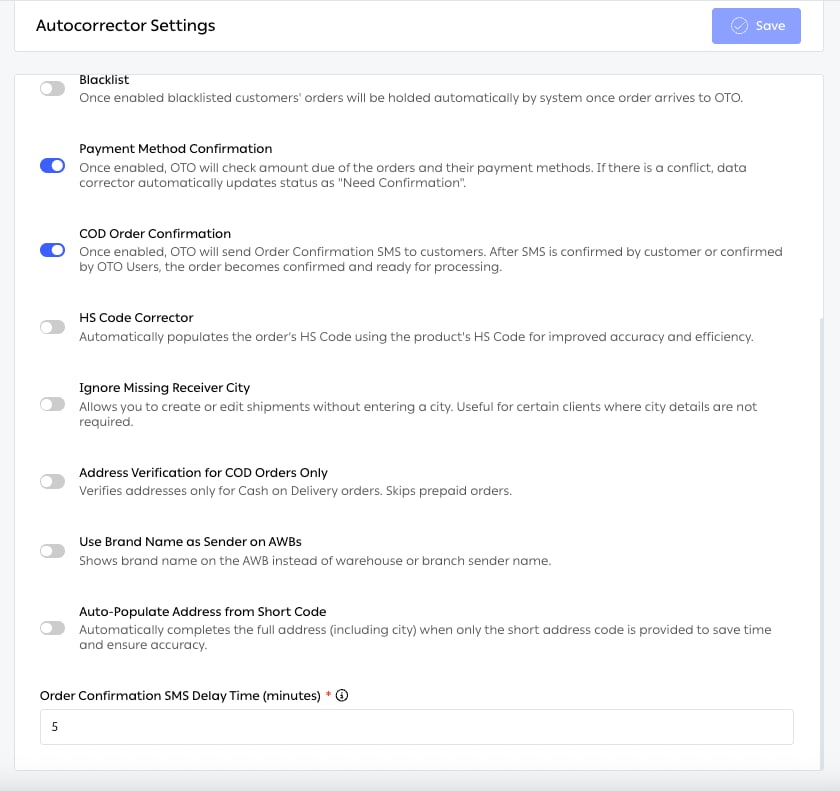
Fig. 4 — Payment Method Confirmation and COD Order Confirmation, with the SMS delay field beneath. The delay applies only to the COD confirmation message.
Automatic tagging
Tags don’t stop an order. They attach information that later steps — warehouse, carrier selection, fleet assignment — read and act on.SKU-based order tagging
Orders can be labelled automatically according to the SKUs they contain, so a warehouse knows at a glance that an order holds something fragile, hazardous, oversized or gift-wrapped without opening it. Because tagging is driven by SKU rather than by rule-writing on each order, adding a product to a category tags every order that contains it from then on. Tags are visible as a column on the Shipments list and can be filtered on.Delivery-area tagging
The Area toggle stamps each order with the delivery area its address falls inside. Areas are polygons you draw on a map at Settings → Advanced → Areas, under the Area Settings tab. An area carries more than a shape. Add Area takes an Area Name, country and city, a Capacity — the number of shipments a driver will deliver there daily — a Priority that resolves which area wins when polygons overlap, and a list of OTO Flex Drivers who serve it. You pick the city on the form, draw the region on the map, and the coordinates are filled in on save.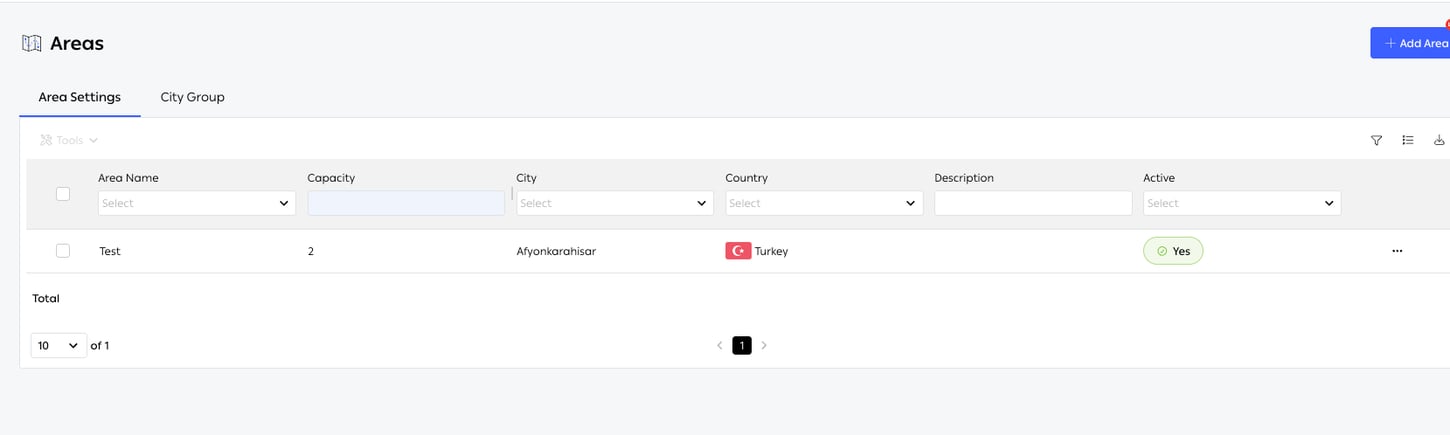
Fig. 5 — Each area carries a capacity and an active flag, so a zone can be switched off — during a closure, or while a driver is unavailable — without deleting it and losing the polygon.
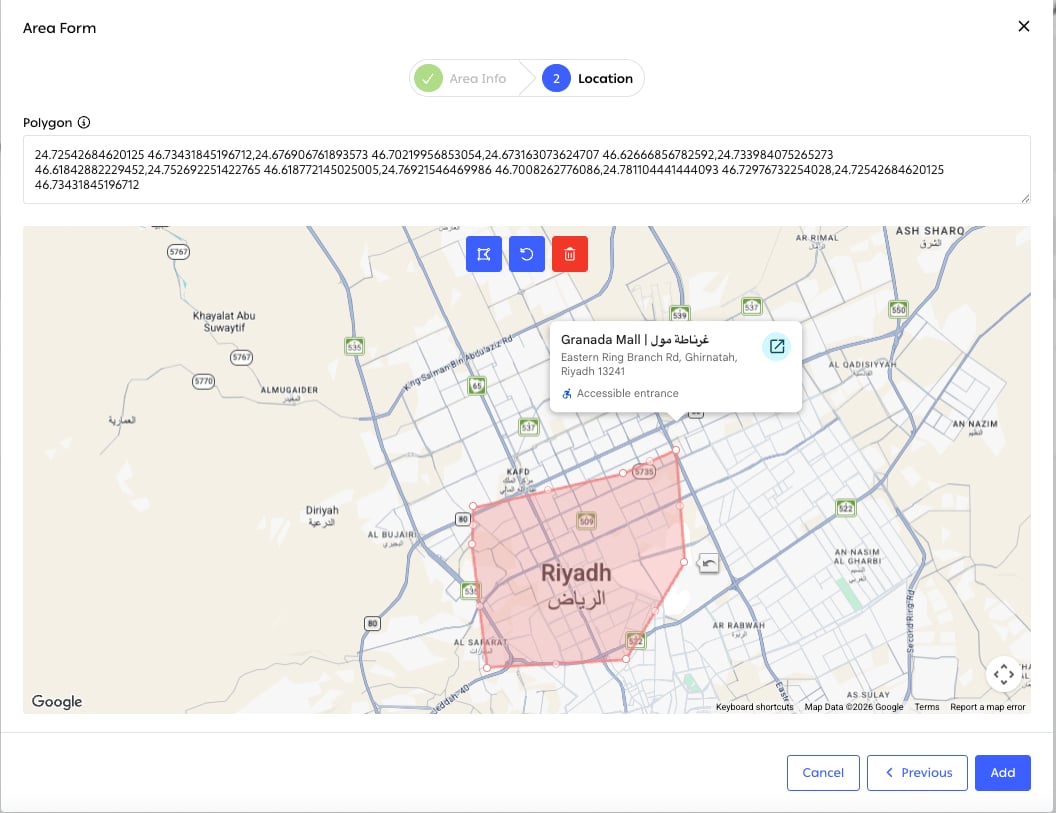
Fig. 6 — The form runs Area Info then Location. Draw the shape on the map and the Polygon field fills with its coordinates; the field is editable text, so a polygon defined elsewhere can be pasted in rather than traced by hand.
HS code correction
The HS Code Corrector toggle fills an order’s HS code from the product record, so cross-border shipments carry correct customs codes without anyone retyping them per order. Like pre-order marking, the source of truth is the product — see Product configuration. A missing or wrong HS code is one of the most common causes of a customs hold, and it is invisible until the shipment has already left the country.Manual intervention
Holds for orders needing pre-processing
Some orders need work before fulfillment that no rule can detect — engraving, tuning, a bundle to assemble, a customer conversation to finish. Select the order on Shipments → Pending Orders, choose Orders → Put on hold, add a note explaining why, and confirm. The dialog requires an On Hold Reason chosen from a list, and takes free-text Comments alongside it. The reason is what makes holds reportable later — a note alone would not be. Reasons are your own: maintain them under Settings → Advanced → Reason Settings. There is no time limit. An order stays on hold until someone resumes it.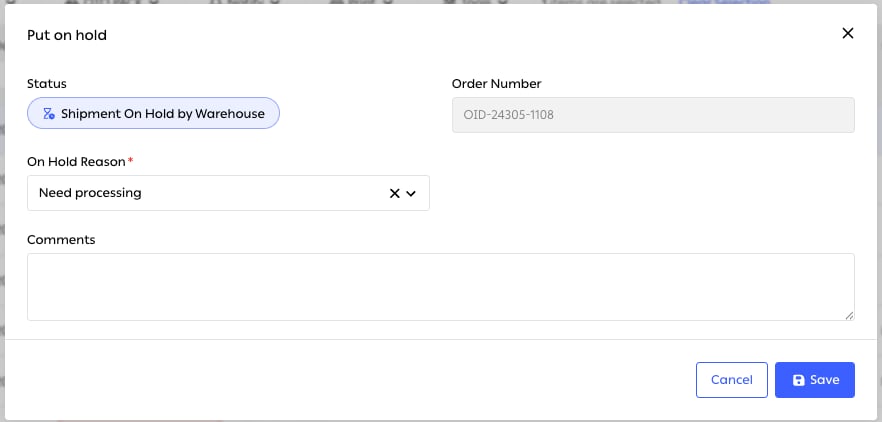
Fig. 8 — Status is set for you — here Shipment On Hold by Warehouse, which records who held it. On Hold Reason is required; Comments is where the specifics go.
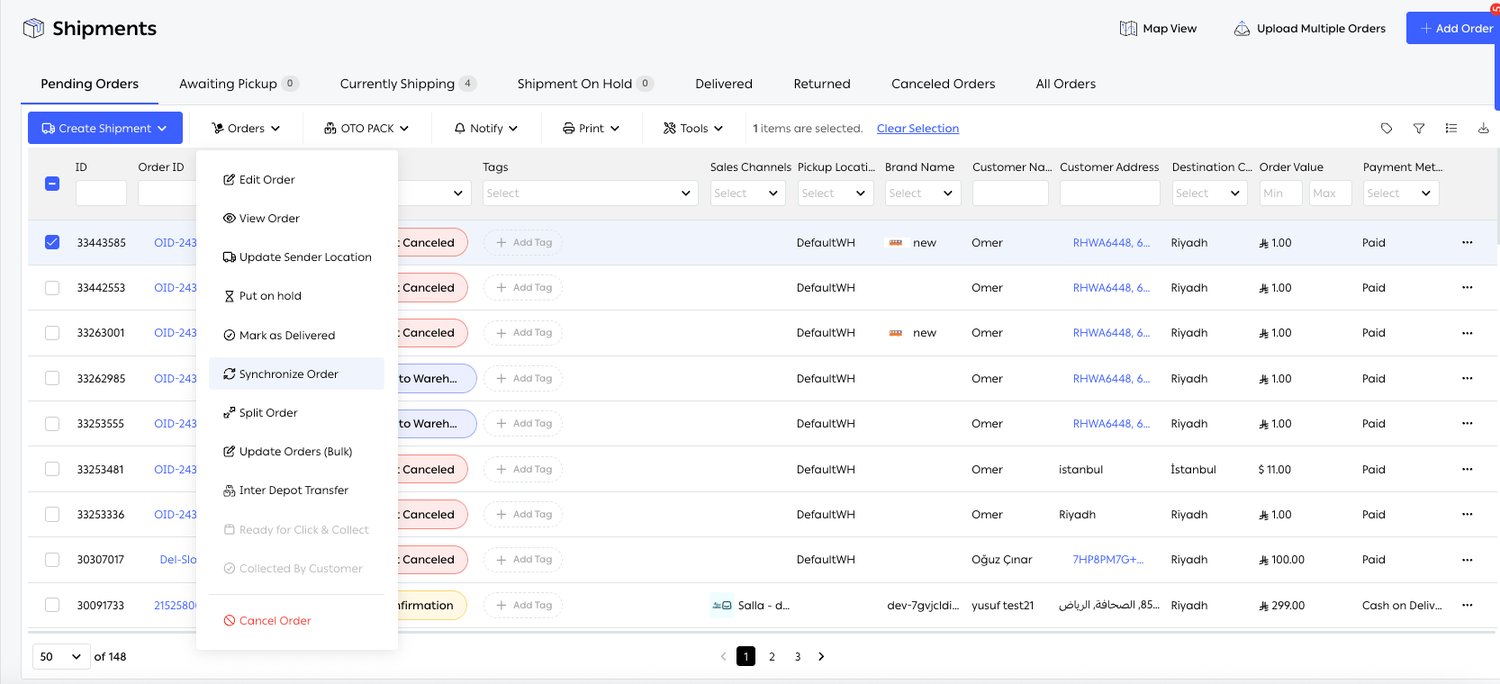
Fig. 7 — Put on hold and Edit Order both sit here, alongside the routing and fulfillment actions documented on their own pages.
Address editing before shipment
Orders → Edit Order opens the order for correction while it is still pending. Receiver details — first name, last name, phone, email — and the full address block can all be changed, including switching between a Short Address Code and manual entry. This is the cheapest moment to fix an address. After pickup it costs a failed delivery attempt and a redelivery.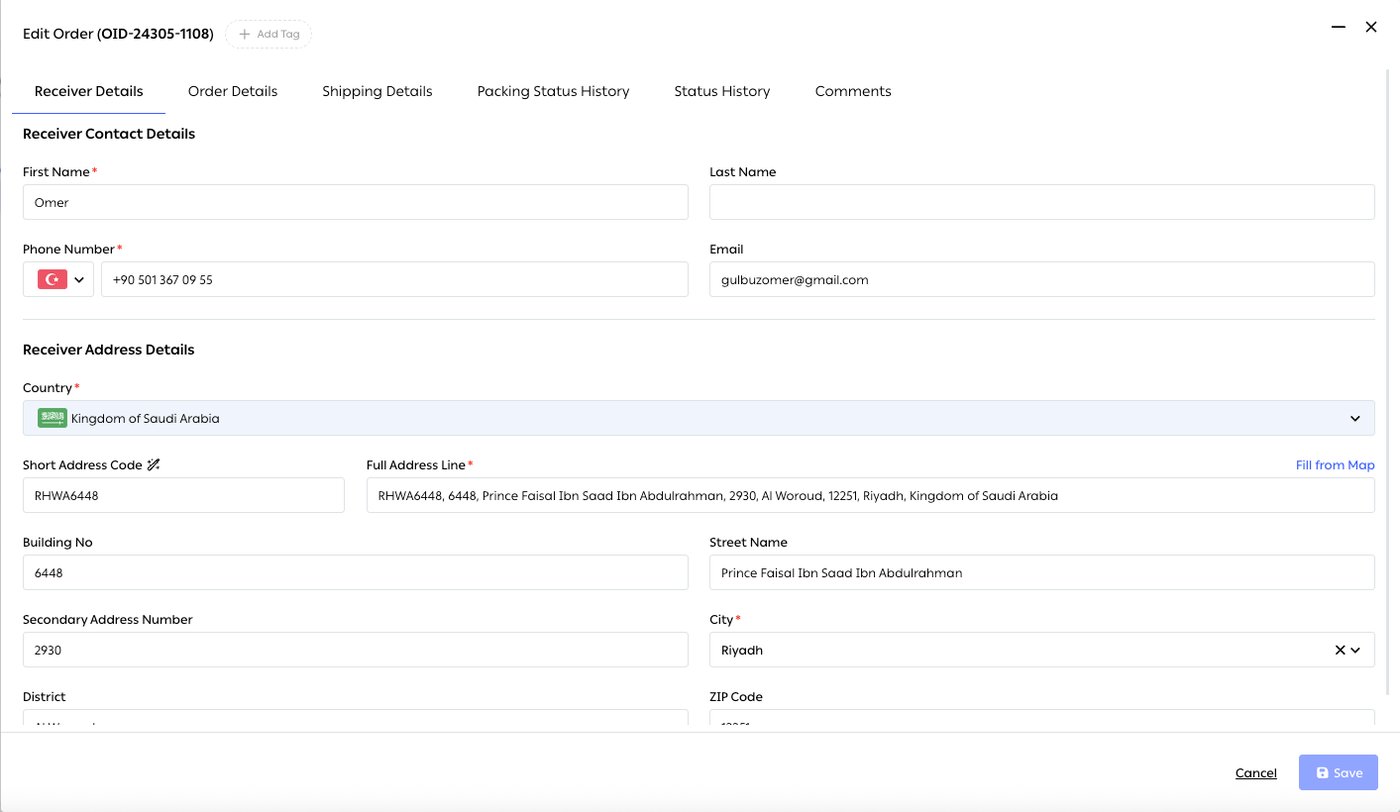
Fig. 9 — Six tabs, not all of them editable. Receiver Details, Order Details and Shipping Details are where you change things; Packing Status History, Status History and Comments are the record of what has already happened to the order. Add Tag sits in the title bar.
Item editing before fulfillment
The same dialog edits the order’s contents: product descriptions and quantities under Order Details. Use it when a customer adds or drops a line after ordering, or when what was ordered doesn’t match what can be sent.Releasing a hold
Held orders collect on the Shipment On Hold tab, which carries a live count in the tab itself. Select one and use send back to pending from the Orders menu to return it to the flow. An order cannot be edited while it is on hold — resume it first, then edit.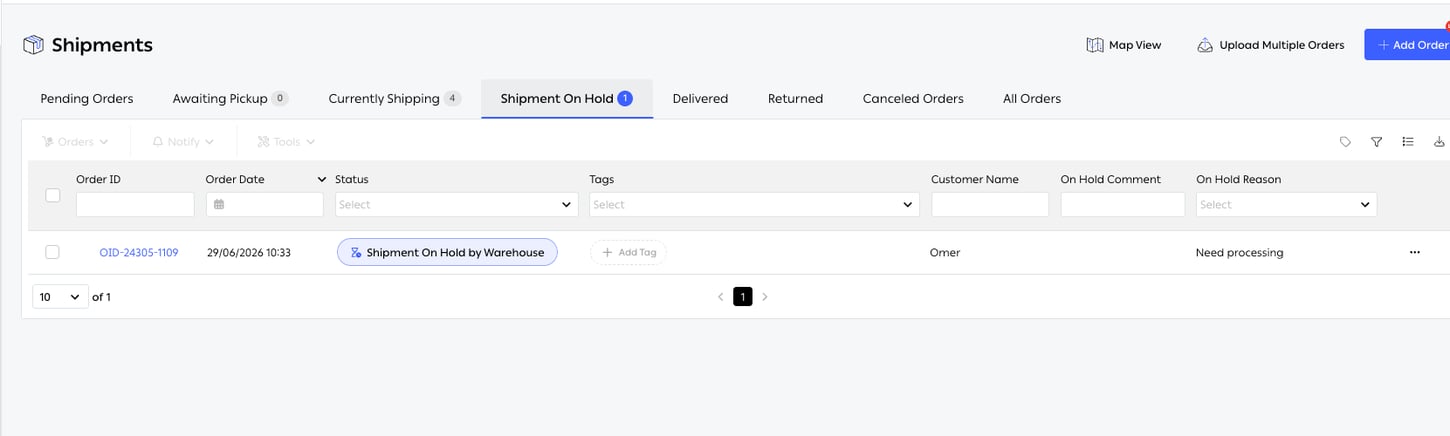
Fig. 10 — On Hold Reason and On Hold Comment are columns, and the reason is filterable. That turns the hold queue into something you can actually manage: how many orders are waiting on pre-processing this week, and how that compares with last.
Limits and prerequisites
Related
- Order routing — runs before these checks and decides the location they protect.
- Address and data correction — the other half of the Autocorrector screen.
- Order fulfillment — what a released order goes on to.
- Product configuration — where pre-order flags and HS codes are set.
- OTO FLEX planning — consumes the area tag to assign drivers.