

The partner catalog
Open Main → Integrations → Shipping Partners. The page has two tabs: More Connections, the catalog of everything you could connect, and Connected, the ones you already have. The catalog is filtered by keyword, by Country and by Service Type, and each card carries small icons for the service types that partner offers — a+2 or +7 badge where there are more than fit.
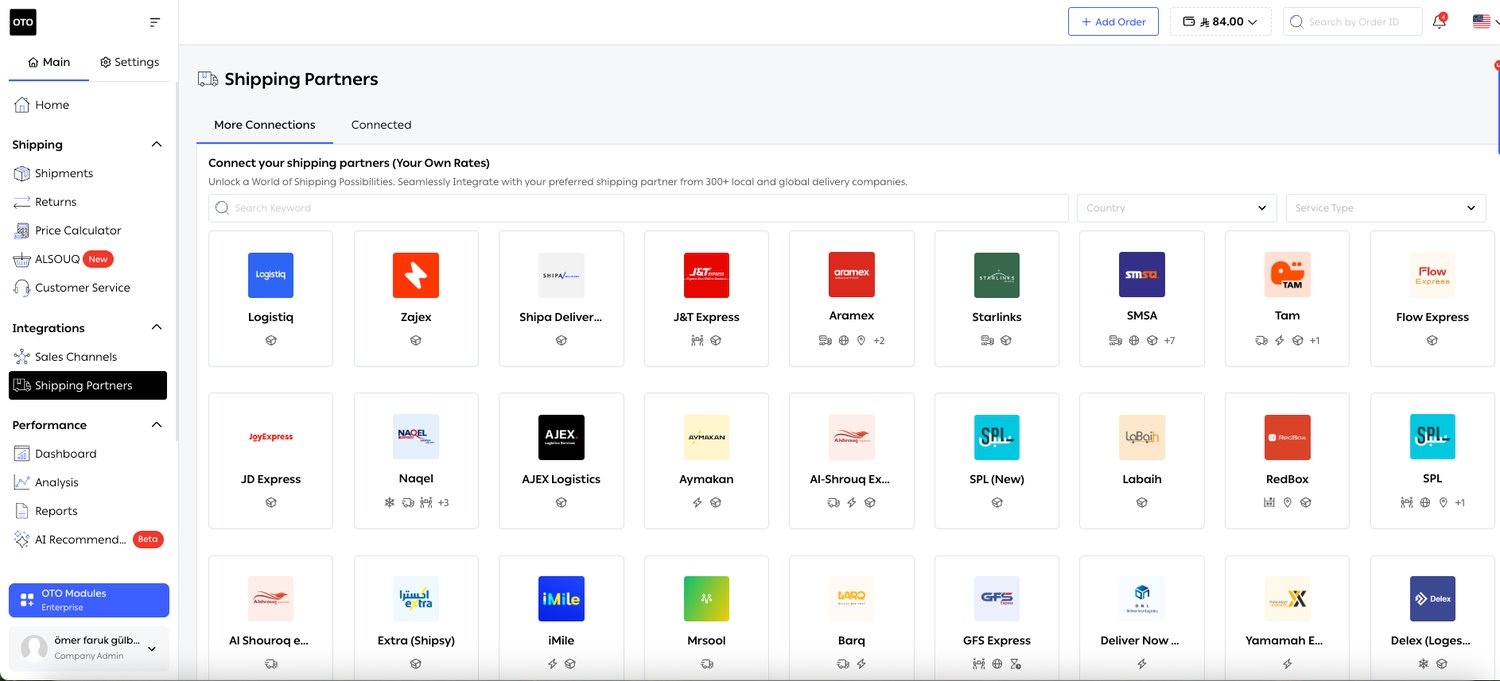
Fig. 1 — The catalog under More Connections. The subheading — Connect your shipping partners (Your Own Rates) — is the giveaway that this tab is for carriers you hold a contract with.
One partner, several services
Opening a partner does not connect it. It shows that partner’s Available Services, each with its own Connect button. Aramex, for instance, offers Domestic (Regular 2–7 days), International, Heavy & Bulky (furniture), PUDO (pick up / drop off), Same Day (24 hours) and Banking — six services, six separate connections.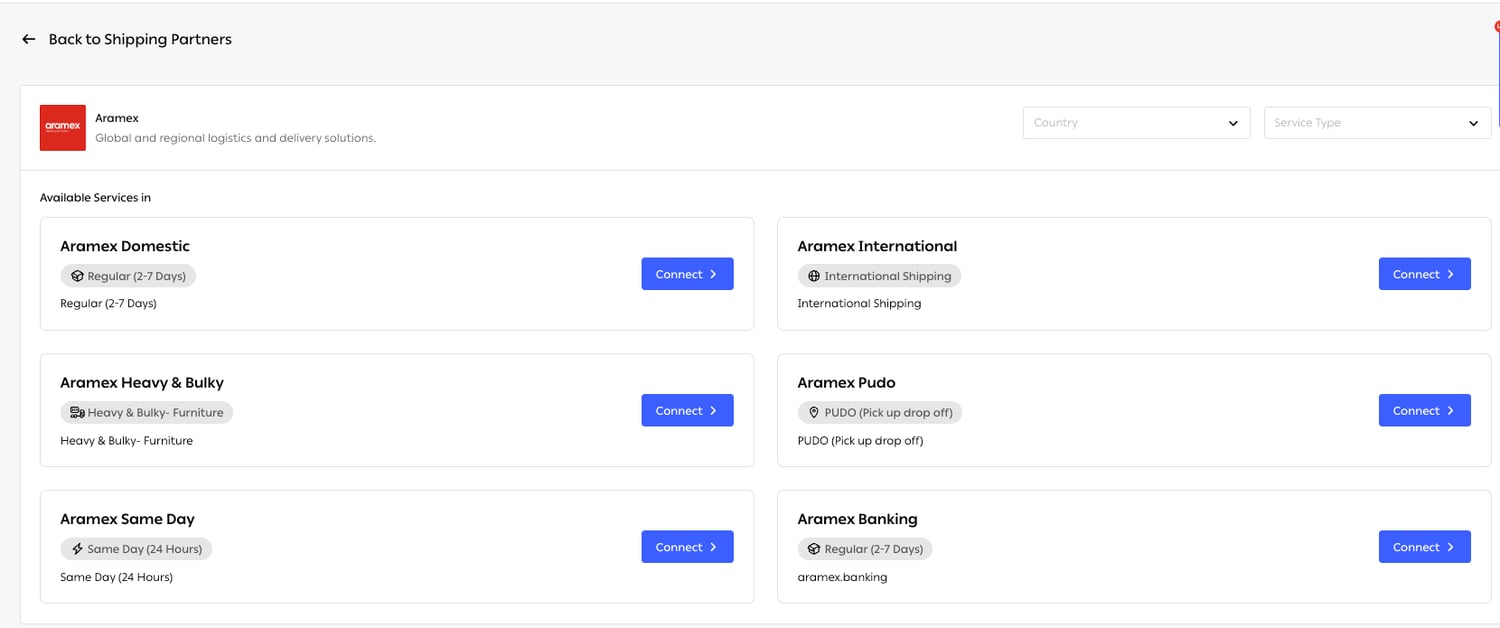
Fig. 2 — Each service is connected independently, which is what lets a rule prefer one carrier’s same-day service in Riyadh and its standard service everywhere else.
Connecting a carrier
Connecting is a two-step wizard: 1 Credentials, then 2 Settings.Step 1 — Credentials
These come from your account with the carrier, so the form is partner-specific: Aramex asks for Username, Password, Account Number, Account PIN, Account Entity and Account Country Code, while another partner may want nothing more than an API key. Advanced Settings expands for the optional parameters. Test Connection verifies the credentials against the carrier before you go any further. Use it — a connection saved with a bad password fails silently later, at shipment creation, on someone else’s shift.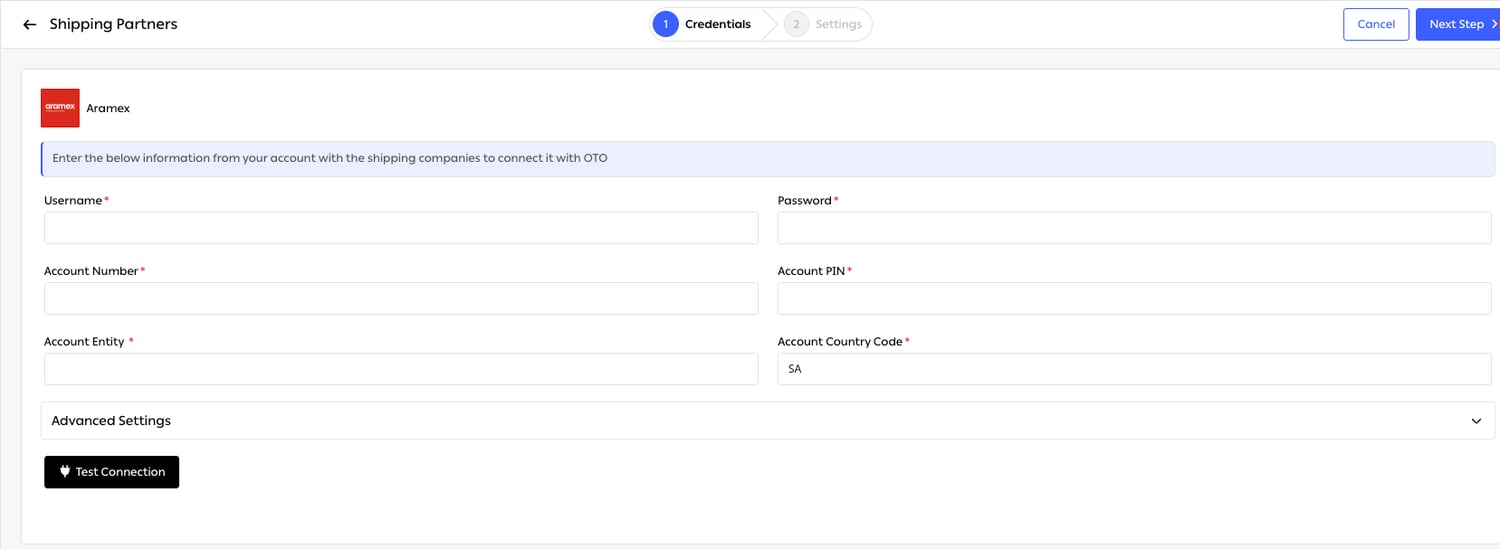
Fig. 3 — Step 1. Every field marked with a red asterisk is required, and Account Country Code is pre-filled from your account’s country.
Step 2 — Settings
The second step is how OTO should use the connection, rather than how to authenticate it.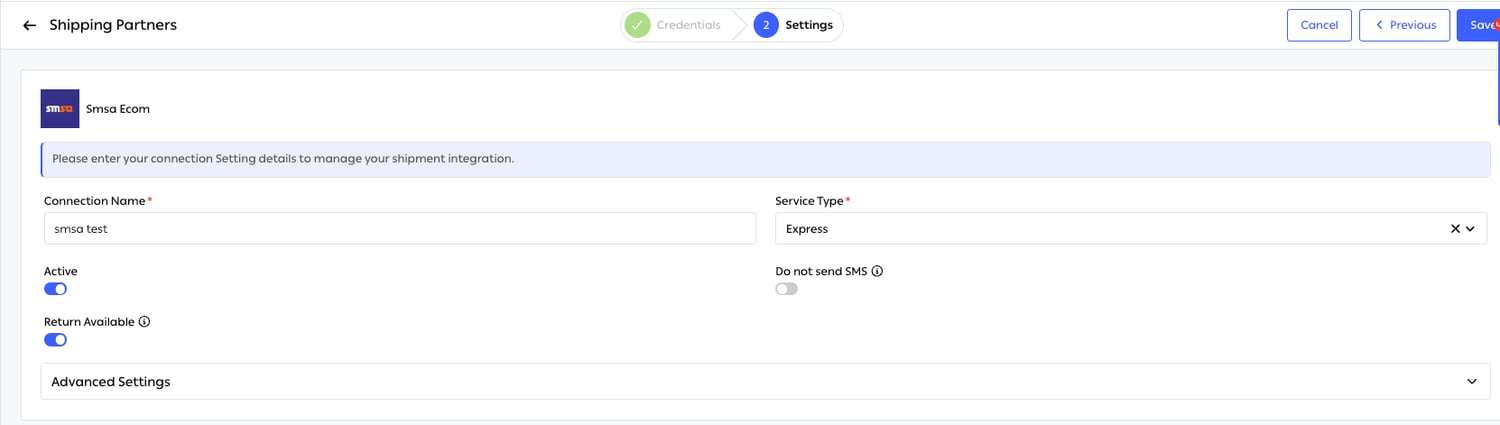
Fig. 4 — Step 2. Save here creates the connection; it then appears under the Connected tab with its own configuration menu.
Features
6 features in this function.Connect your own carrier accounts
Merchants who have already negotiated with carriers keep those relationships. Add the account credentials and OTO books against your contract, at your prices, on your account number. OTO integrates with 460+ delivery companies worldwide, and you can connect any of them with a contract of your own. 15+ of them are also available on OTO rates, with no contract needed. The catalog inside the product lists the partners available in your country, so the number you see there is smaller than the global figure.Separate connections per carrier service
One carrier usually sells several services — standard, express, same-day, cold chain, heavy & bulky, PUDO. Each becomes its own connection with its own Connection Name and Service Type, which means each carries its own coverage, its own SLA, its own daily capacity, and is chosen independently by automation. Without this, “Aramex” would be a single undifferentiated option, and no rule could prefer its express service for one city and its standard service for another.OTO pre-negotiated rates
Merchants without their own contracts — or without the volume to get good ones — can ship on rates OTO has already negotiated, with additional discounts applied. Nothing to sign and no account to open with the carrier: the rate is available as soon as the connection exists. The two models coexist. A merchant can hold their own contract with one carrier and use OTO rates for another, and automation will compare across both.Contract prices and visible shipping cost
Entering your contract’s prices does two things. It lets you see the cost of each carrier at the moment you choose between them, rather than discovering it on an invoice — and it gives reconciliation an expected figure to check the carrier’s bill against. Shipping with your own contract is an explicit choice at shipment creation: Create Shipment → With My Rates, or Create Reverse Shipment With My Rates for returns.Pickup, delivery and return SLAs per carrier
An SLA records what the carrier has promised, so OTO can measure them against it and automation can prefer whoever is actually faster. Configure it from the ⋯ menu on a connected partner, under SLA Configurations — itself a two-step wizard: choose the SLA Method, then fill in the SLA Configuration Details. Six methods are available, because a promise is not always expressed the same way: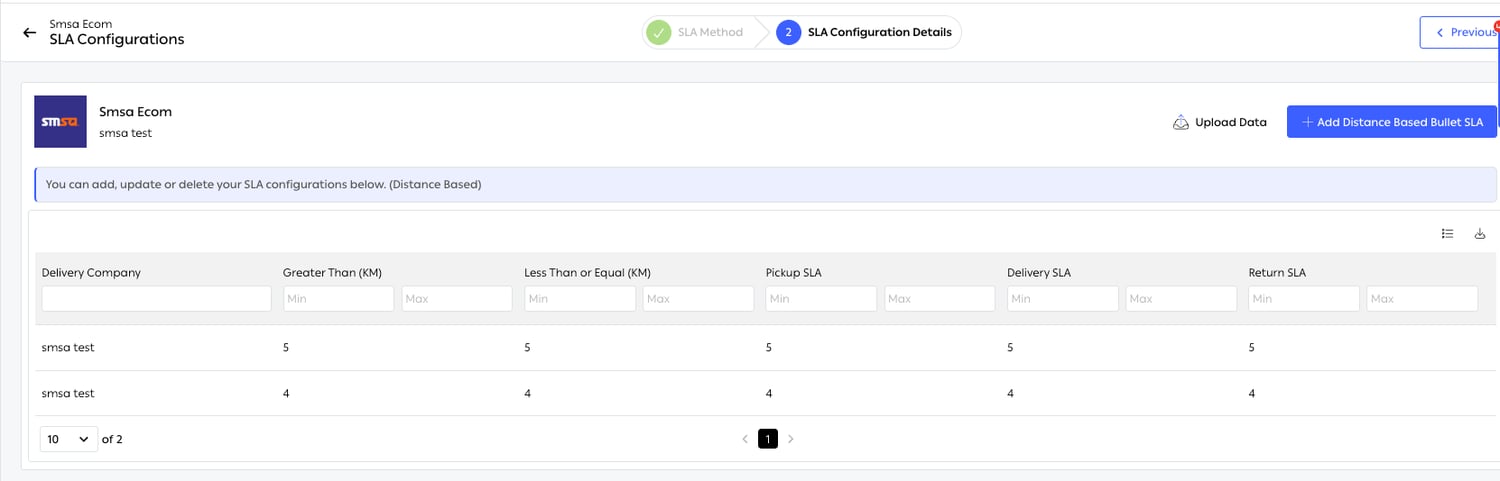
Fig. 5 — A distance-based configuration. Every column filters, and each SLA takes a Min and a Max.
Coverage and daily capacity
Both live on one screen, City Coverage, reached from the connected partner’s menu. A new connection starts with every city the carrier serves listed as Default Covered. That is the carrier’s coverage, not yours — your contract may be narrower. Activate only the cities you actually ship to; anything left inactive is treated as Passive and excluded from automatic shipment creation. The Tools menu does this in bulk, and the country and status filters keep a list of several hundred cities manageable.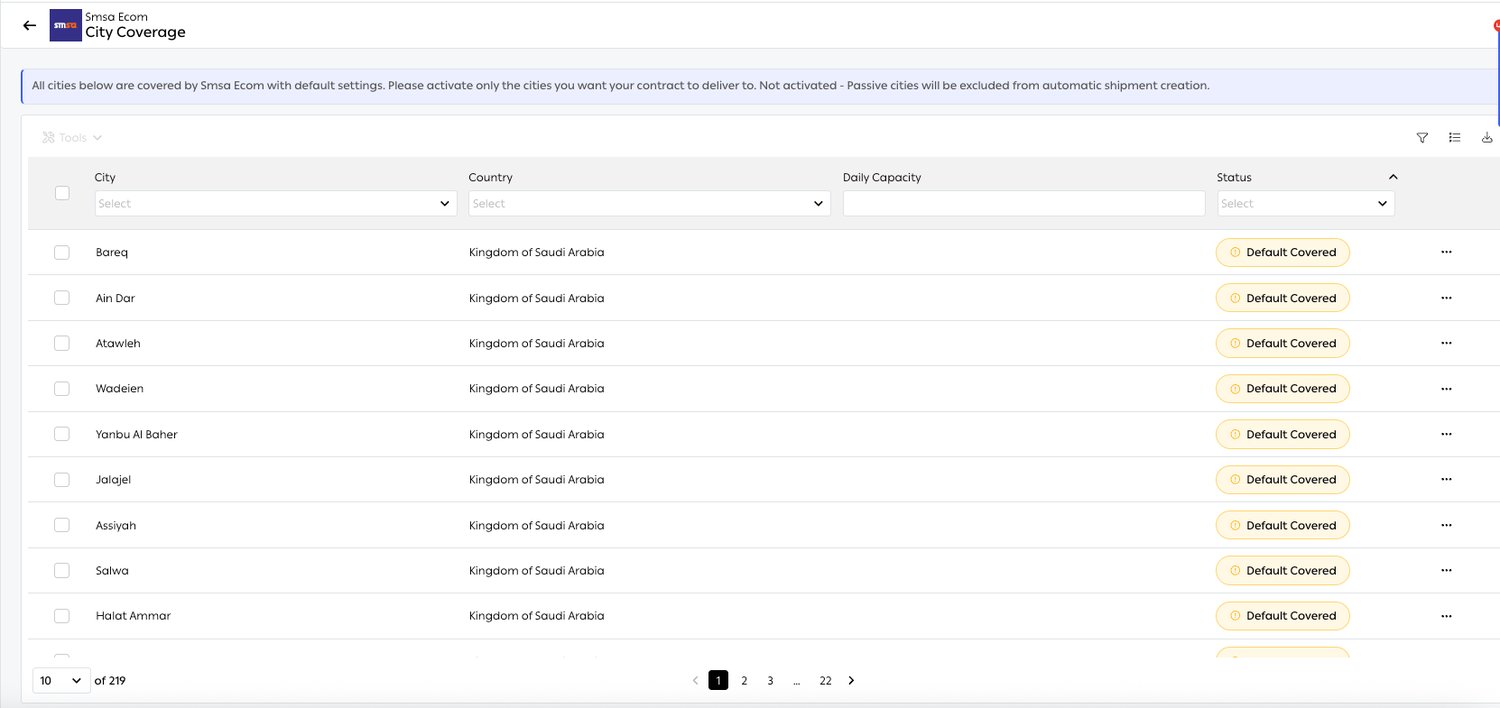
Fig. 6 — Coverage and capacity on one screen. Default Covered means the carrier serves the city and you have not yet said whether you do.
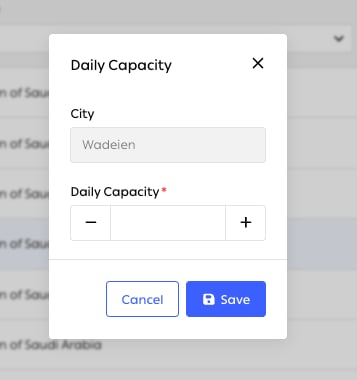
Fig. 7 — The per-city capacity dialog. The city is fixed; only the number is editable.
Limits and prerequisites
Related
- Shipping automation — consumes everything configured here to choose a carrier.
- Invoice reconciliation — checks carrier bills against the contract prices entered here.
- Order fulfillment — where delivery slots are configured, per connected partner.
- OTO FLEX — your own fleet, configured separately but competing in the same rules.