

The four ways an order arrives
Features
7 features in this function.Order sync from sales channels
Connecting a channel is self-serve. Main → Integrations → Sales Channels opens a searchable catalog of every platform OTO integrates with; pick one and choose Explore Channel to start its connection flow.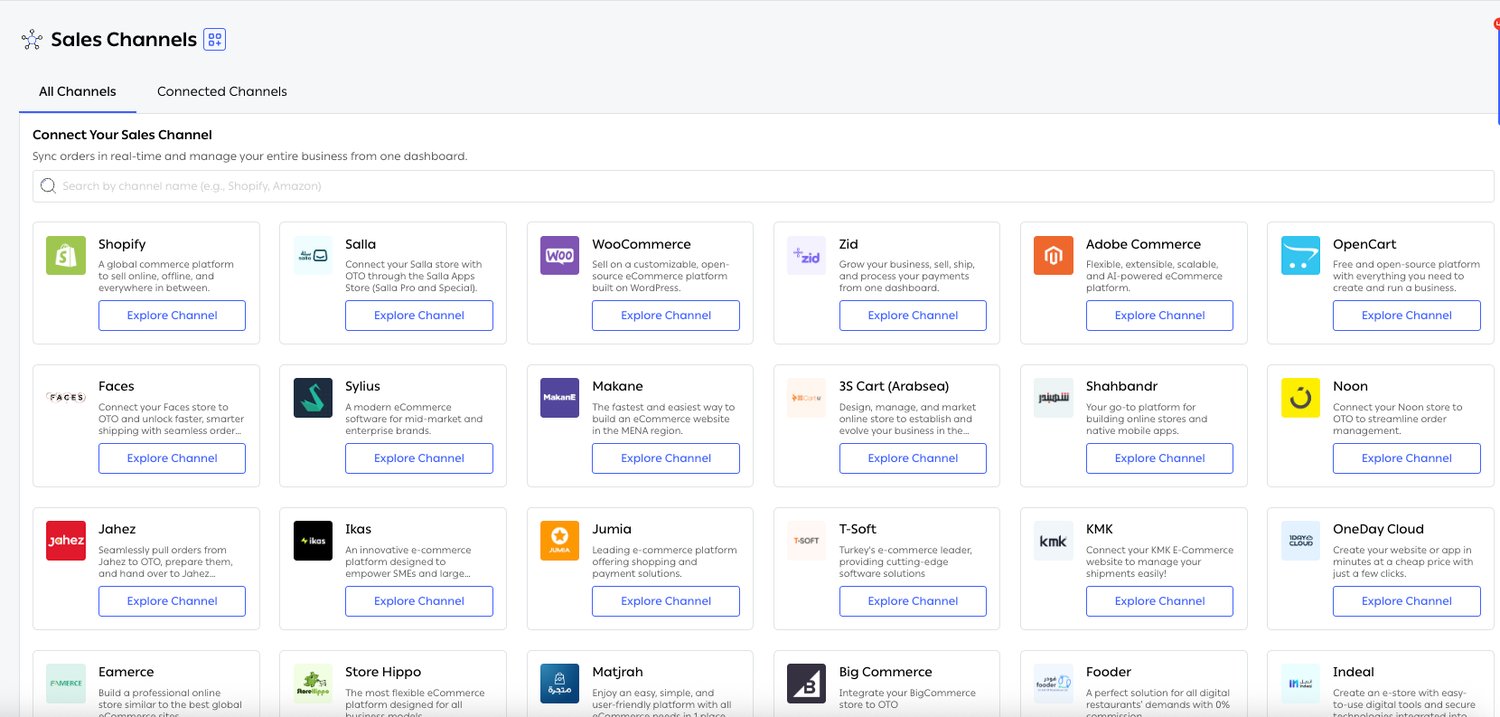
Fig. 1 — The catalog spans global storefront platforms, regional builders and marketplaces side by side — Shopify, Salla, WooCommerce, Zid, Adobe Commerce, OpenCart, BigCommerce, Sylius and Ikas through to Makane, Shahbandr, 3S Cart, Matjrah, T-Soft and KMK, alongside Noon, Jumia, Jahez and Fooder.
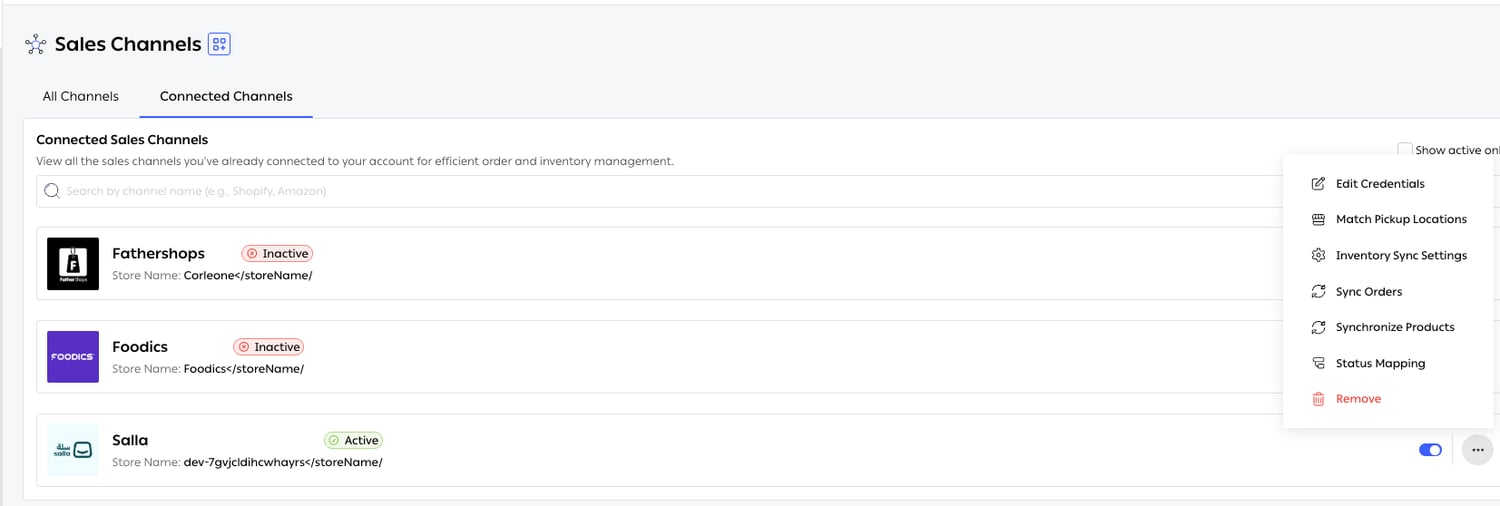
Fig. 2 — Per channel: Edit Credentials, Match Pickup Locations, Inventory Sync Settings, Sync Orders, Synchronize Products, Status Mapping and Remove. The Active/Inactive toggle pauses a channel without losing its configuration.
Marketplace order sync
Marketplaces behave differently from your own storefront: they own the customer relationship, impose their own SLA, and expect status to flow back on their terms. OTO treats them as first-class channels in the same catalog rather than a separate class of connector — Noon, Jumia and Jahez sit alongside the storefront platforms, and Amazon and Trendyol are integrated as well. Jahez is worth calling out as a different shape: orders are pulled into OTO, prepared there, then handed back to Jahez couriers for delivery. OTO runs fulfillment while the marketplace runs the last mile.Custom status mapping
Every platform names its order states differently, and none of them match OTO’s. Status Mapping is the translation table, configured per connected channel. Each row answers four questions: which OTO Status fires the update, what Update Type to send, which Ecom Status the channel should be set to, and what Ecom Comment to write alongside it. Add New Row adds a mapping; the bin icon removes one.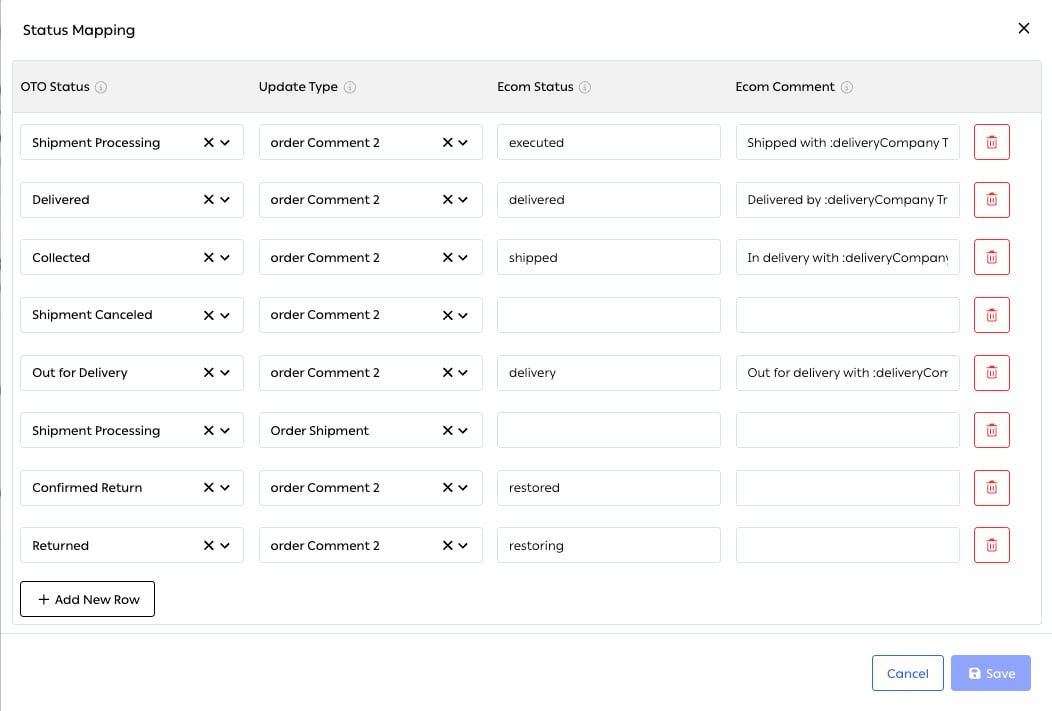
Fig. 3 — A real mapping table. Shipment Processing sets the channel to executed, Collected to shipped, Out for Delivery to delivery, and the two return states to restoring and restored. Comments are templated — :deliveryCompany and the tracking number are substituted at send time.
Conditional status-update triggers
Update Type is what makes the mapping conditional rather than a blunt mirror. The same OTO status can push a different kind of update — an order comment, an order shipment record — and a status you don’t map at all is simply never reported. That matters because pushing every internal transition to the storefront makes the order history unreadable and can trigger duplicate customer emails from the platform. Map the transitions the customer benefits from seeing, and leave the operational ones inside OTO. Note that one OTO status can appear on more than one row with different Update Types — in the mapping above,Shipment Processing sends both a comment and an Order Shipment record.
Automatic retry on failed updates
Channel APIs fail — rate limits, timeouts, brief outages. When an update to a sales channel doesn’t land, OTO retries rather than dropping it, so a transient failure doesn’t leave an order permanently showing the wrong status on the storefront. Failures and retries surface under Settings → Logs → Integration Logs, which is the first place to look when a channel’s statuses drift out of step with OTO.Manual order entry
From Main → Shipping → Shipments, choose Add Order. The form is two steps. Step 1 — Receiver Details. First name and phone number are required, along with country; last name and email are optional. The address can be entered three ways: type a Short Address Code (the Saudi National Address format, four letters and four numbers such asRRRD2929), fill the Full Address Line and its component fields by hand, or use Fill from Map to pick the point visually.
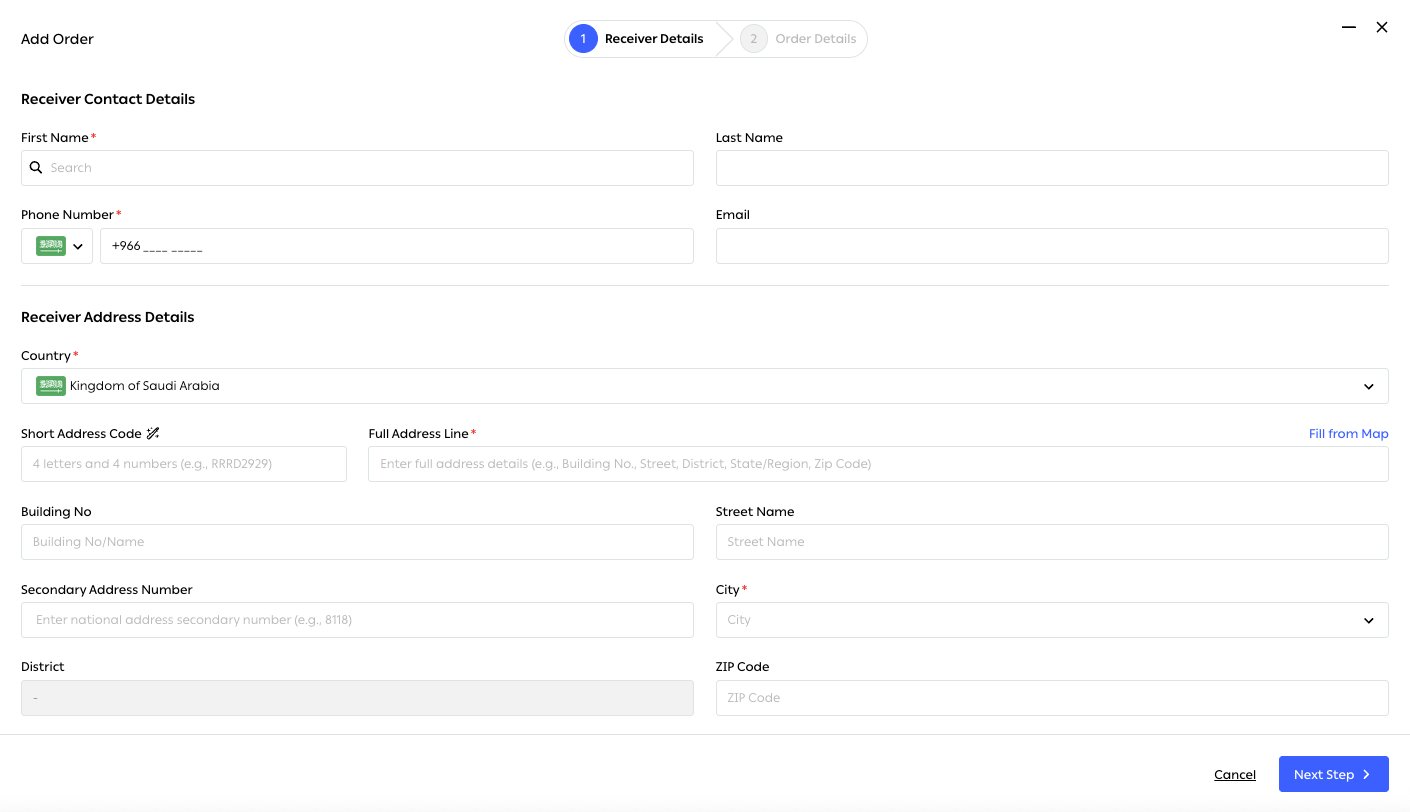
Fig. 4 — Required fields carry a red asterisk. Note the address block: Short Address Code, Full Address Line, Building No, Street Name, Secondary Address Number, City, District and ZIP Code — the structure the Saudi National Address uses, rather than a single free-text field.
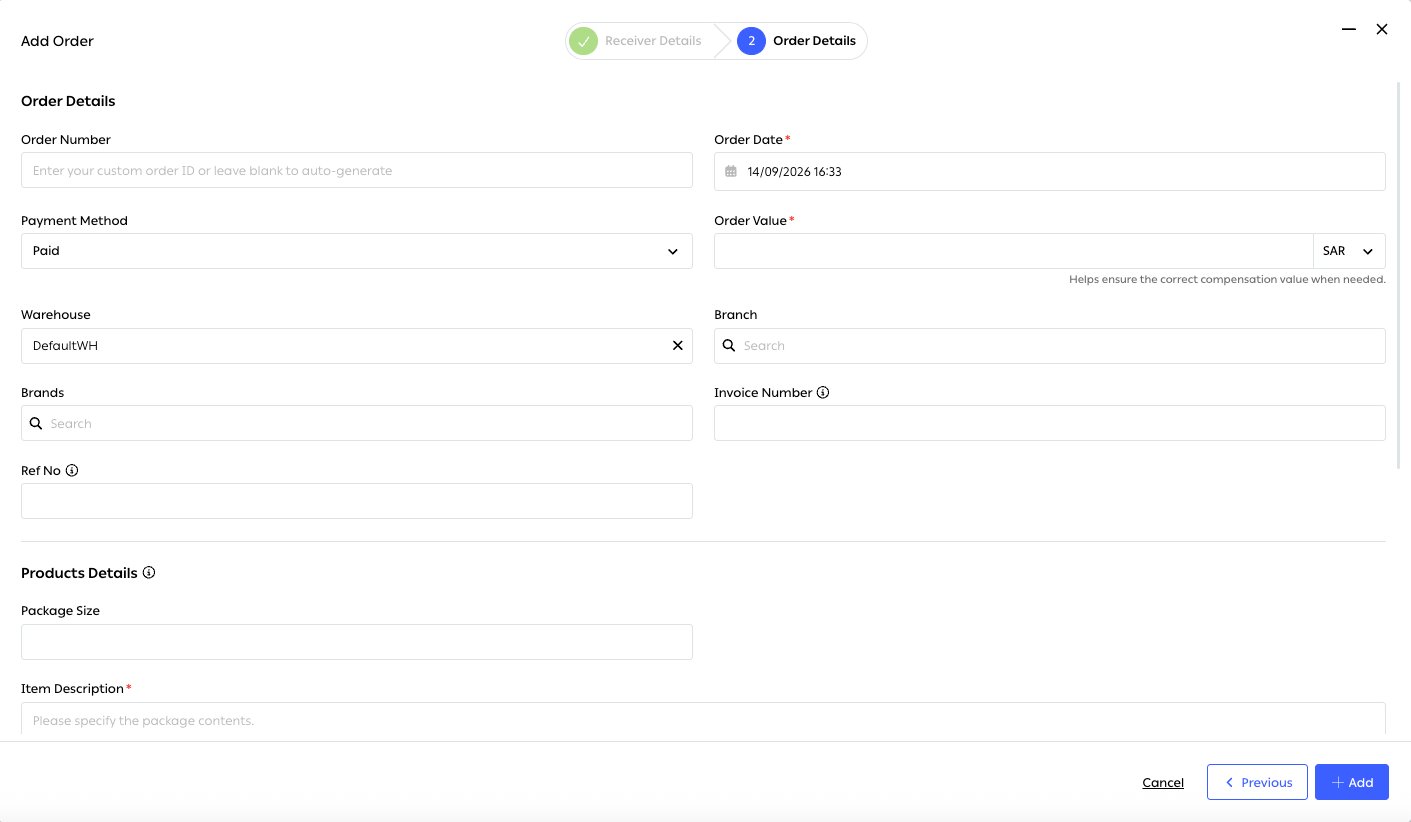
Fig. 5 — Order Value sets the declared value used for compensation. Warehouse defaults to your default location. Previous returns to the receiver step; Add creates the order, which then enters routing like any other.
Bulk order import
Upload Multiple Orders on the Shipments page opens the Upload Orders dialog. Download the template, fill it in, and upload — the file is validated before anything is created, and rows with problems are reported back for correction while the valid rows still process. On a large migration that matters: one bad row doesn’t cost you the batch.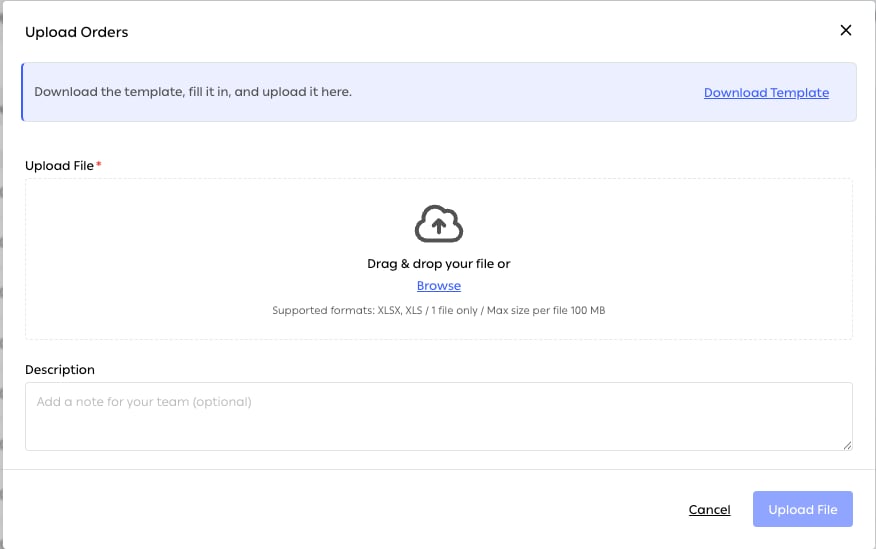
Fig. 6 — Download Template, then drag and drop or Browse. One file per upload, XLSX or XLS, up to 100 MB. The optional Description is a note for your own team, useful when several people are loading files.
Re-syncing a single order
When a channel update is missed or arrives late, one order can fall behind the platform. Pull it back into line from Shipments → Pending Orders: select the order, open Orders, and choose Synchronize Order.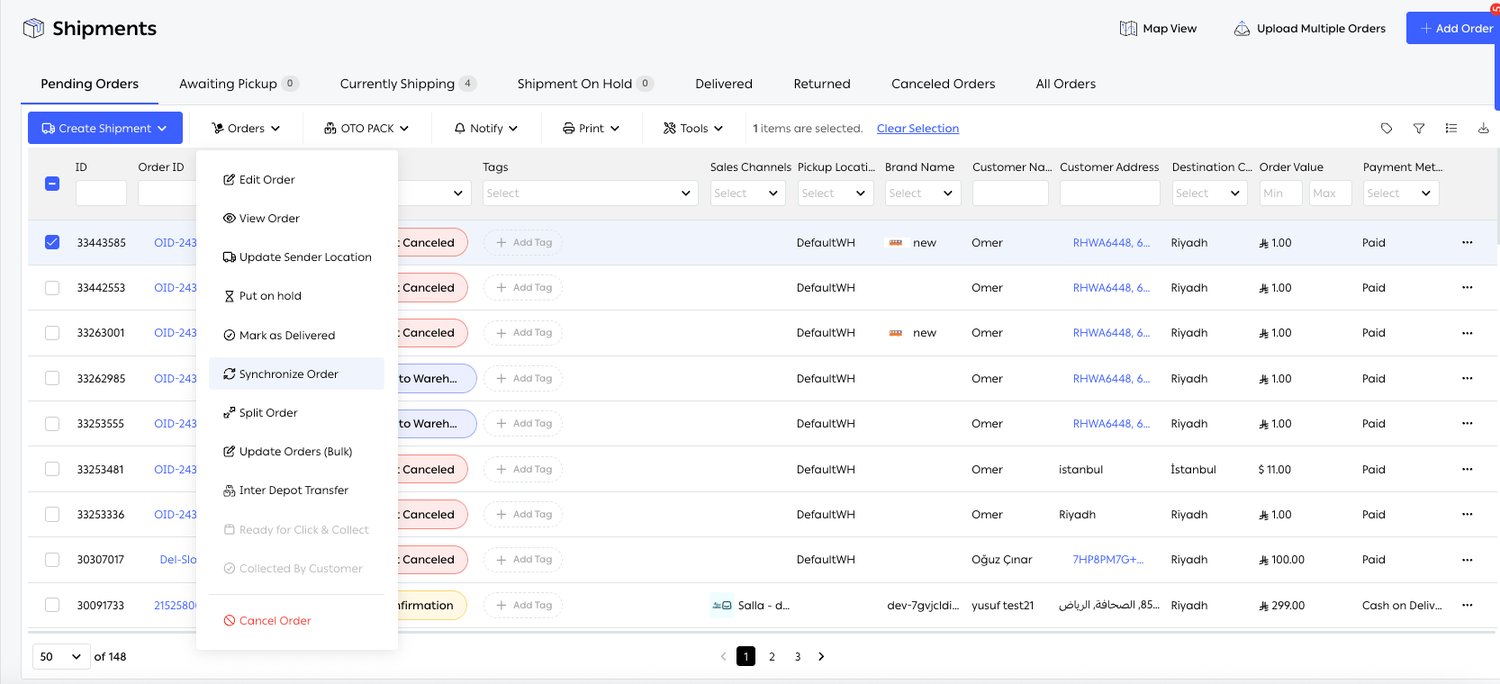
Fig. 7 — Synchronize Order sits among the per-order actions. Several of the others belong to functions documented elsewhere — Update Sender Location and Split Order under Order routing, Put on hold under Pre-fulfillment checks, and Inter Depot Transfer under Order fulfillment.
Limits and prerequisites
Related
- Sales Channels — the module covering connection, updates and the checkout API in depth.
- Address and data correction — cleans what sync brings in, before routing reads it.
- Order routing — the next step for every order that arrives here.
- Inventory sync — the other half of the channel connection, pushing stock back.
- REST API — the fourth route in, for custom storefronts and ERPs.