

How it works
The engine runs in two passes, and the page has a tab for each.Pass 2 — automation rules
Taking selection first, because it is where most people start. Each rule matches a set of orders and says how to choose among the carriers that survived pass 1.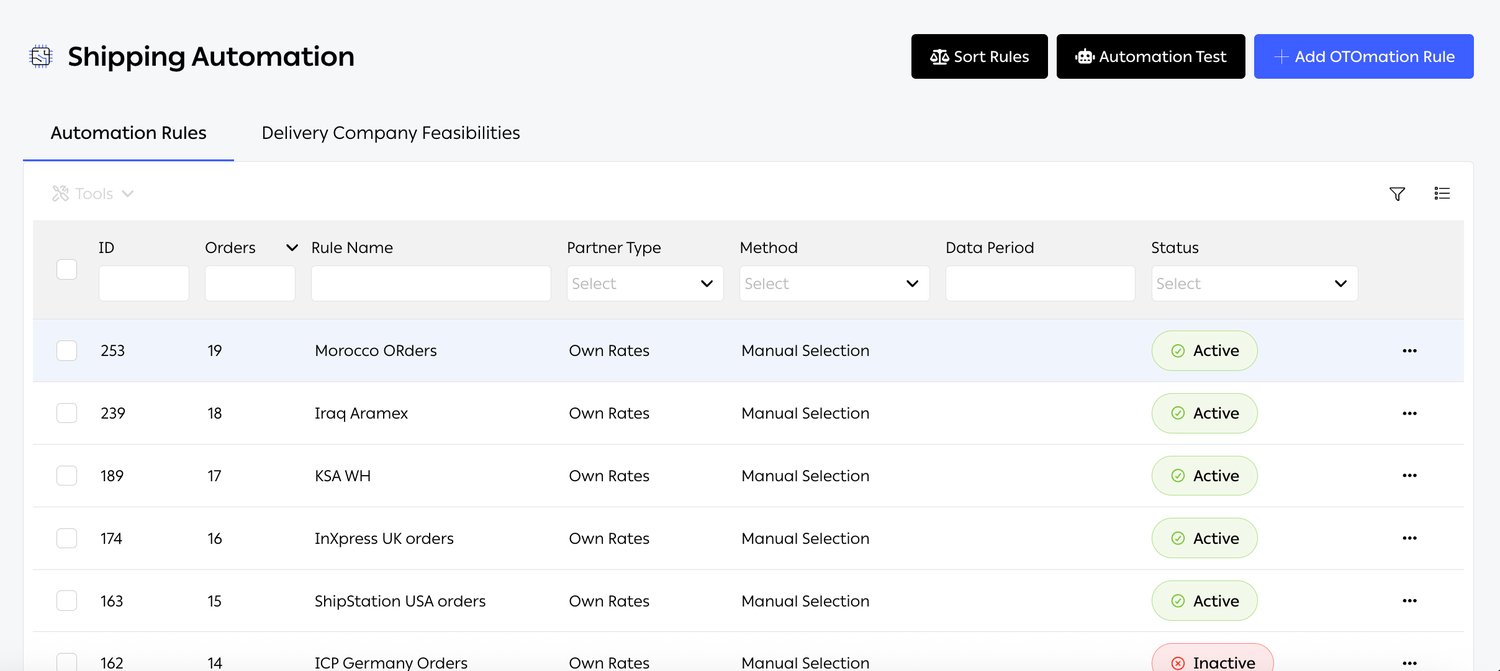
Fig. 1 — A real rule set, organized by market and carrier. The Orders column counts what each rule has actually handled — the fastest way to spot a rule that never fires, or one swallowing more than it should.
Building a rule
Add OTOmation Rule takes a Rule Name, a Status, a Partner Type, the Conditions that decide which orders it applies to, a Method, and a Switch to next carrier on failure toggle. Partner Type is OTO Rates or Own Rates — which commercial model this rule selects within. A rule works inside one of the two, not across both.Rule conditions
Nearly fifty condition types are available, which is what lets a rule be specific enough to be safe. They fall into groups:Selection methods
Eight methods, in three families.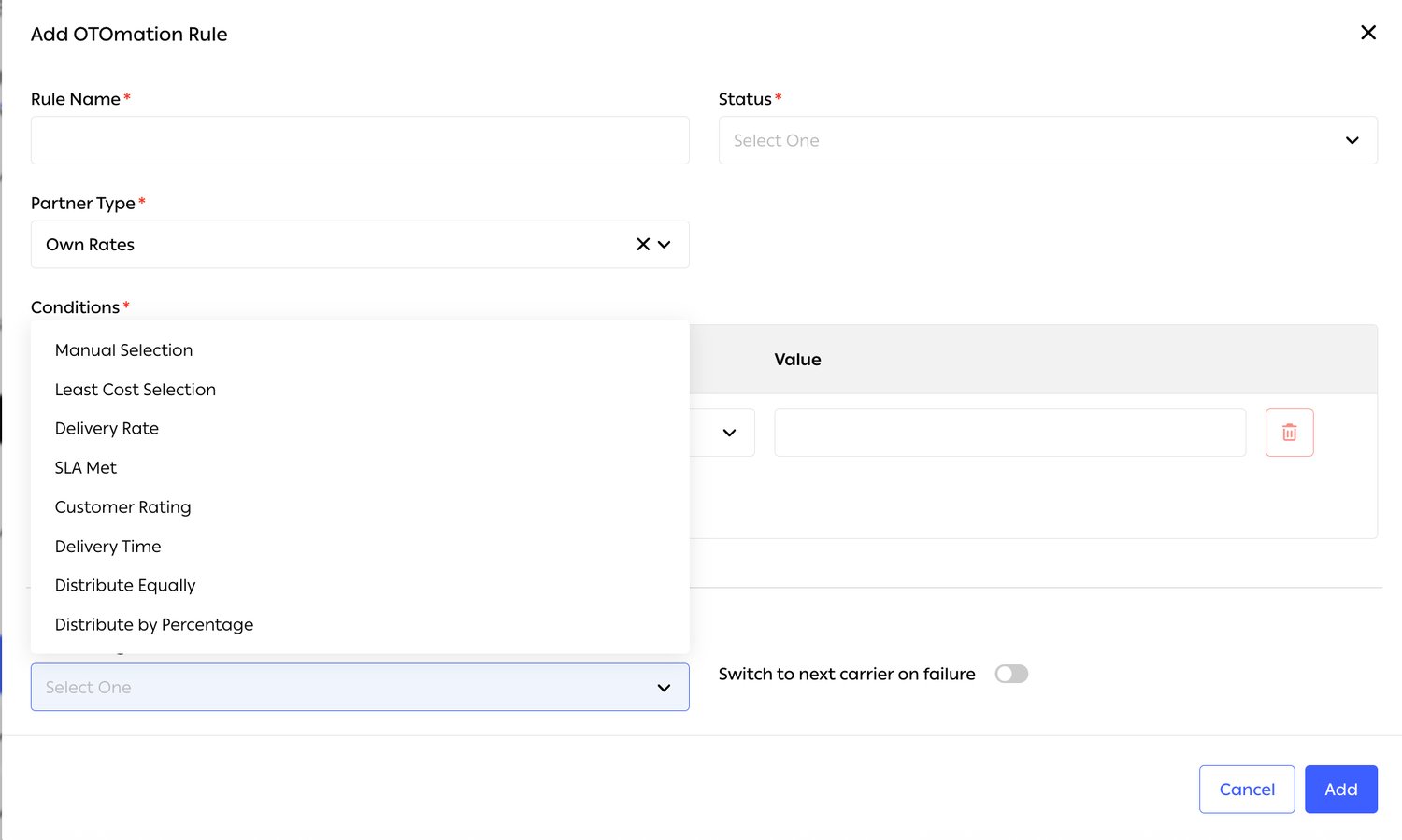
Fig. 2 — The Method list open on a rule. Switch to next carrier on failure sits alongside it.
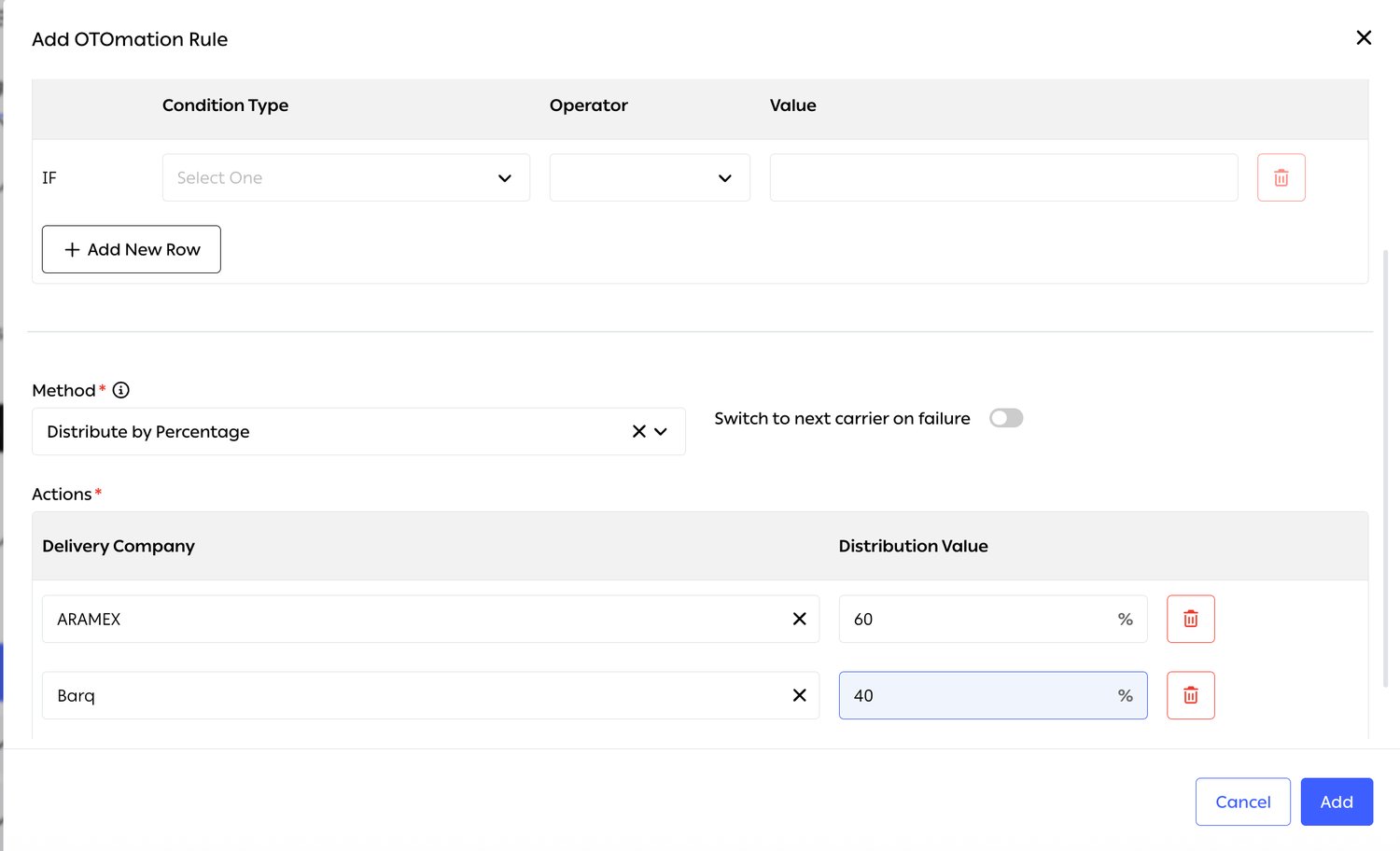
Fig. 3 — A 60/40 split between two carriers. This is where a volume commitment negotiated in a contract becomes something the system actually honours, order by order.
Data Period
Choose any of the four performance methods and a Data Period field appears, measured in months. It is the window of history the score is computed over, and it is a real decision rather than a formality: a short window reacts quickly to a carrier that has started failing, a long one is harder to skew with a bad fortnight. It shows as a column on the rule list, so you can see at a glance which rules are judging on what.Different methods for different orders
One method per rule — which is exactly why you write several rules. Least cost for standard domestic orders, best SLA for anything with a delivery slot, a fixed percentage split for the carrier you have a volume commitment with. Sort Rules sets the order they are evaluated in, and the first rule whose conditions match is the one that decides.Failure handling
Switch to next carrier on failure, on each rule, keeps an order moving when a booking fails: instead of stopping, the engine moves to the next candidate. Without it a carrier’s API outage becomes a queue of unshipped orders that someone has to notice.Pass 1 — feasibility rules
On the Delivery Company Feasibilities tab, each rule names one connected carrier and says what to do with it under given conditions. The list is typically longer than the rule list, because it has one or more entries per carrier.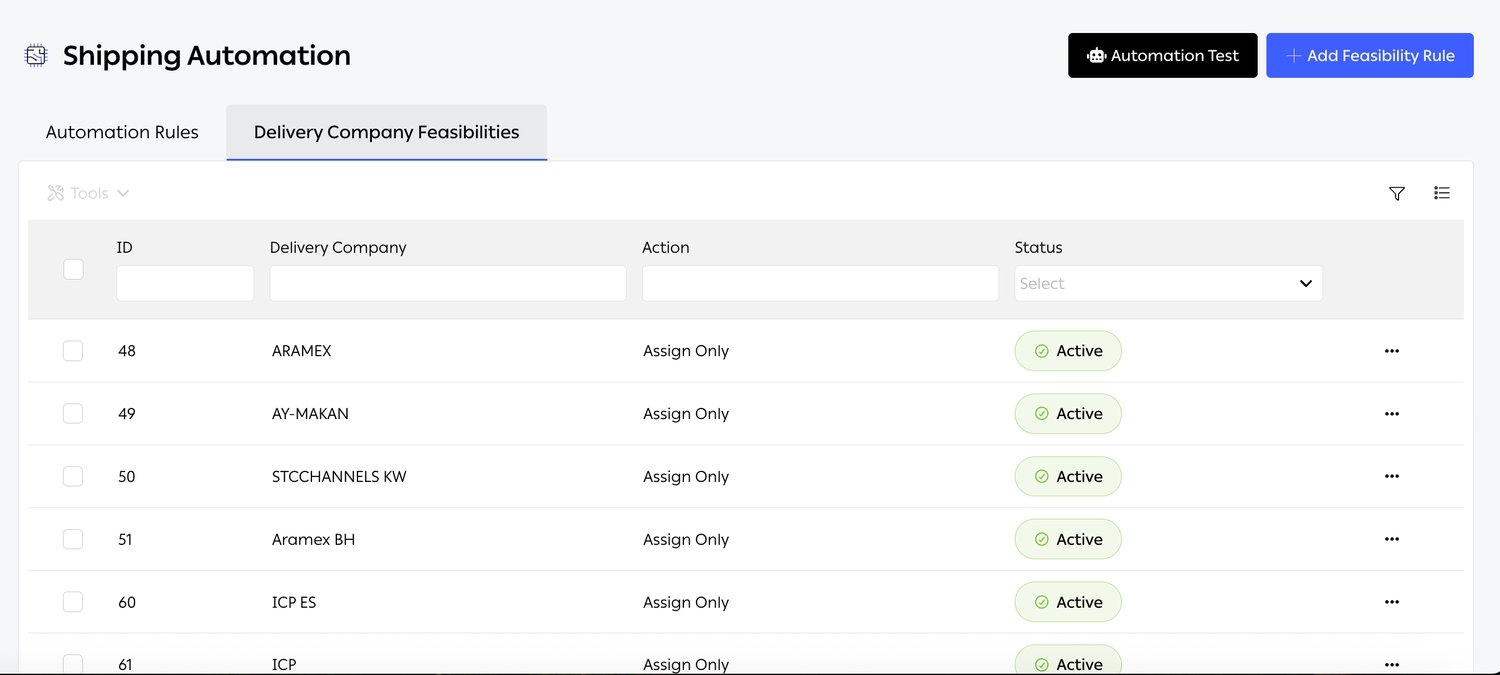
Fig. 4 — One rule per carrier connection, each with its Action and Status. Note there is no Sort Rules here — ordering applies to selection, not eligibility.
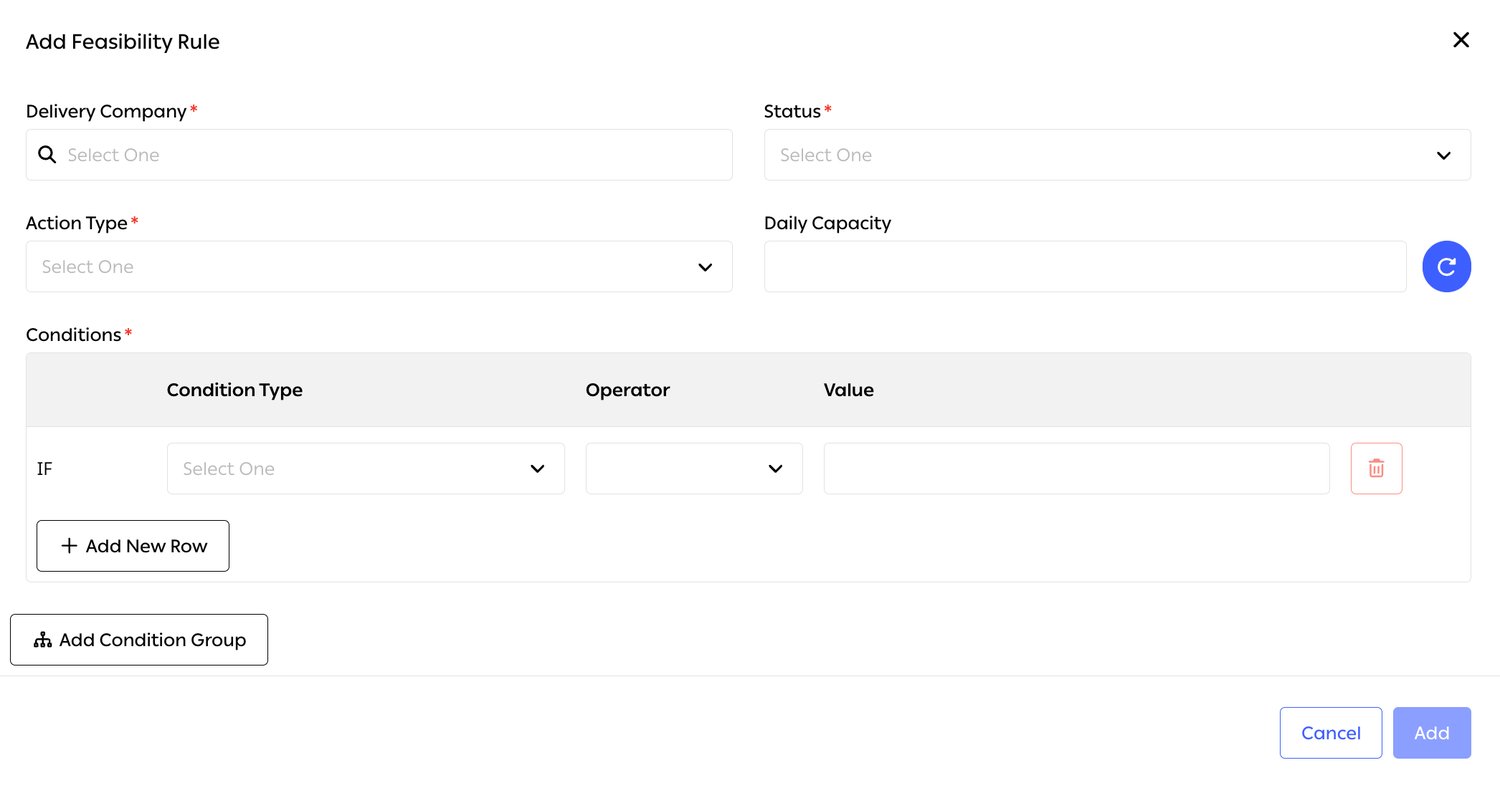
Fig. 5 — Add Condition Group is the capability worth noticing — it is available here and not on automation rules, so genuinely nested eligibility logic belongs on this tab.
Testing before you trust it
Two mechanisms, and they answer different questions. Test Mode is a rule status. The rule is evaluated and its result recorded, but it does not act — so a new rule can run alongside the live ones for a week and be judged on what it would have done. Automation Test takes a real Order Number and shows every rule’s verdict on it, numbered in evaluation order. Each result gives the Rule Name, the Assignment Priority Method, the rule’s Status and a Test Result, and expands for the detail. A Reverse Shipment toggle runs the same test for the return leg, since returns are routed by these rules too.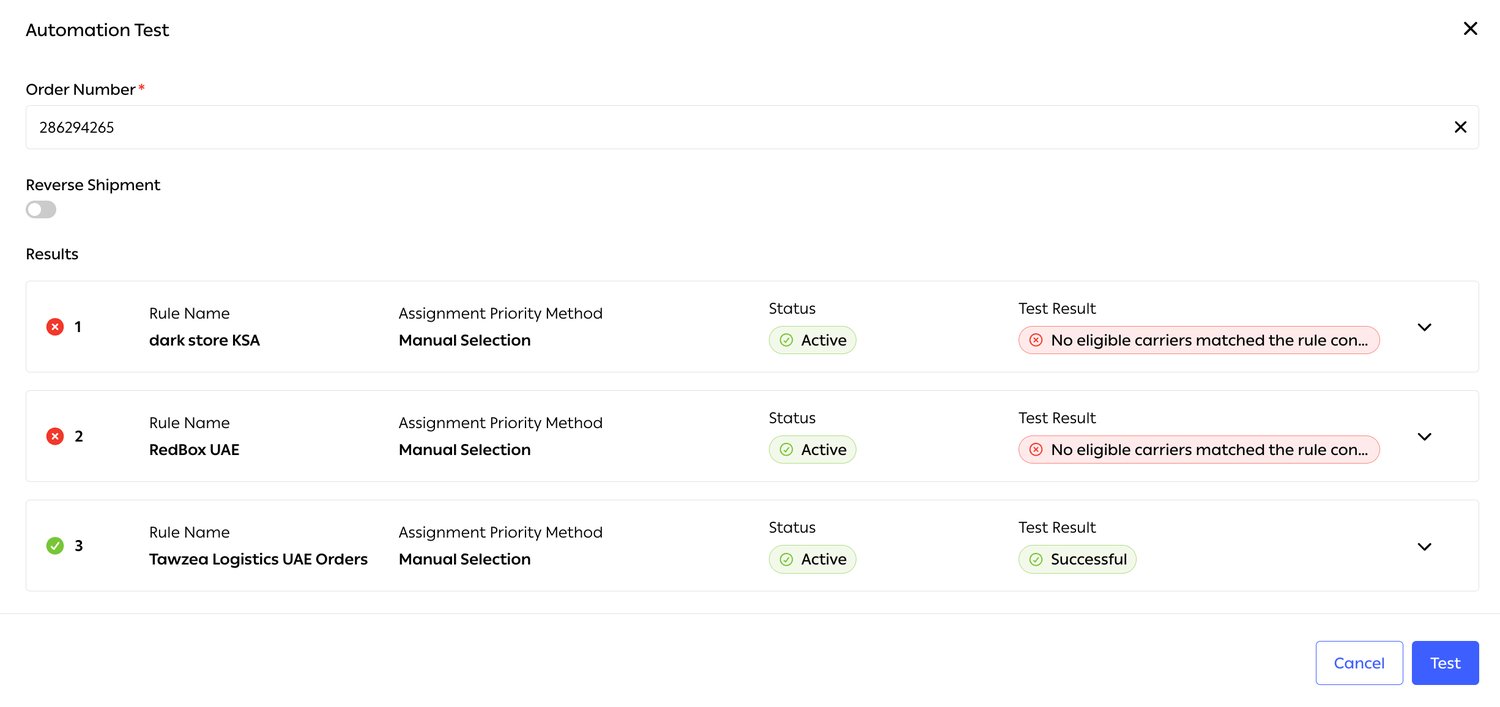
Fig. 6 — Two rules rejected the order, the third took it. Both rejections read “No eligible carriers matched the rule conditions”.
Related
- Carrier integration — contract prices, SLAs, coverage and capacity. Everything this engine weighs is configured there.
- Order routing — the sibling engine that chooses the fulfilling location. Same shape, earlier in the order’s life.
- OTO FLEX — your own drivers, competing with carriers in these same rules.
- Return automation — reverse shipments are selected by this engine too.
- Invoice reconciliation — checks afterwards whether the cheapest carrier actually billed as the cheapest.