

What this function covers
Creating shipments
The box and weight step
Select one or more orders on Shipments → Pending Orders and choose Create Shipment, then either With OTO Rates or With My Rates depending on whose contract you are shipping under. First comes the parcel. Pick a predefined Box Type or type Box Dimensions and Weight directly; Add Another Box handles a multi-package shipment. COD is set on the same step, as a plain question: Collect payment from the receiver on delivery (COD)?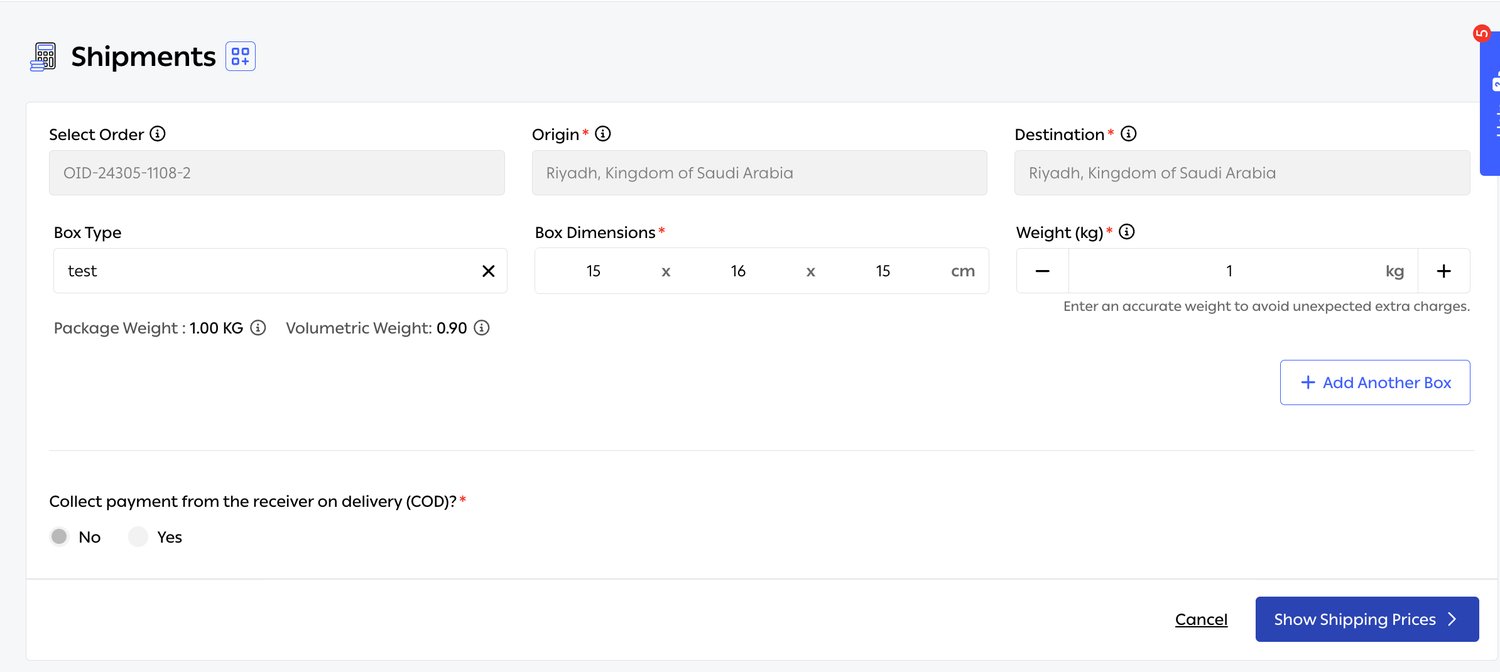
Fig. 1 — Origin and destination come from the order. Note Package Weight and Volumetric Weight calculated side by side as you type.
Choosing a carrier
Show Shipping Prices returns every carrier that can serve the shipment. Each row carries rather more than a price: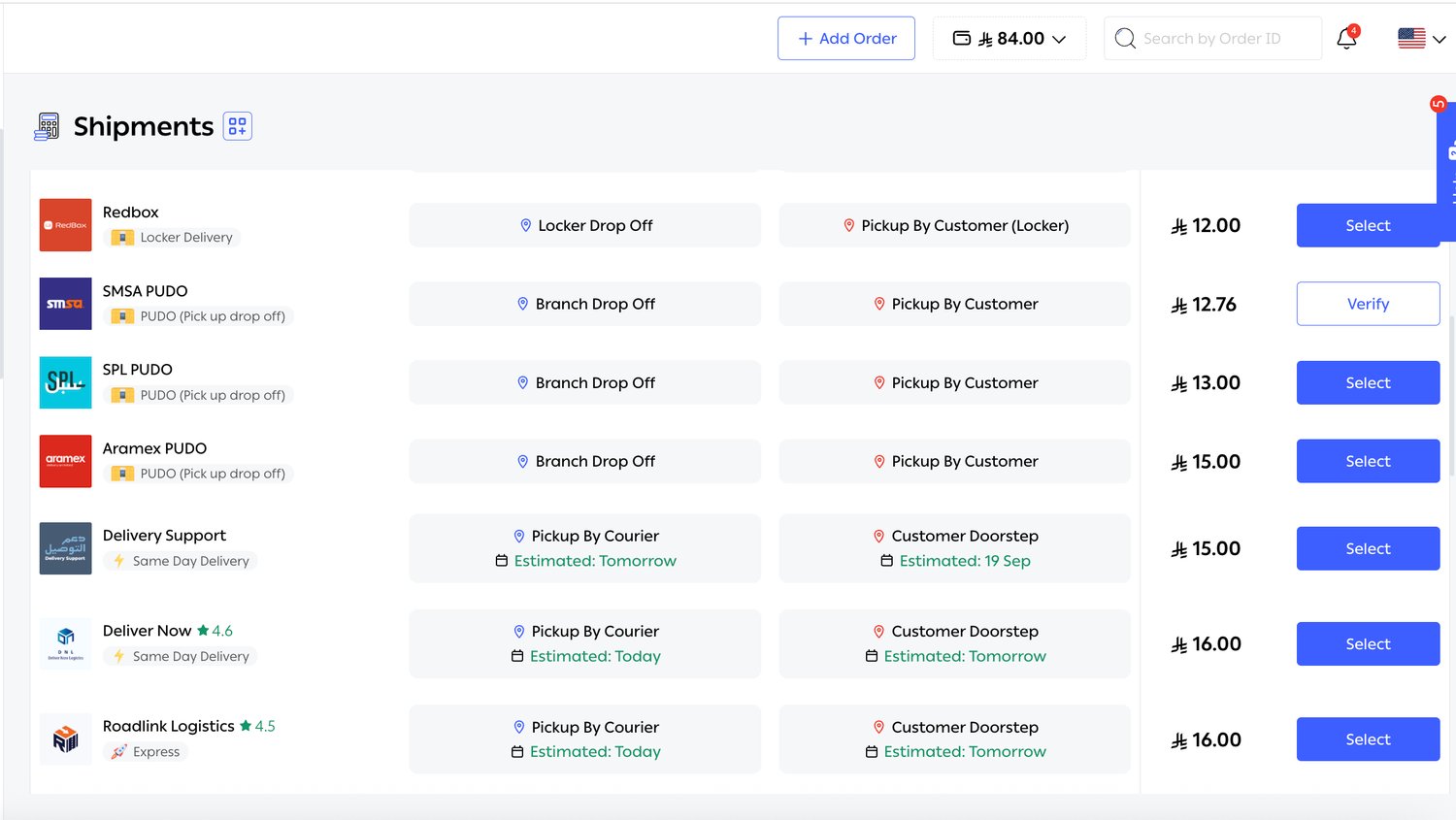
Fig. 2 — Seven options from 12.00 to 16.00, spanning lockers, PUDO branches and door-to-door. A carrier whose connection still needs checking shows Verify in place of Select.
Bulk creation
The same flow runs across a selection of orders. Under With My Rates, one control sets the carrier for all orders and each order can still be overridden individually, with its own Box Count and Box Weight. A running Total Cost sits at the foot before you commit.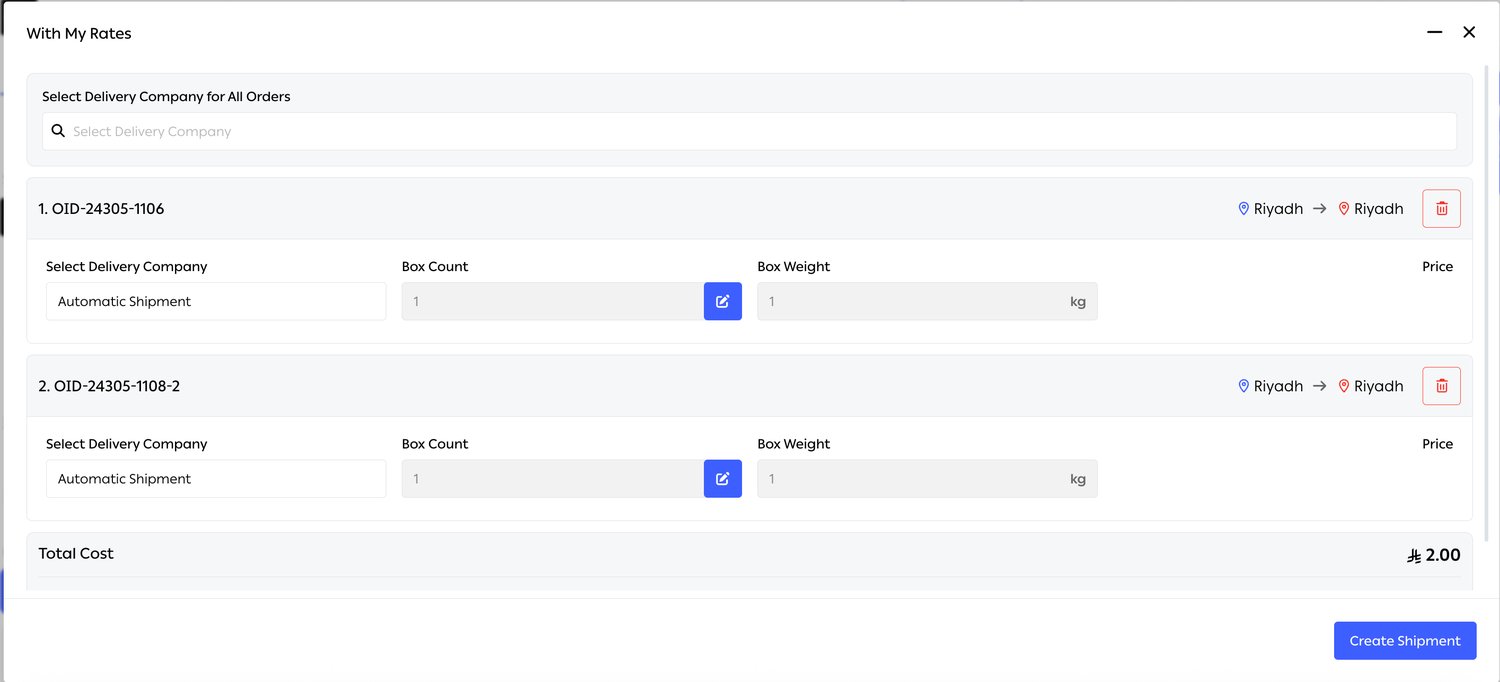
Fig. 3 — Each order shows its route and can be removed from the batch. The default per-order value is Automatic Shipment — leave it and shipping automation picks the carrier.
Specialised shipping services
Not every parcel is a box going next-day. OTO carries the service type through to the carrier so that specialised handling is booked as such, not discovered at pickup. Services include same-day and 4-hour delivery, express, cold delivery, heavy & bulky, international, and the PUDO and locker options above. Because each carrier service is its own connection — see Carrier integration — a cold-chain service carries its own coverage and its own SLA, separate from the same carrier’s standard offering.Cash on delivery
COD is booked as part of the shipment, with the amount to collect passed to the carrier. The money collected then flows into reconciliation, where it is matched against what the carrier actually remits. COD orders are also the ones most worth protecting upstream — see the COD confirmation and address verification checks in Pre-fulfillment checks.Scheduled shipment creation for delivery slots
An order with a delivery slot should not become a shipment the moment it arrives — it should become one shortly before the slot, so the carrier’s clock starts when the delivery is actually due. OTO creates these shipments automatically ahead of the slot rather than on receipt. Slots themselves are configured per carrier; see Order fulfillment.Asynchronous label generation
Labels are generated in the background rather than holding the screen. On a bulk creation of several hundred shipments that is the difference between a usable interface and a frozen one — the operator carries on working while the air waybills are produced.Documents
From Shipments → Awaiting Pickup, select orders and open the Print menu. Eight documents are available: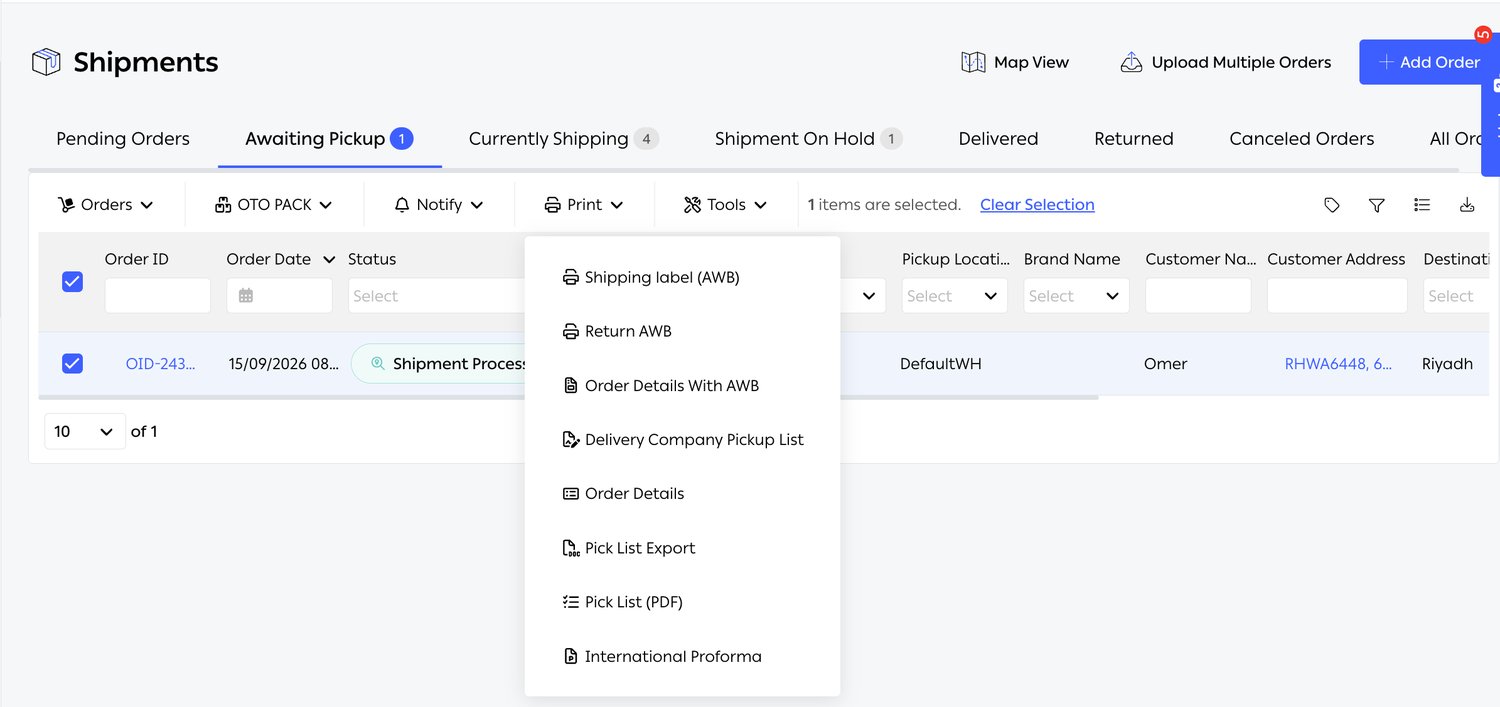
Fig. 4 — The toolbar also carries Orders, OTO PACK, Notify and Tools, and each tab shows a live count.
The pickup list
Delivery Company Pickup List is what the carrier’s driver signs. It lists Order Number, Shipment ID, Boxes Count and Delivery Company, with Total Packages and Total Order at the foot, and carries signature blocks for both sides. A Language selector sits above the preview.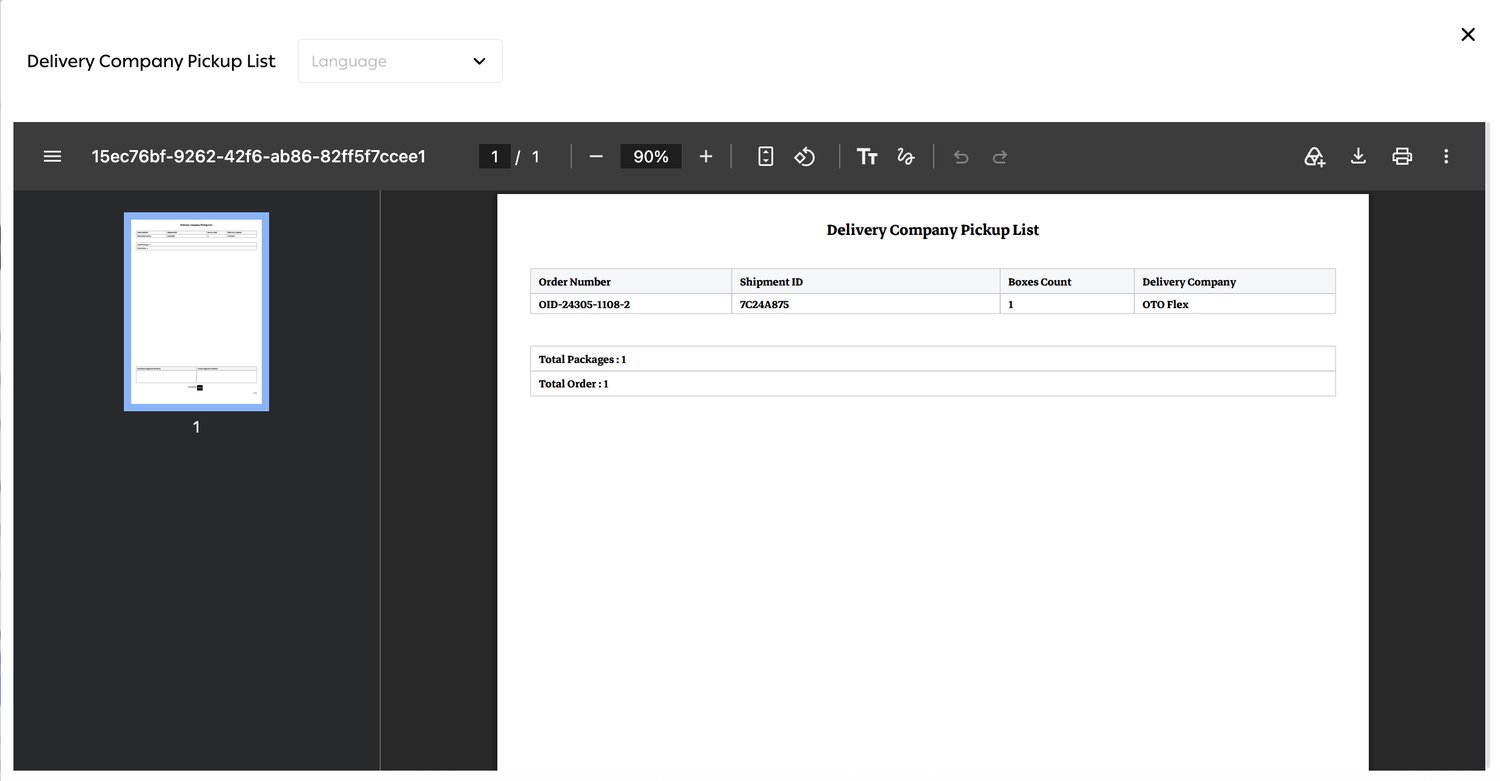
Fig. 5 — Boxes counted as well as orders — which is the number that matters when a parcel from a multi-box shipment goes missing.
Pickup and tracking
Pickup requests
Pickup requests are raised automatically when shipments are created, or manually when a collection needs arranging outside the routine. Every request is logged at Settings → Logs → System Logs → Pick up Request Logs, with OTO Order ID, Order ID, Created Date, Shipment Number, Delivery Company, Message, Status and LOG Status. The Message column carries the carrier’s own response, which is usually where the answer is when a pickup did not happen.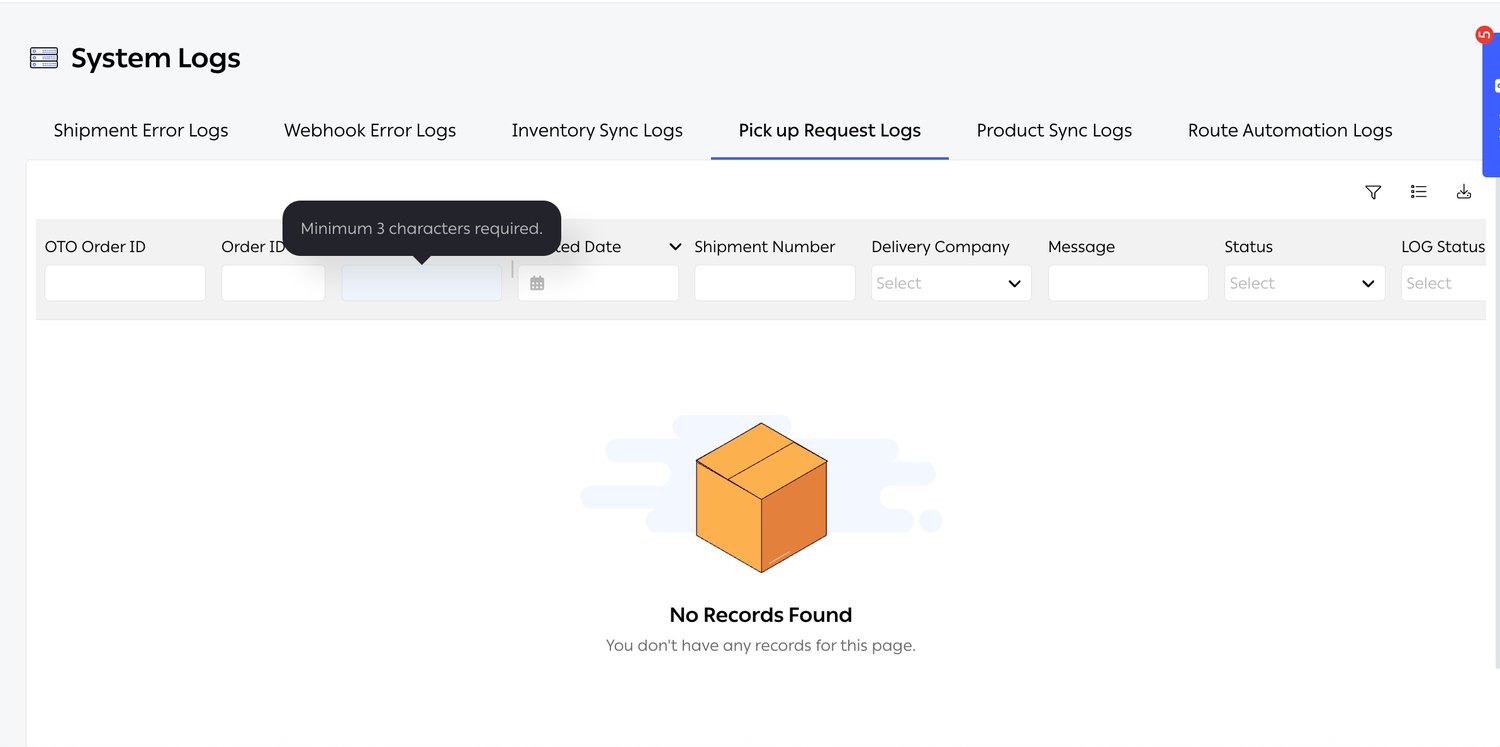
Fig. 6 — One of six log types on this screen — alongside Shipment Error Logs, Webhook Error Logs, Inventory Sync Logs, Product Sync Logs and Route Automation Logs.
Real-time tracking with one status set
Each carrier has its own status vocabulary. OTO maps them all onto one set, so a shipment on Aramex and a shipment on SMSA both read the same way — and any rule, report or customer message built on those statuses works across every carrier without a special case. An order’s full history opens as Status History, with two tabs: Order Status History and Packing Status History. Each row records the Date, Delivery Company, Shipment ID, a Description, the Location and the normalised Status.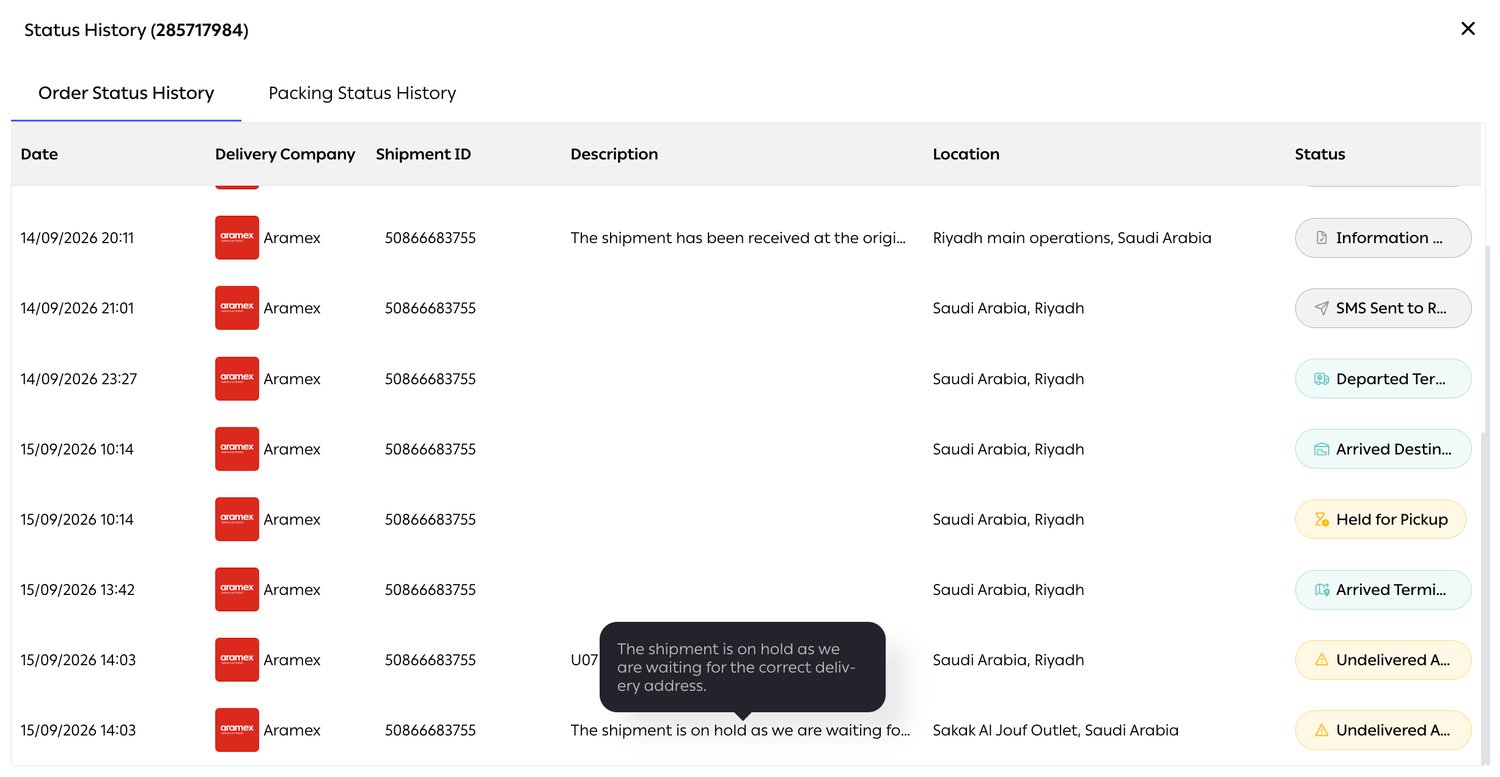
Fig. 7 — A real journey: information received, SMS sent to receiver, departed terminal, arrived destination, held for pickup, arrived terminal, then an undelivered attempt. The description carries the carrier’s own words — here, waiting for a corrected delivery address.
Failed delivery management
A failed delivery attempt is the most expensive routine event in the operation, and the one most often left to sort itself out. OTO records the number of attempts and the reason each one failed, and can trigger messages automatically when an attempt fails — so the customer is asked to fix the address or arrange a time while the parcel is still with the carrier, rather than after it has been returned. Failure reasons are drawn from your own list under Settings → Advanced → Reason Settings, which means attempts can be counted and compared by reason rather than by free text.When it goes wrong
Cancelling and re-booking
A shipment can be cancelled any time before the carrier collects it. On Shipments → Awaiting Pickup, select it and choose Orders → Cancel Shipment. The order returns to Pending Orders with the status Shipment Canceled, from where a new shipment can be created with the same carrier or a different one. That last point is what makes the feature valuable rather than merely corrective: if a carrier is running late on pickups or has stopped serving a city, the affected orders can be pulled back and re-booked elsewhere without re-keying anything.Limits and prerequisites
Related
- Carrier integration — the accounts, coverage and SLA this function books against.
- Shipping automation — makes the carrier choice automatically instead of per shipment.
- Invoice reconciliation — checks what these shipments were billed at.
- Order fulfillment — printing templates, delivery slots and the packing side.
- Customer Notification — the tracking page and failed-delivery messages built on these statuses.