

Where to find it: OTO PACK → Operations → Packing — Open in OTO ↗
Packing with verification
The standard flow is a scan-verified pack: each item is scanned as it goes in, and the screen checks it against the order. It is a quality check that costs a second per item and catches the mis-pick that would otherwise cost a return, a replacement shipment and a customer’s patience. On the web, Pack runs as three steps — 1 Order Details → 2 Shipment Details → 3 Pack. The order is fixed before anything is scanned, which is why the order fields are read-only.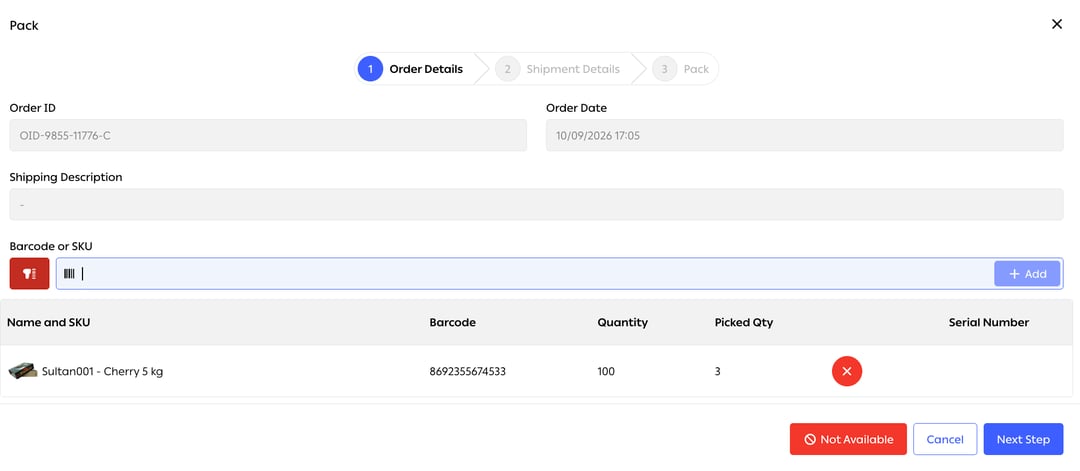
Fig. 1 — Step 1 confirms what the order is, then opens a Barcode or SKU field — either identifier works, so nothing needs relabelling to be packable.
Step 1 closes with three choices: Not Available for an item that cannot be found, Cancel, or Next Step to move on to the shipment.
Every status an order passes through here is kept: the Packing Status Report at Performance → Reports → OTO PACK holds the complete packing status history for every order, which is what turns “this one took all afternoon” into something you can look at.
Packing on the app
The same job on the phone is a single screen. It opens on the order number, lists what goes in the box, and keeps the short-pick escape route in view rather than buried in a menu.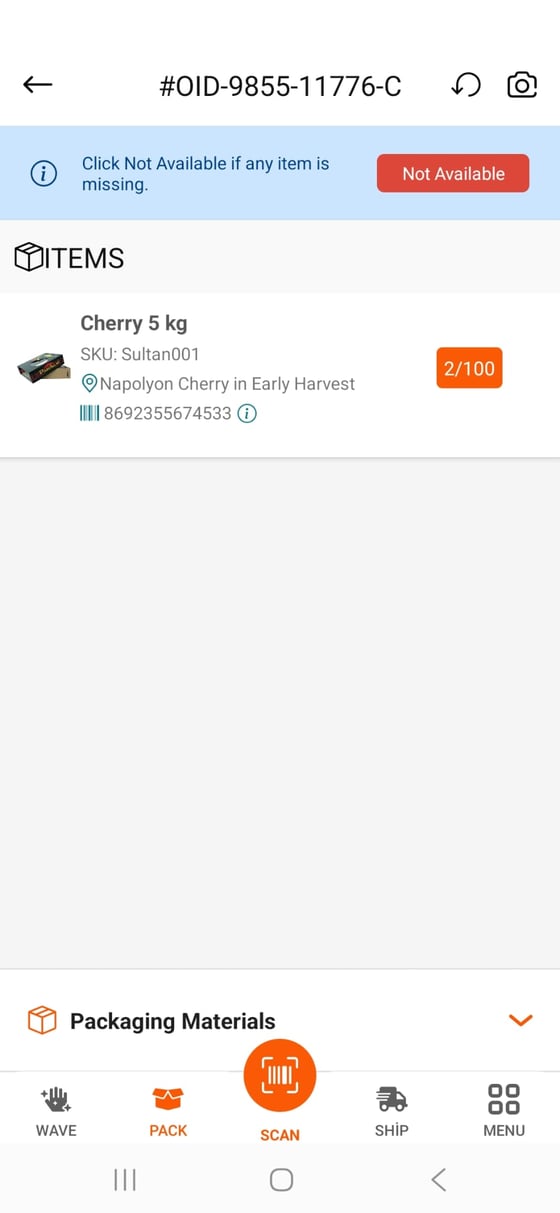
Fig. 2 — Each line carries the product photo, SKU, location and barcode, with a progress badge — here 2/100 — counting what is in the box against what the order needs.
Packing Pilot
Packing Pilot is the paperless version, at OTO PACK → Operations → Packing → Packing Pilot. Nothing is printed: orders are filtered, found and packed on screen.- Select a warehouse — required.
- Filter by Packing Station or Wave Number — optional.
- Scan an item — optional, and the clever part. Scanning a SKU or barcode finds the orders containing it and shows a match rate for each.
- Select the order from the filtered list.
- Pack it — scan the items, create the shipment, scan the AWB barcode, confirm.
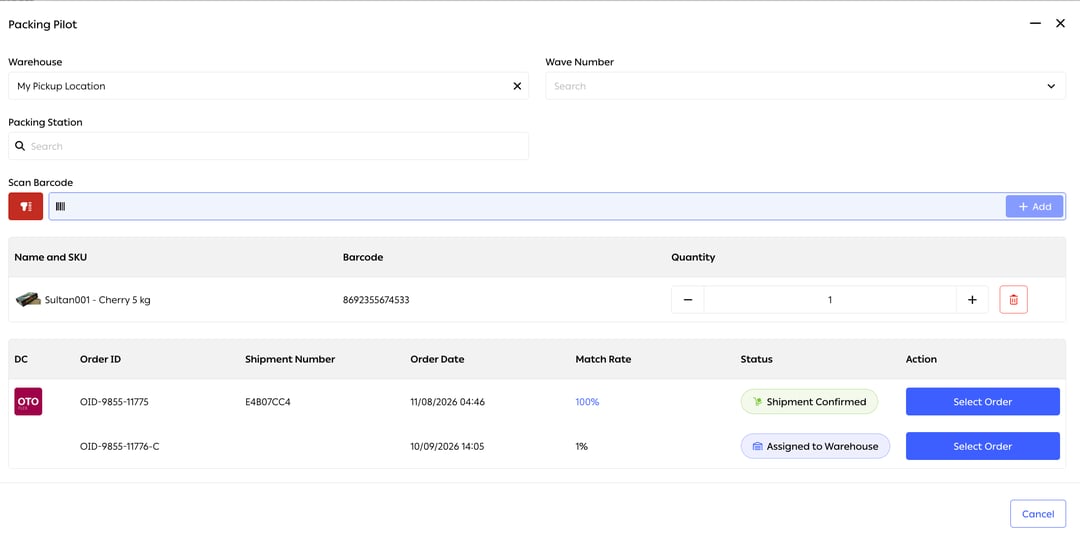
Fig. 3 — One item has been scanned. The order needing exactly that one item matches at 100%; the order needing a hundred of them matches at 1%.
Quick Pack
Packing without the item-by-item check: scan, get the AWB, done. It is the right call for single-item orders, or for goods where the pick is already verified and a second check adds time without adding certainty. A deliberate trade of assurance for speed — worth making knowingly, on a defined category, rather than by default.Inventory check during packing
Optional, and it exists for a specific problem: bin inventory drifting out of step because movements were recorded loosely. Checking at packing catches the discrepancy at the last point where the physical goods are in someone’s hands.Packaging materials
Boxes, mailers, filler and tape are tracked as stock like anything else, so running out is a thing you can see coming — the Packaging Materials Report at Performance → Reports → OTO PACK carries usage and stock levels for them. Box definitions themselves live at Settings → Management → Boxes and feed the volumetric weight used in shipping cost — choosing the right box is a cost decision, not only a packing one.Dispatch
Packed parcels leave in groups, and the group is the thing the warehouse manages at the end of the day. The Ship screen splits that into two views: Packages, the individual parcels, and Dispatching Units, the parcels gathered into what actually goes out of the door. A dispatching unit is built per delivery company. It carries a count of the orders inside it and a status, so the question “what is going out with this carrier today, and is it ready?” has a single answer rather than a headcount of the floor.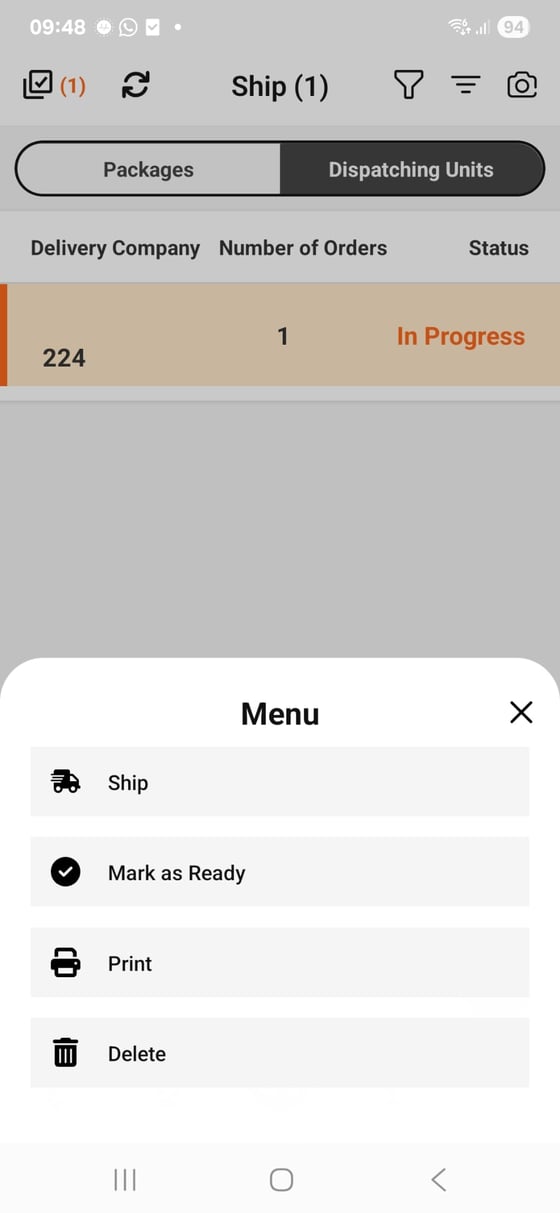
Fig. 4 — One unit, one order, In Progress — and the four things that can be done with it.
Why units matter at scaleBelow a certain volume, dispatch is a pile by the door. Above it, the pile is where parcels go missing and where a carrier dispute becomes unwinnable. A dispatching unit gives the handover a boundary, a count and a record — and because it is built per carrier, the boundary is the same one the driver is standing at.
Replenishing your own locations
Not every outbound goes to a customer. Stores get replenished from a warehouse, and that flow uses the same picking and packing machinery, dispatched as a transfer rather than a parcel. See Inter Depot Transfer for the order-side view.Related
- Picking methods — what arrives at the bench.
- Shipping & tracking — labels, manifests and pickup.