

Where to find it: OTO PACK → Operations → Wave Picking — Open in OTO ↗
The four strategies
OTO PACK supports four, and the right one depends on what your order profile looks like rather than on which is most sophisticated.Waves
A wave is a batch of picking work, and it is the unit the whole picking stage is organized around. Waves are visible at OTO PACK → Operations → Wave Picking.Creating waves
Three ways, in increasing order of leaving you alone: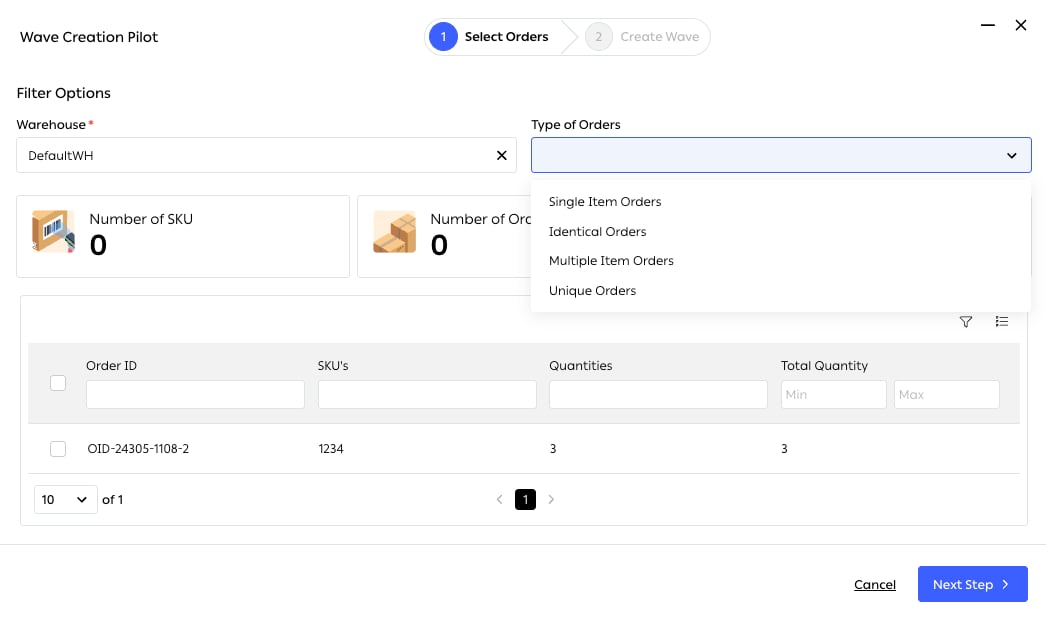
Fig. 1 — Pick a warehouse and a type of order; the counters above the list show how many SKUs and orders the filter has caught before you commit to a wave.
Order segregation — the four types
The pilot’s Type of Orders filter is where segregation actually happens. Four types, and each produces a materially different kind of picking round:
The list beneath shows each candidate order with its SKU’s, Quantities and Total Quantity, all filterable, so a wave can be trimmed by hand before it is created.
Wave size
Tunable in Advanced, and one of the few genuinely consequential numbers in a warehouse. Waves that are too small waste the walk; too large and the sorting stage becomes the bottleneck, and a single problem item holds up more orders.Assigning pickers
Two models, matching the two editions:
Zones can carry a default picker, so work in a zone routes to its owner automatically.
Sorting and consolidation
After a multi-order pick, items are separated into their orders at a sorting station. The app directs each item to its slot: scan the product and it tells you which bin it belongs in. As the screen puts it, “Scan the product you want to locate in sorting bins.” That direction is what makes the stage reliable. Sorting by eye against a printed list is exactly where a multi-order pick gives back what it saved.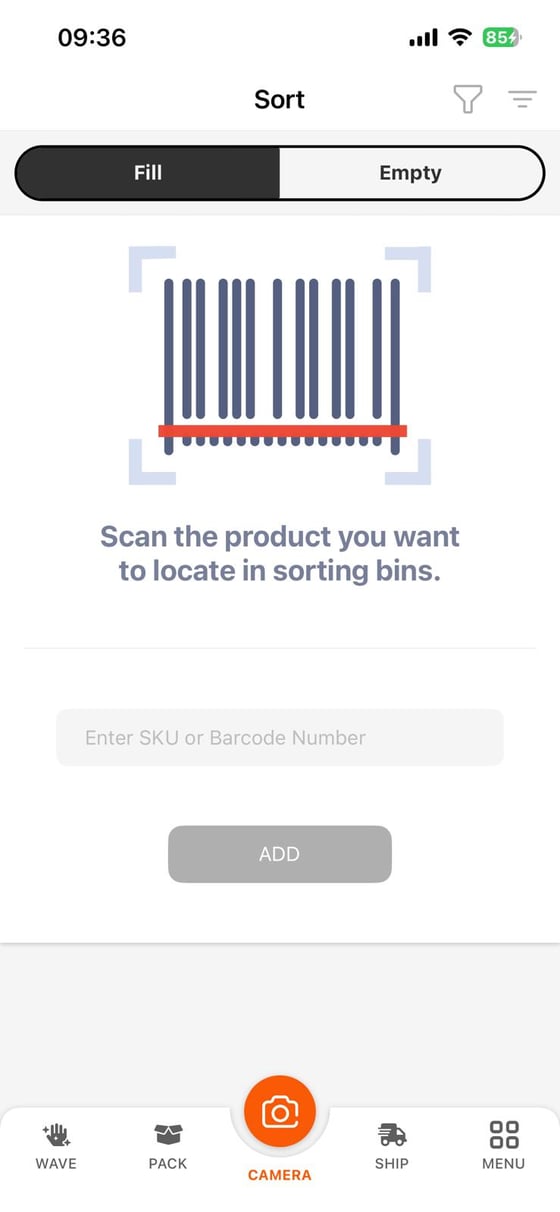
Fig. 2 — The Fill / Empty toggle is the whole stage in two words — filling bins from the pick, then emptying them into packing.
Either mode accepts a scan or a typed SKU or Barcode Number, so a damaged label does not stop the line.
Serial numbers
Where products are serialised, the serial number is validated during picking rather than at packing. Catching the wrong unit at the bin, rather than at the bench, avoids an unnecessary walk back — and for high-value or warranty-tracked goods it ties a specific unit to a specific order from the earliest possible moment. See Product configuration for how serialisation is set up.Picking an item
The ITEMS screen is where a picker spends the walk. It opens with one instruction — Scan bin location — because the first thing to establish is that the picker is standing at the right shelf, not that they are holding the right product.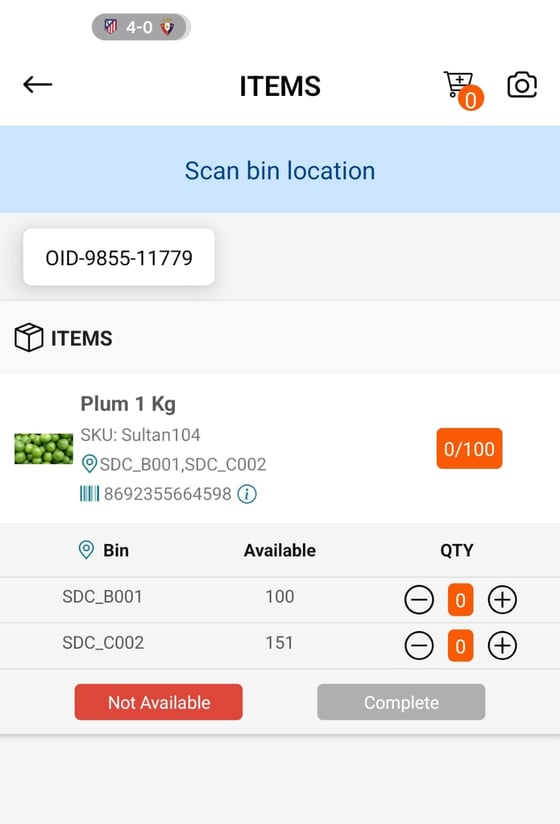
Fig. 3 — The same SKU is stocked in SDC_B001 and SDC_C002; the picker takes what they need from either and the app tracks progress against the required quantity.
One SKU, several bins
The bin table beneath is the part that matters on a real warehouse floor. It lists every bin holding the item with its Available quantity, and a separate QTY stepper per bin. So a picker needing 100 units, facing 100 in one bin and 151 in another, decides where to take them from — and records it. The system knows which bin was drawn down, not merely that the item left the building.When picking goes wrong
Stock that should be there sometimes is not. The screen offers Not Available alongside Complete, so a short pick is a first-class outcome rather than an error: the picker records what was actually found, and the order continues on that basis instead of stalling.Related
- Inbound and putaway — bins and zones, which decide how far anyone walks.
- Packing and dispatch — what happens to a completed wave.
- Hubs Management — picking method configured per hub.