

Where to find it: OTO PACK → Operations — Open in OTO ↗
The app
Native for iOS and Android, and built for the way a warehouse actually uses a phone: one task per screen, large targets, and a scanner ready at every step.Nine actions, one per job
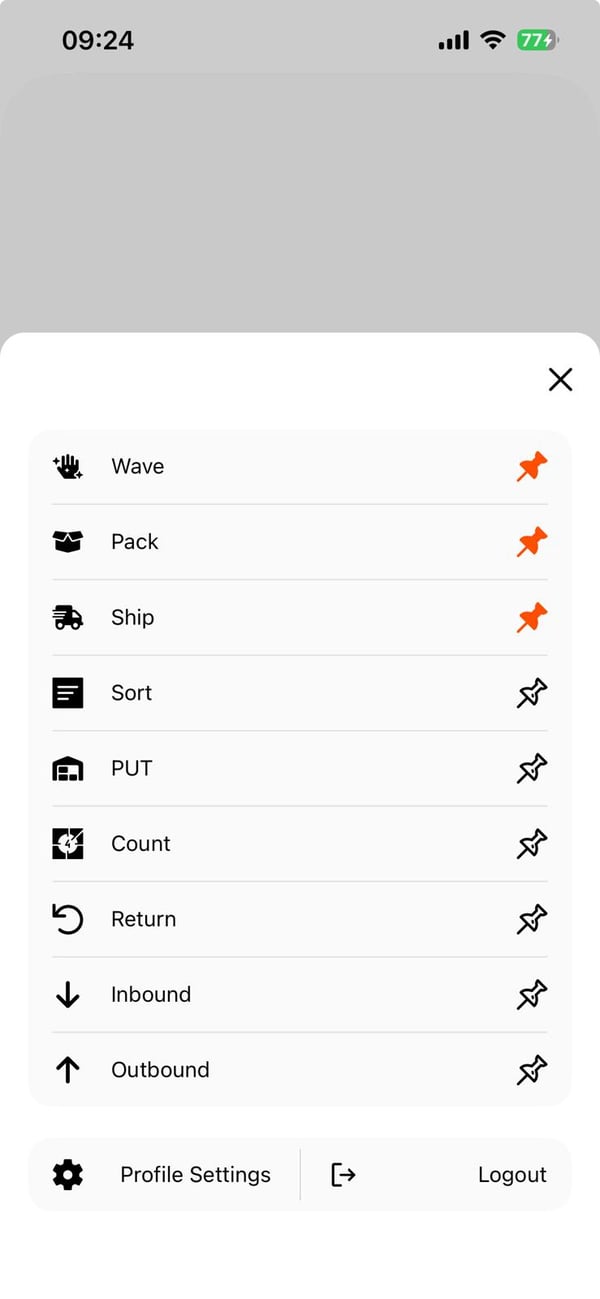
Fig. 1 — The menu in the order the app presents it. The orange pins mark the actions this user has pinned to the top.
Pinning builds the bottom bar
The pins beside each action are not just a reordering. Pinned actions become the tab bar at the bottom of every screen, alongside a permanent camera button and the menu itself. So a user who pins Wave, Pack and Ship gets exactly that bar — WAVE · PACK · CAMERA · SHIP · MENU — visible wherever they are in the app, and reaches their three jobs in one tap from anywhere. The menu also carries Profile Settings and Logout at its foot. Which actions a given user sees depends on the edition — Basic, Advanced or OTO INVENTORY — and on their role.Scanning
The scanner opens as a sheet over whatever you are doing, and reads either identifier the item carries: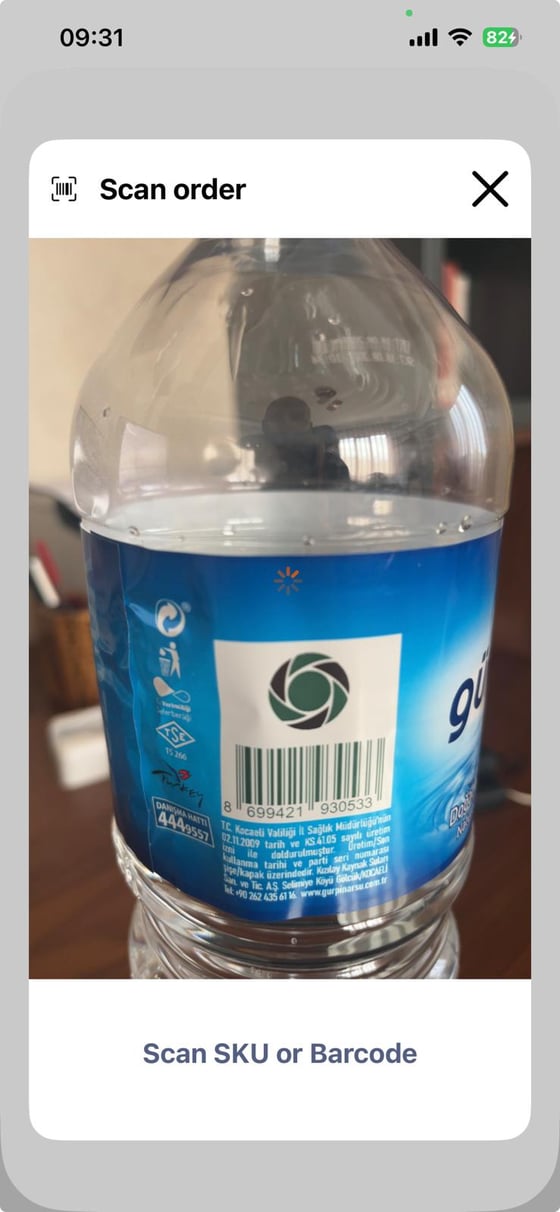
Fig. 2 — Scan SKU or Barcode — the scanner accepts either, so a warehouse-applied SKU label and a manufacturer’s barcode both work without the operator choosing a mode.
Manual entry can be enabled in OTO PACK settings for the cases where scanning genuinely is not possible — a damaged label, a product that never had a barcode.
The dashboard
The supervisor’s counterpart to the app. It sits as the OTO PACK tab alongside the platform’s other dashboards, and it opens by asking which warehouse you want — every number on it is scoped to one building, because a warehouse manager is answerable for one floor, not an average across five.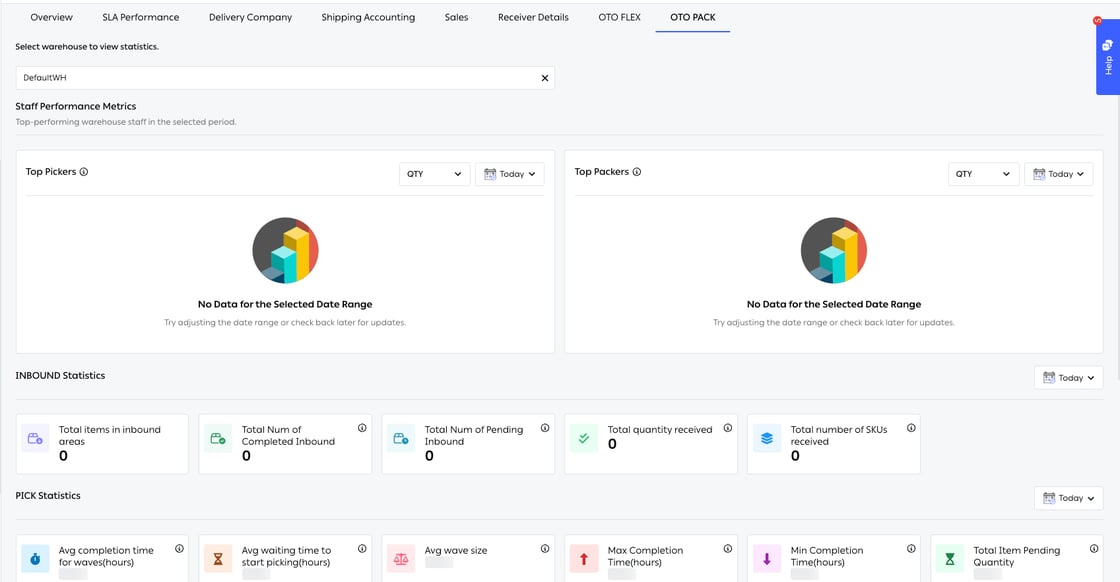
Fig. 3 — Staff leaderboards, then inbound, then picking — each block with its own date range.
Staff Performance Metrics
Top Pickers and Top Packers, side by side, each with its own measure and its own period. This is the number that tells a supervisor who is carrying the shift and who is stuck — and it is worth being deliberate about how it is used.INBOUND Statistics
PICK Statistics
See Analytics & Reporting for reporting that spans the operation rather than one warehouse.
Related
- Picking methods — the strategies the Pick and Wave pages carry out.
- Packing and dispatch — Pack, Ship and dispatch units.
- Inbound and putaway — Inbound, Put and Count.