

Where to find it: OTO FLEX → Orders → Processing Orders — Open in OTO ↗
Completing a delivery
Scan and deliver
The driver scans the parcel at the door and marks it delivered. The scan is what stops the wrong parcel being handed over on a multi-stop route.Proof of delivery
Proof of Delivery offers four options — twice as many as pickup, because at the door there is a counterparty whose identity can be verified.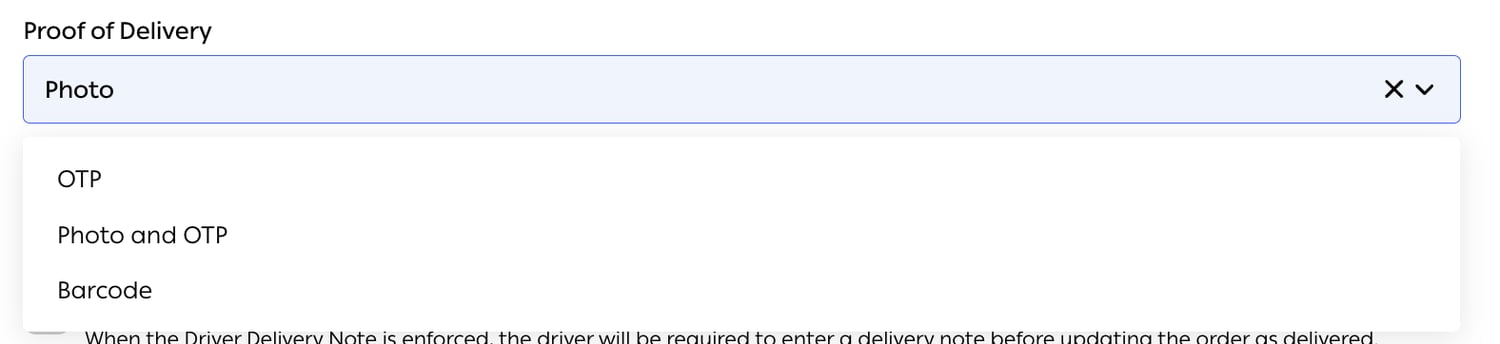
Fig. 1 — OTP and Photo and OTP exist only on the delivery side. Pickup offers Photo and Barcode alone.
Talking to the customer
Call or text from the app
The driver contacts the customer from within the app, without the customer’s number being exposed as a phone number they keep.Predefined messages
OTO FLEX → Configuration → Predefined Messages holds the templates a driver can send with one tap — on my way, five minutes away, unable to reach you. The product describes the mechanism precisely:“Create messages for drivers to send via WhatsApp in OTO Flex. Drivers can select a message from a dropdown within an order, and WhatsApp will open with the chosen message ready to send.”Each template takes a Title — what the driver sees in the dropdown — and a Message of up to 4,096 characters. Sort Rules orders the dropdown, so the message used forty times a day sits at the top rather than wherever it happened to be created.
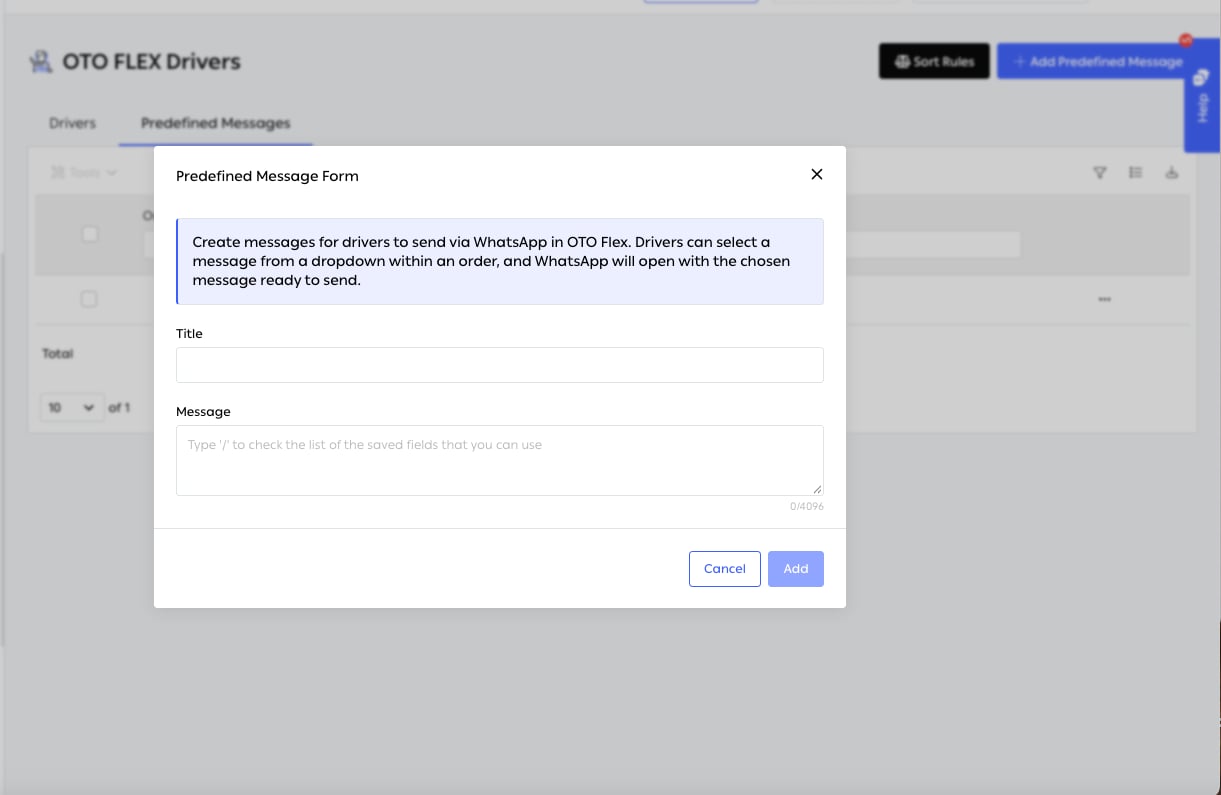
Fig. 2 — The placeholder is the feature worth noticing: “Type ‘/’ to check the list of the saved fields that you can use.”
It opens WhatsApp, it does not sendThe driver picks a template and WhatsApp opens with the text ready. The driver still presses send, and can edit first — which keeps a person in the loop and makes the template a starting point rather than an automation. Worth knowing when you write them.
Contact restricted outside the delivery window
Drivers are blocked from contacting a customer outside a predefined range. It protects customers from calls at inconvenient hours and protects the merchant from a driver using order contacts for anything other than the delivery.Live tracking for the customer
The customer follows the delivery on a map in real time. This is the most visible benefit of running a fleet: it is the experience people associate with food delivery, and it is rarely available on a carrier shipment.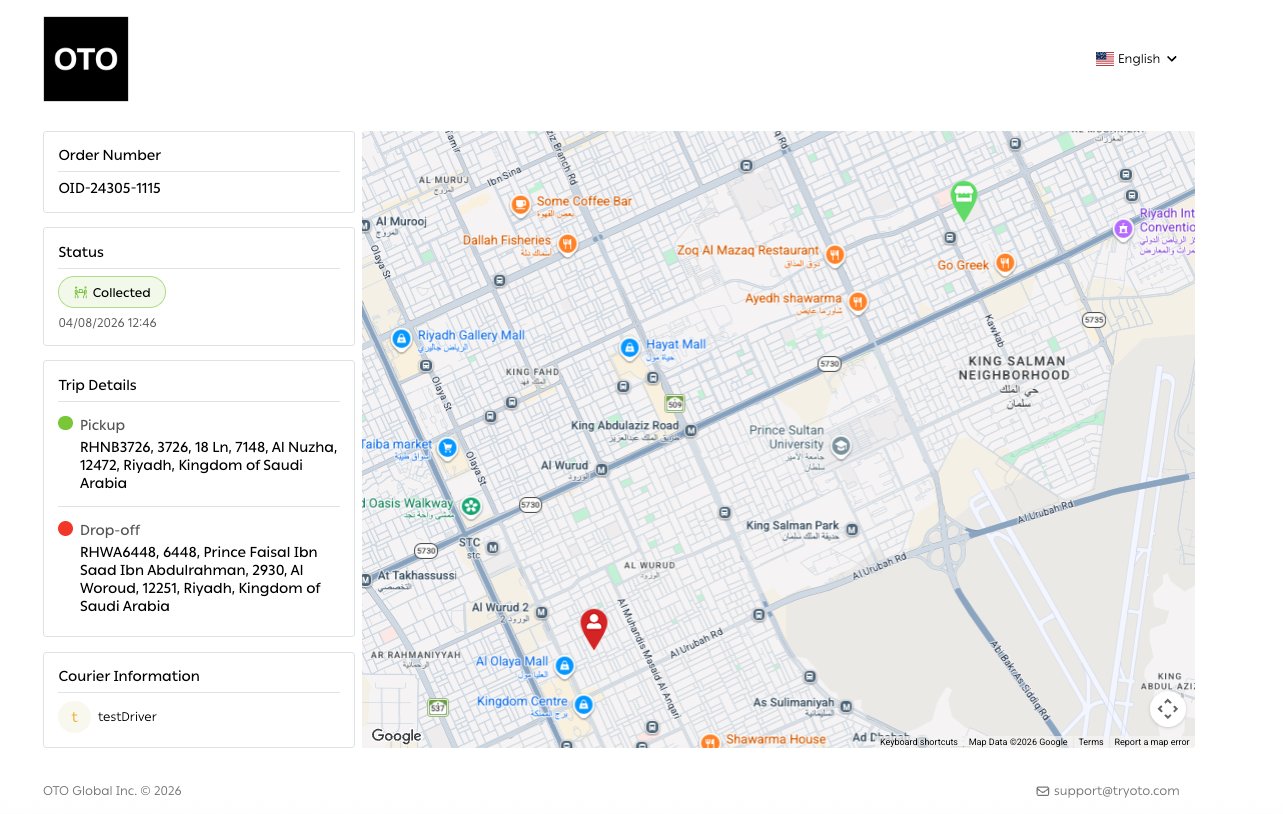
Fig. 3 — Order number, current status with its timestamp, both ends of the trip, and the driver — on one page, with a language selector.
The page carries your notification branding and shows the Fleet Name set in fleet settings rather than a carrier’s, so a merchant delivering with their own riders presents it as their own service.
When delivery fails
Custom failure reasons
Failure reasons are defined by you, in Settings → Advanced → Reason Settings — the same list that governs hold reasons. Structured reasons rather than free text are what make failure reportable: customer not home and address not found call for completely different fixes, and you cannot tell them apart in a text field.Multiple warehouse or terminal visits
An order can pass through more than one facility on its way — a hub, then a local terminal, then the customer — with each visit tracked as part of one order’s journey rather than as separate shipments.Reverse shipments
Drivers collect from customers as well as delivering to them, so a return is a fleet task like any other. It can be a collection on its own or picked up on the same visit as a delivery, which is the efficiency an exchange depends on. See Returns receiving for what happens next.Route optimization
Up to 20 orders can be optimized in one request, using the Google API key configured in fleet settings. Larger rounds are planned in batches — see Planning.Related
- Customer Notification — the tracking page, the feedback page and the failed-delivery page.
- Return Management — what a collected return becomes.
- Fleet management — driver performance, measured on these outcomes.