

Where to find it: OTO FLEX → Orders — Open in OTO ↗
The dispatch board
OTO FLEX → Orders is the working screen, in three tabs that map to the life of an order:
Each list carries Order ID, Order Date, Status, Pickup Location, Customer Name, Customer Address, District, Region, Shipment Number and Delivery Company, all filterable, with a date range applied by default.
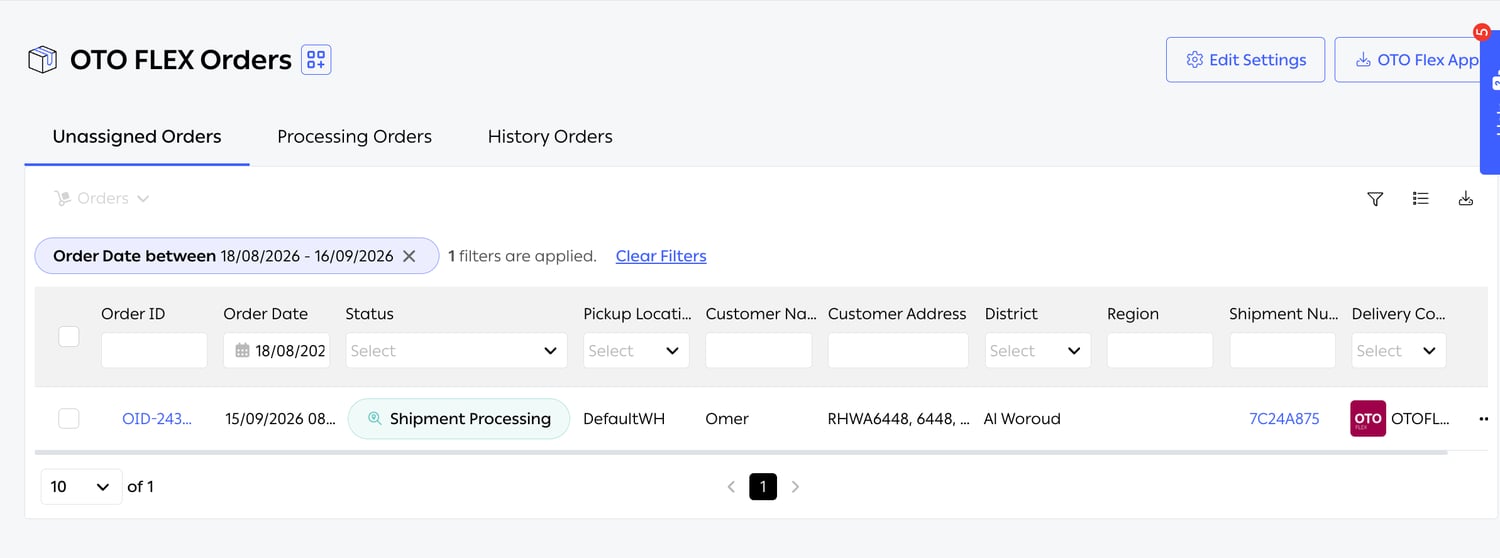
Fig. 1 — An order awaiting a driver. Note the Delivery Company column: the fleet appears there as a delivery company like any carrier — the same idea that lets it compete in shipping automation.
Fleet settings
Edit Settings opens the configuration that governs the whole fleet.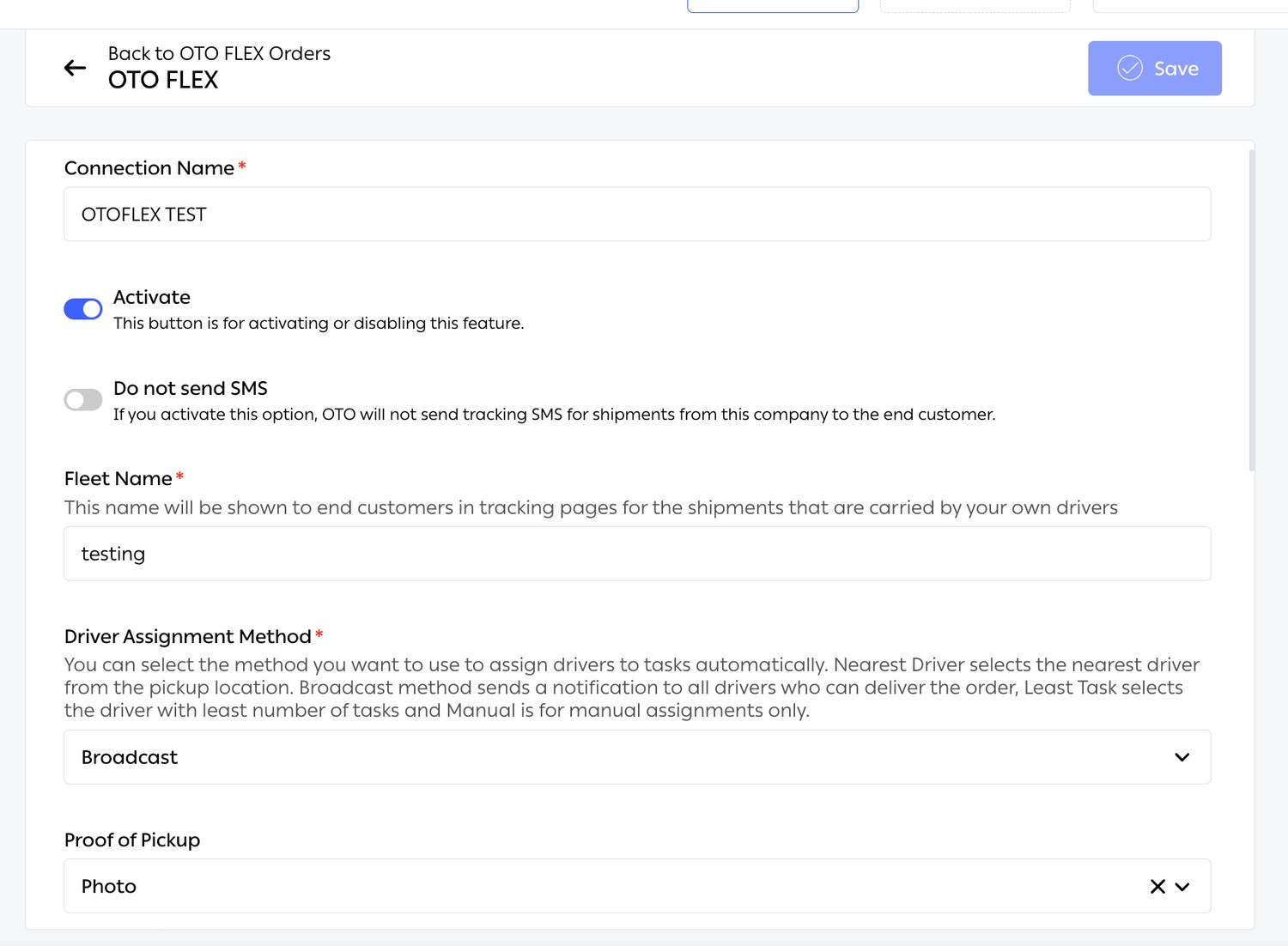
Fig. 2 — Every field carries its own explanation. Fleet Name is described exactly as it behaves: “This name will be shown to end customers in tracking pages for the shipments that are carried by your own drivers.”
Driver assignment
Assignment is automatic, and the method is chosen once for the fleet. Five methods are available.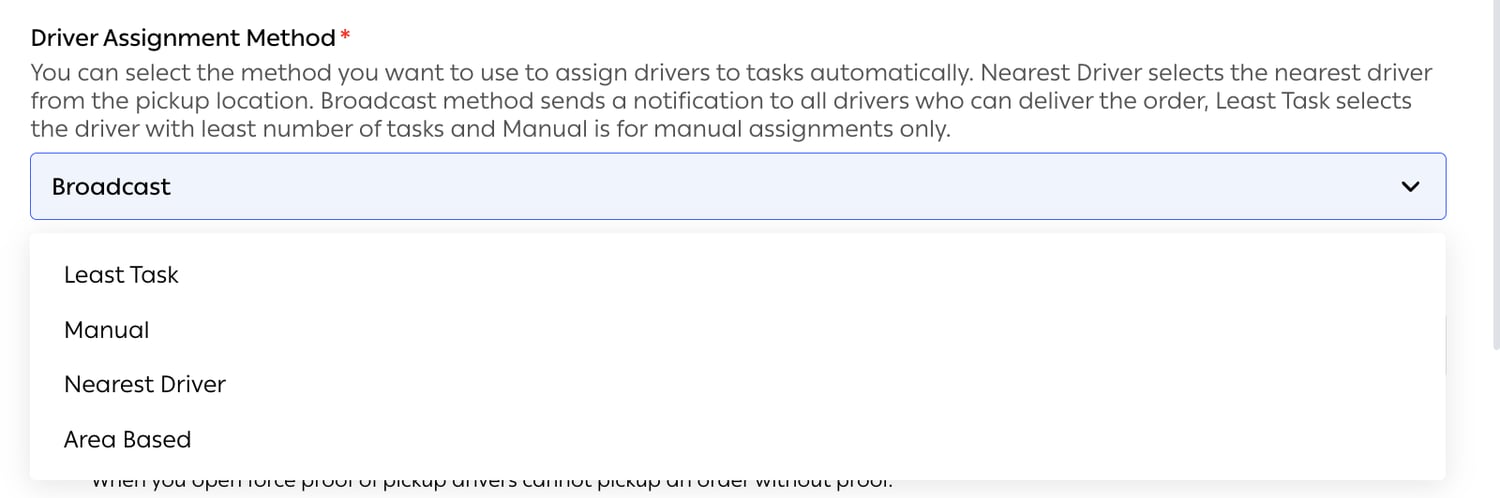
Fig. 3 — Five options — Broadcast is selected, and the list offers Least Task, Manual, Nearest Driver and Area Based. The helper text above explains only four of them.
“You can select the method you want to use to assign drivers to tasks automatically. Nearest Driver selects the nearest driver from the pickup location. Broadcast method sends a notification to all drivers who can deliver the order, Least Task selects the driver with least number of tasks and Manual is for manual assignments only.”
Area Based and the Areas you have drawnThe helper text on this screen explains the first four methods. Area Based works from the Areas configured in Fleet management — the polygons that carry an OTO Flex Drivers list, a per-area capacity and a priority for resolving overlaps — so it is the method to use when your fleet is organized into territories rather than chasing whatever is nearest.
Routes
Building and optimizing
Orders are grouped into a route, the route is optimized against real traffic data rather than straight-line distance, and it can be simulated before a driver is committed to it. Simulation is what makes route planning safe to change: you can see what a different grouping would have done. Optimization runs across multiple drivers at once, not one driver at a time — which is the only way to get a sensible answer, since the best route for one driver is often a worse day for the fleet.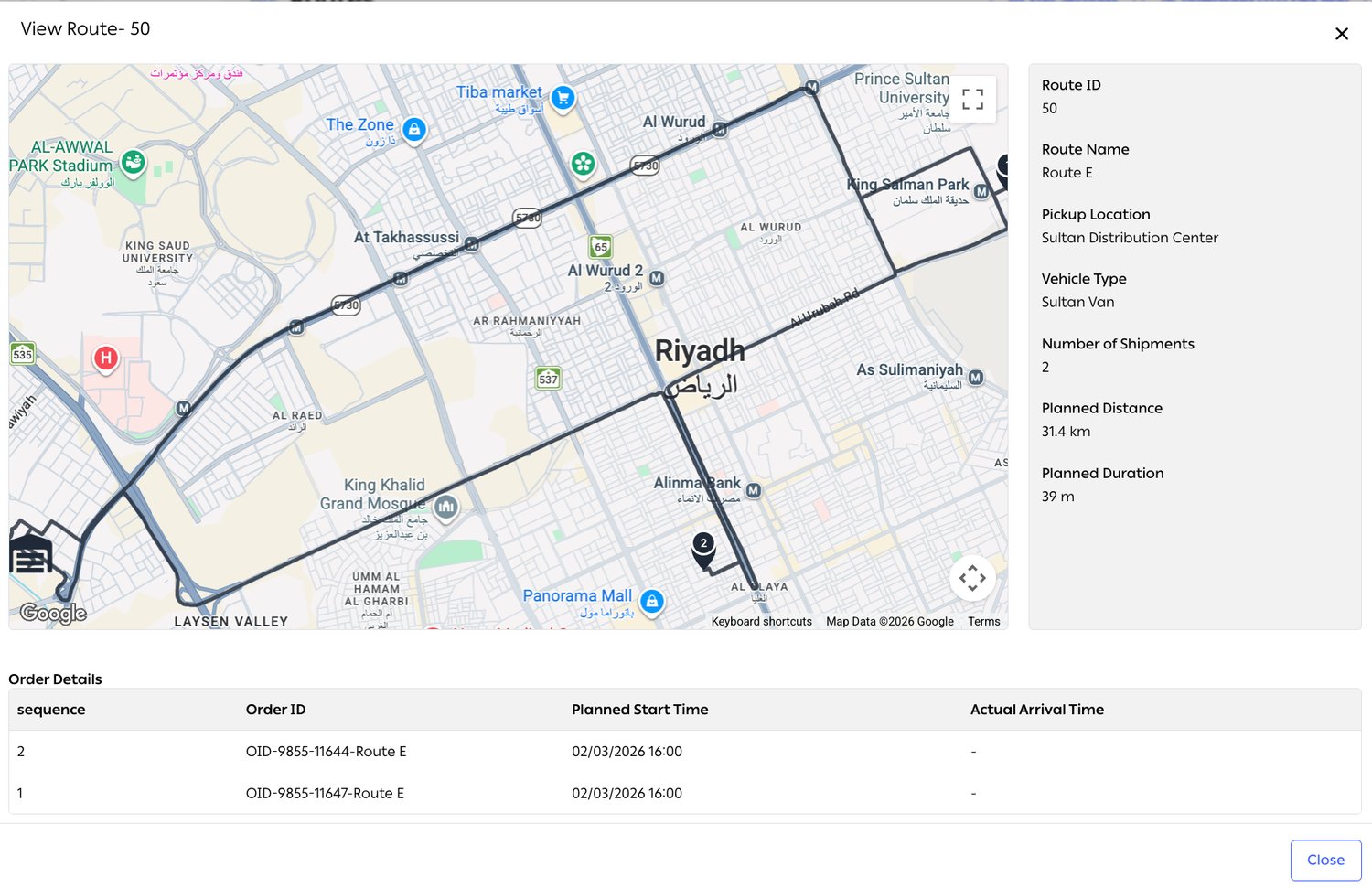
Fig. 4 — The route drawn on the map, its summary on the right, and its stops in sequence below.
Twenty stops at a timeRoute optimization handles up to 20 orders in one request, a limit inherited from the Google routing API. A driver with more than twenty stops is planned in batches. Worth knowing before promising a fifty-stop round.
What a route records
Opening a route gives its summary and its stop list:
Beneath it, Order Details lists every stop by sequence, with its Order ID, its Planned Start Time and its Actual Arrival Time.
Planned against actual
That last pair is the most useful thing on the screen. Every route carries what was planned — distance, duration, a start time per stop — alongside what actually happened, arrival by arrival. The same record is what driver performance is measured from, and it is why the Actual Arrival Time column is worth protecting — it only fills in if drivers are completing stops in the app rather than afterwards from memory.Scheduled orders
Orders with a delivery slot are planned into the slot rather than dispatched on arrival, so the route respects the window the customer was given. This is the fleet counterpart of the scheduled shipment creation described in Shipping & tracking.Fleet versus carriers
The decision of whether an order goes to your own driver or to a carrier is made in shipping automation, where the fleet is a delivery company like any other. Feasibility conditions such as Driver Available, Driver Task, If destination is in these Areas and Driving Distance are what express the boundary in practice: use the fleet inside the ring road when someone is free, use a carrier otherwise.Service orders
Not every visit is a parcel drop. Service orders cover installation, assembly, maintenance and collection visits, with multiple service types, dynamic service times — a thirty-minute installation is not a two-minute handover, and the route has to know — and service requirements such as tools, a second person, or a particular skill.Delivery slot capacity
Slot capacity caps how many deliveries a slot will accept, so the promise made at checkout is one the fleet can actually keep. Area capacity and driver capacity constrain the same day from two other directions; a slot that looks open but sits in a saturated area will still not be servable.Related
- Fleet management — the drivers, areas and capacities this reads.
- Pickup — what happens once a route is assigned.
- Shipping automation — fleet versus carrier.