

Where to find it: Settings → Return Settings → Return Portal — Open in OTO ↗
The branded return portal
A page of yours, on your brand, where a customer looks up their order and asks to send something back. It is configured at Settings → Return Settings → Return Portal, per brand. Two things are set on the brand first, at Settings → Account → Brands: the Portal URL — the link you put on your website and in your support replies — and the Return Policy URL, so the rules are one click from the request.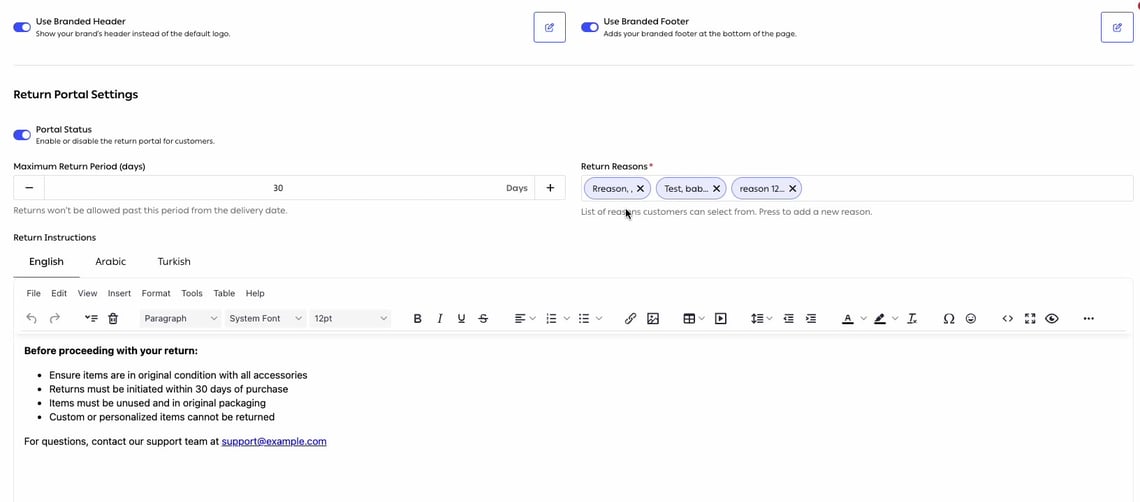
Fig. 1 — The return period, the reasons list, and instructions written once per language — English, Arabic and Turkish as tabs on the same editor.
The policy
How the item comes back
Allowed Return Methods is a required choice of one or more, each with the product’s own description:What they get back
Refund Options is a required multi-select of Money Back, Exchange and Store Credit — a refund to the original method, a different item instead, or the value kept with you to spend again.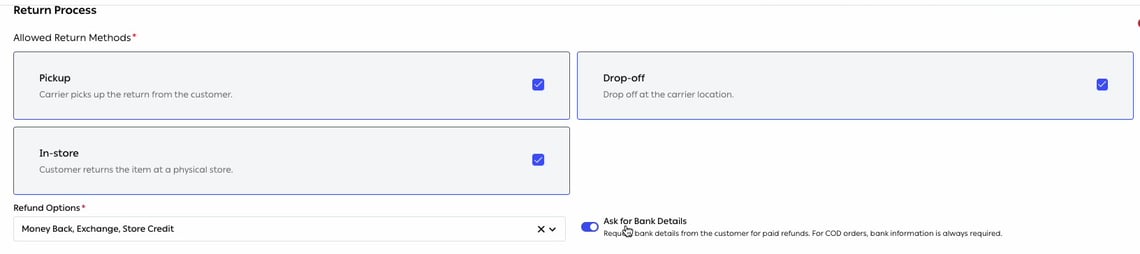
Fig. 2 — Three methods, three resolutions, and the switch that decides whether the customer is asked how to pay them.
Paying a cash customer back
Beside the refund options sits Ask for Bank Details: “Request bank details from the customer for paid refunds. For COD orders, bank information is always required.”Making it look like yours
The portal carries the same customisation as the other branded pages: Use Branded Header and Use Branded Footer, advertisement banners and Instagram posts, and an Advanced Settings section for background, button and text colours. A live Preview renders it in Mobile and Desktop before you press Update.Returns in store
A customer who bought online and lives near one of your shops would usually rather walk in than wait for a carrier. Enabling In-Store lets them, and asks them to pick the branch — so the shop knows it is coming rather than being surprised by it.The cheapest reverse logistics is the customer’s own journeyAn in-store return costs no collection, no label and no transit time, and it puts the item back in a location that can sell it. It also puts the customer in a shop, which is the one return outcome with an upside.It only works if the branch is prepared: the return still has to be received and confirmed against the request, exactly as a warehouse would — see Returns receiving.
Approval
A submitted request lands on the In Progress tab of Shipping → Returns, where it is approved or rejected. The customer hears either way, automatically, if the return messages are configured — Return Request Created, Return Request Approved and Return Request Rejected exist on SMS, WhatsApp and email. The Returns list is built for triage. Alongside Order ID and Customer Name it carries Request Date, Status, Return TO, Shipment Number, Delivery Company, Return Method, Return Type, Customer Return Reason and Return Approval — all filterable, with a Tags column for the labels your team adds.Raising one yourself
When a customer reaches you another way, a return can be started from Shipping → Shipments → Delivered: select the order, Return, then Create Return Order. The form takes return reason comments and attachments, a Refund Method — Money Back, Exchange or Store Credit — and a Return Method of home pickup or drop-off, then Confirm Return Request. It joins the same queue as a portal request, and from there the two are indistinguishable.Exchanges and store credit
An exchange is a return and a new order in one transaction, and it is the outcome worth designing for: the customer keeps their money with you, you keep the sale, and the item that comes back is usually resellable because the reason was fit rather than fault. Store credit does the same for the cases where an exchange will not do — the customer does not want a different size, they want to choose again later.Related
- Returns receiving — what happens when the parcel arrives.
- Return automation — enforcing the policy without reading every request.
- Branded pages — the same customisation, on the other pages.