

Where to find it: Main → Integrations → Sales Channels — Open in OTO ↗
What it does
When stock changes for any reason — a sale on one channel, a return, a receipt, a count correction — OTO calculates the new availability and pushes it out to every connected channel. The merchant does not update anything anywhere. Synchronization is available for Salla, Zid, Shopify, WooCommerce and Magento.Setting it up
Sync is configured per channel, at Integrations → Sales Channels → the channel’s ⋯ menu → Inventory Sync Settings.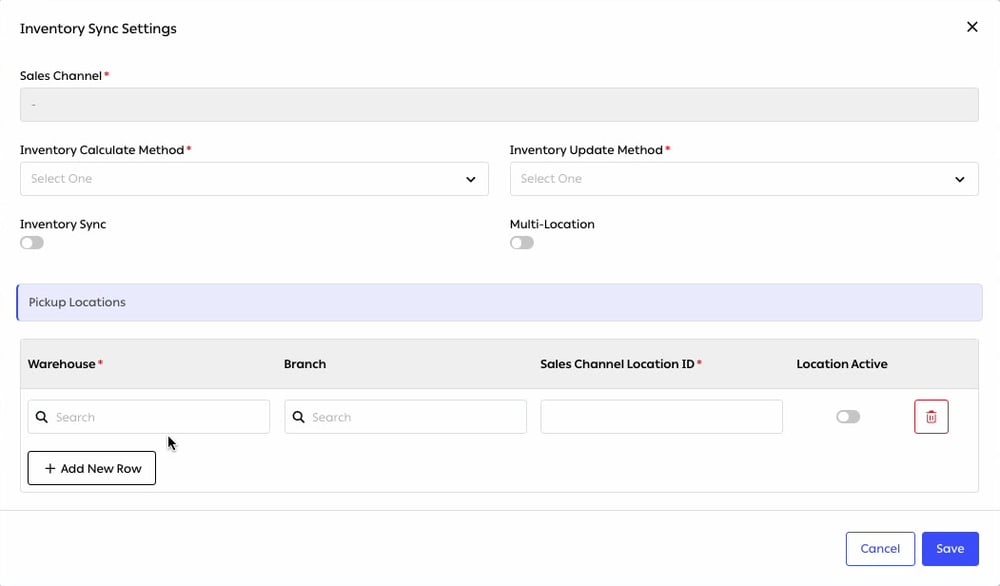
Fig. 1 — One form per channel: what number to send, how often to send it, whether to send it at all, and which of your locations maps to which of theirs.
Inventory Calculate Method — what number to send
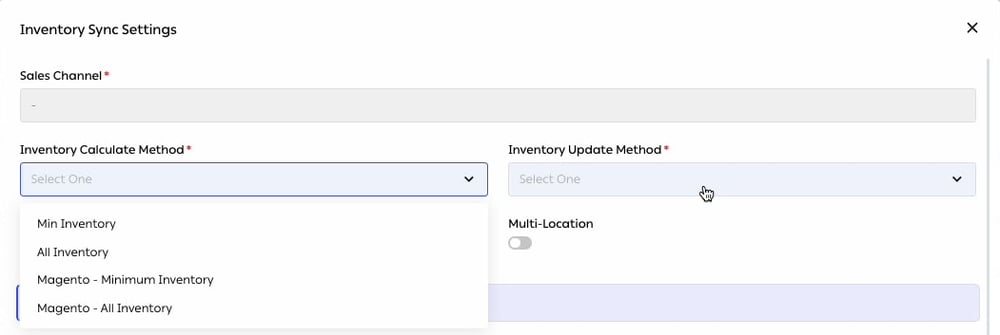
Fig. 2 — Two methods, each with a Magento-specific variant.
Min Inventory is where the figure from inventory tracking earns its keep: the buffer you set per SKU is held back from what the storefront sees, so the last few units exist only for you.
Why Magento has its own entriesMagento models stock differently from the other platforms, so the same intention — send everything, or hold back the safety buffer — has to be expressed to it in its own terms. The choice you are making is still one of the two; the Magento rows simply exist so that the integration does not have to guess.
Inventory Update Method — how often to send it
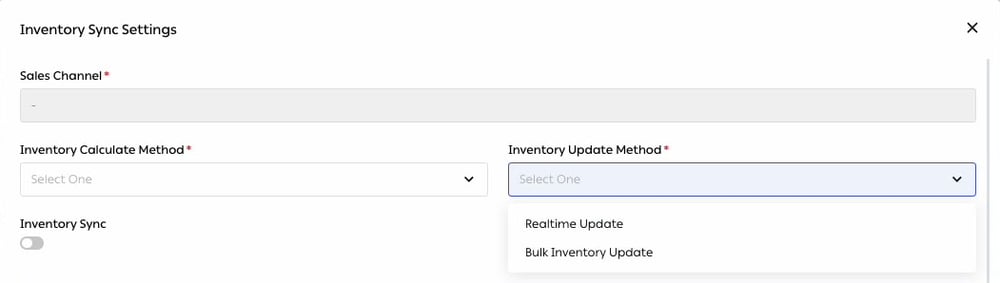
Fig. 3 — Push each change as it happens, or batch them.
Multi-location and pickup locations
If you hold stock in more than one warehouse or branch, enable Multi-Location and fill in the Pickup Locations table beneath it. One row per location, added with Add New Row:
This mapping is what makes a location-aware storefront work properly. Without it, a channel that offers pickup or per-store availability has no way to know which of your buildings its stock figure refers to — so it either shows a single pooled number, or it shows the wrong one per store.
Checking that it worked
Sync activity is logged at Settings → Logs → System Logs, on the Inventory Sync Logs tab — one of six log tabs alongside shipment errors, webhook errors, pickup requests, product sync and route automation.
Fig. 4 — Every column filters, which is what makes this usable as an investigation tool rather than a wall of entries.
A failed sync is a silent problem — the channel keeps selling against the last number it was given — so this log is worth a scheduled look rather than a look when something goes wrong.
Catalog comparison
Stock sync only works for products the two systems agree exist. Synchronize Products, on the Products page, pulls product information from your connected channels so that SKUs, names and prices line up on both sides. This is the unglamorous prerequisite for everything else on this page. A SKU that is listed on a channel but absent from OTO gets no stock updates at all, and it will go on selling from whatever number it had when it was set up. Comparing the catalogs is how you find those before a customer does.Related
- Sales Channels — connecting the channels in the first place.
- Inventory tracking — where the number comes from.
- Product configuration — the catalog that sync depends on.