

Where to find it: OTO PACK → Operations → Inbound — Open in OTO ↗
Inventory orders
An inventory order is the instrument for a deliberate change in stock — as opposed to the automatic changes a sale or a return produces. They come in two directions, and both are created from OTO PACK → Operations with Add Inventory Order.
Completing an inventory order updates Quantity on Hand and recalculates Quantity Available automatically, and with bin tracking it updates the affected bins at the same time. Nothing needs a second entry anywhere.
The line items across all of them are reportable in their own right: Inventory Order Items, at Performance → Reports → OTO PACK, lists what was actually on each receipt and dispatch rather than the orders that carried them.
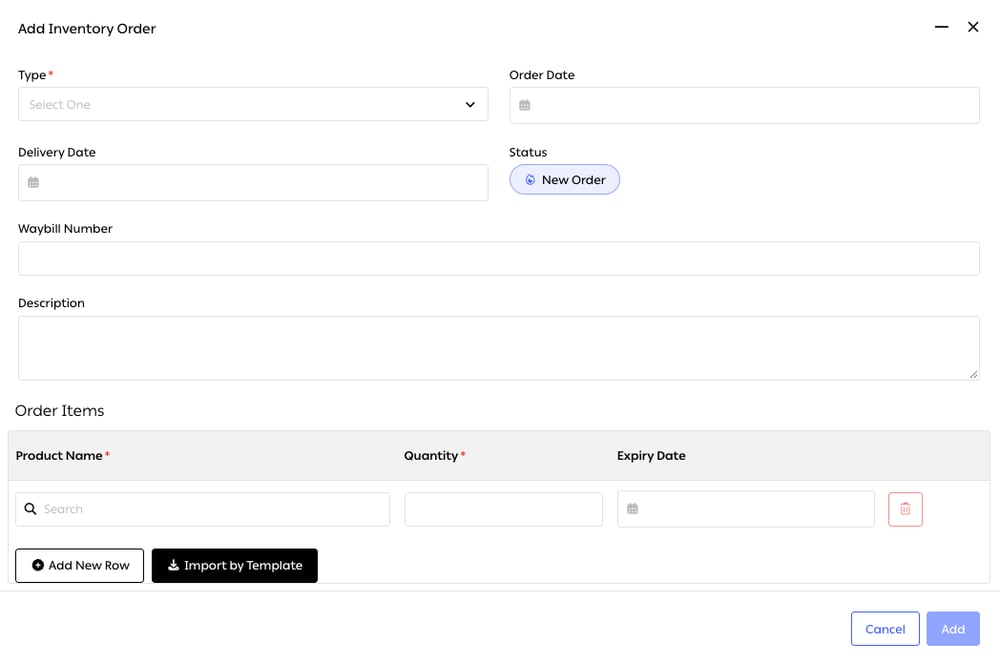
Fig. 1 — Type is the only required field above the items, and it comes first — it is what decides whether this movement adds stock or removes it.
Order Items
Three columns per line: Product Name and Quantity, both required, and Expiry Date. Lines are added one at a time with Add New Row, or in bulk with Import by Template for a large receipt.The inbound list
The Inbound tab of Operations carries one row per expected receipt, with every column filterable:
Fig. 2 — One row per expected receipt, every column filterable, with the status carried as a chip on the right.
Receiving against what was expected
The value of receiving in a system rather than on a clipboard is the comparison: what the supplier said they sent, against what is actually on the pallet. A goods receive note is that comparison written down and agreed — the document that turns “we think two cases were short” into a claim you can make. Receiving itself happens in the OTO PACK app on the Inbound page, as a scan against the expected lines. Catching a short or wrong delivery there, while the driver is still in the yard, is worth considerably more than catching it in a count three weeks later.Gate entry
For operations that need it, arrival is logged at the gate before goods reach the receiving bay — vehicle, supplier, time in. It separates two facts that are otherwise conflated: that a delivery arrived, and that it was accepted. On a busy yard, that separation is what lets you answer where a delivery got to when it never made it as far as the dock.Transfers between locations
Moving stock from one of your locations to another is an outbound order at one end and an inbound at the other, which is what keeps both sets of books right while the goods are in transit — the stock has left one location and has not yet arrived at the other, and the system says so rather than double-counting it. Order-driven transfers between depots are covered in Order fulfillment.Thresholds, alerts and replenishment
A threshold turns inventory from something you check into something that tells you. Min Inventory is set per SKU per location; when stock falls to it, that is the signal to reorder from a vendor or to pull from reserve. Inside a warehouse, the same idea runs at bin level: when a pick-face bin runs low, replenishment proposes moving stock from the reserve behind it, so picking does not stop at an empty shelf while a full pallet sits two aisles away. The Bin Replenishment Report — at Performance → Reports → OTO PACK — exists to answer how much, in the product’s words “to smartly decide how much to replenish in your Put & Pick bins.” See Inbound and putaway.Two different replenishmentsReplenishing a bin moves stock you already own from one place in the building to another — it changes nothing at all about how much you have. Replenishing a location means buying or transferring more. Both are triggered by a low number, and confusing them is how a warehouse ends up ordering stock it is standing next to.
Related
- Inbound and putaway — the physical receiving and shelving.
- Inventory tracking — what the receipt changes.