

Where to find it: Main → Integrations → Sales Channels — Open in OTO ↗
Connecting a channel
Open Integrations → Sales Channels, search the All Channels catalog, and press Explore Channel. From there, connection takes one of two shapes depending on the platform.The connected channels list
The Connected Channels tab lists what you have. Each entry carries the channel, the store name it is connected to, an Active / Inactive badge, a switch to enable or disable it, and a settings menu. A Show active only filter hides the rest. Disabling a channel rather than removing it stops the traffic while keeping the credentials and the mapping — the right move for a store you are pausing rather than leaving.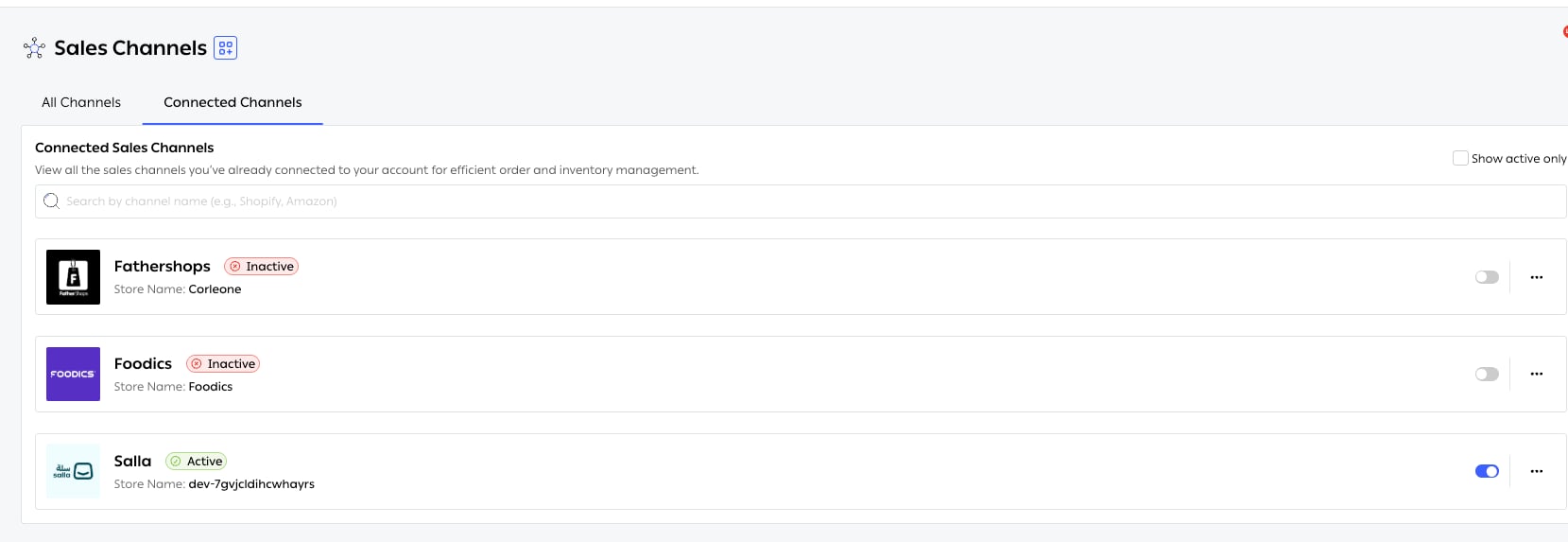
Fig. 1 — Each row is one store. The badge reports the connection; the switch controls it.
The per-channel settings menu
Everything that governs one connection sits behind the … menu on its card.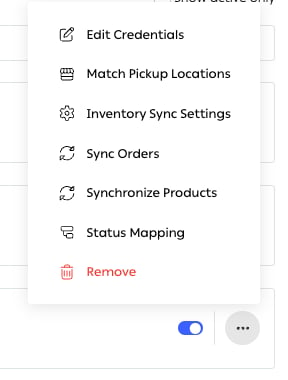
Fig. 2 — Seven items, and everything that governs one connection is among them.
Stock per hub, not per account
A single stock number for the whole business is fine until you have two places to ship from. After that it is actively misleading: it tells the storefront you have twelve of something without saying that eleven are in the wrong city. Each channel’s Inventory Sync Settings carries a Multi-Location switch. With it on, a Pickup Locations table maps each of your warehouses and branches to the corresponding location on the channel by its Sales Channel Location ID, with a Location Active switch per row. The mechanics of calculation methods, update methods and sync logs are covered in Inventory sync.When something does not arrive
Sync is continuous; the manual controls exist for when it has missed something.
Single-order sync refreshes status only. It does not overwrite existing order data and it sends no customer notification.
Treat a manual sync as a symptomThese controls are repair tools. Reaching for them once is routine; reaching for them daily means something upstream is failing — expired credentials, a changed API key, a product that does not exist on one side.Settings → System Logs carries Inventory Sync Logs and Product Sync Logs, both with an error column. That is where the cause is, rather than in the sync button.
Related
- Order sync — what an arriving order goes through.
- Inventory sync — calculation methods and sync logs.
- Product configuration — per-product, per-channel overrides.